 Read Frog
Custom AI Actions
Create reusable AI actions for selected text, such as dictionary lookup, rewriting, summaries, and structured reading
Overview
Custom AI Actions turn a prompt into a small tool that you can run again and again.
The core idea is simple. After you select text, Read Frog sends that text to AI with a fixed setup.
Each action has:
- an LLM provider
- prompts
- output fields
This is different from a normal chat box. The result is more stable. It works well for repeated reading tasks, such as dictionary lookup, explanation, rewriting, and summaries.
Before you use this feature, make sure you have enabled at least one LLM provider that supports structured output and can connect successfully. If you are not sure whether your model supports structured output, check AI SDK Model Capabilities or the model provider's official docs.
Built-in AI Actions
The current version includes three templates:
- Dictionary: look up a word and return the term, phonetic, part of speech, definition, paragraph text, paragraph translation, and CEFR difficulty
- Improve Writing: analyze writing problems and return an improved version
- Blank: start from scratch
Notes:
- The Custom AI Actions page already includes a default Dictionary action. You can study it to learn how prompts and output fields are designed.
- If you want a writing helper, click Add AI Action and choose Improve Writing.
Learn from the Built-in Dictionary
If this is your first time using the feature, start with the built-in dictionary.
- Set up and enable an LLM provider for reading tasks.
- Open Custom AI Actions and make sure Dictionary is enabled.
- If its provider is not available, switch it to an enabled LLM provider.
- Go back to any webpage and select a word or a short phrase.
- Click the dictionary icon in the selection toolbar.
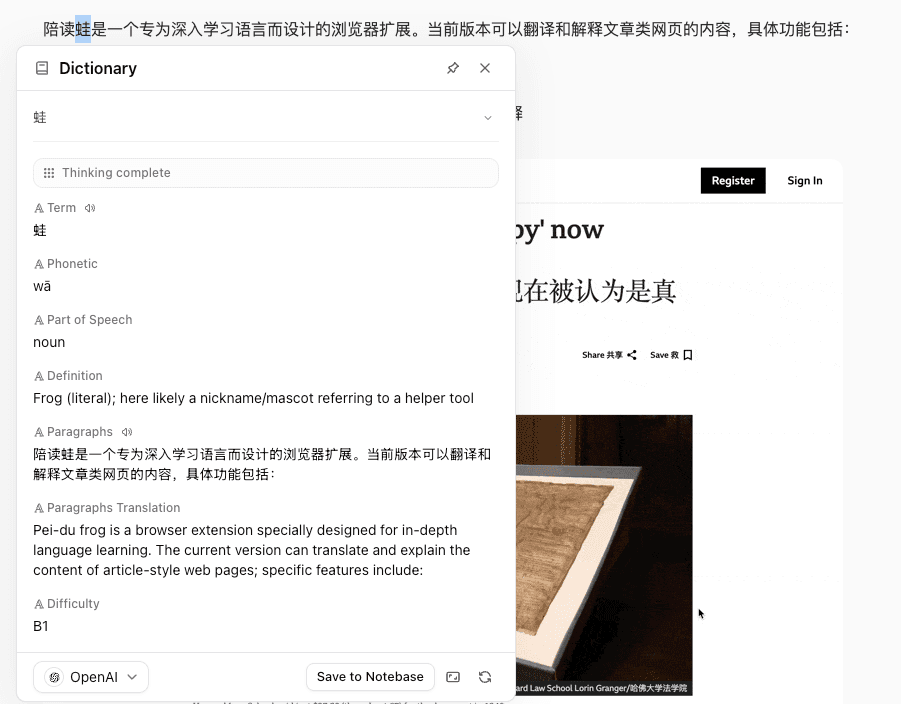
You will see structured results like these:
- Term
- Phonetic
- Part of Speech
- Definition
- Paragraphs
- Paragraphs Translation
- Difficulty
Customize Your Own AI Action
- Open Read Frog settings.
- Go to Custom AI Actions.
- Click Add AI Action.
- Choose a template: Dictionary, Improve Writing, or Blank.
- Fill in the required fields.
- Keep the action enabled so it appears in the selection toolbar.
The editor supports these fields:
- Name: the action name
- Icon: you can search for icons on icon-sets.iconify.design and copy the icon name
- Provider: choose an LLM provider that supports structured output
- System Prompt: define the role, goal, rules, and examples
- Prompt: define the input format and explain what the model receives
- Output Schema: define the structured fields in the result
Prompt Tokens
Both the system prompt and the main prompt support these tokens:
{{selection}}: the selected text{{paragraphs}}: the paragraphs around the selection, joined with blank lines, up to 2000 characters{{targetLanguage}}: the user's target language{{webTitle}}: the page title
How Output Schema Works
Each output field includes:
- Field Name
- Field Type:
stringornumber - Field Description
- Enable speaking: the panel shows a speak button, and the user can read this field aloud
Notes:
- The speaking feature depends on the Text-to-Speech feature.
- Make sure the voice language is correct, or playback may fail.
The output schema has two jobs:
- It tells the model which fields must be returned.
- It tells Read Frog how to show the result.
The field description is also important. It is not only a note for humans. It is passed into the structured output rules too. You can use it to define language, length, format, and other constraints.
Save Results to Notebase
If you have enabled Beta Experience, and your account has access to the Notebase beta, you will see a Notebase Connection section when editing an AI action.
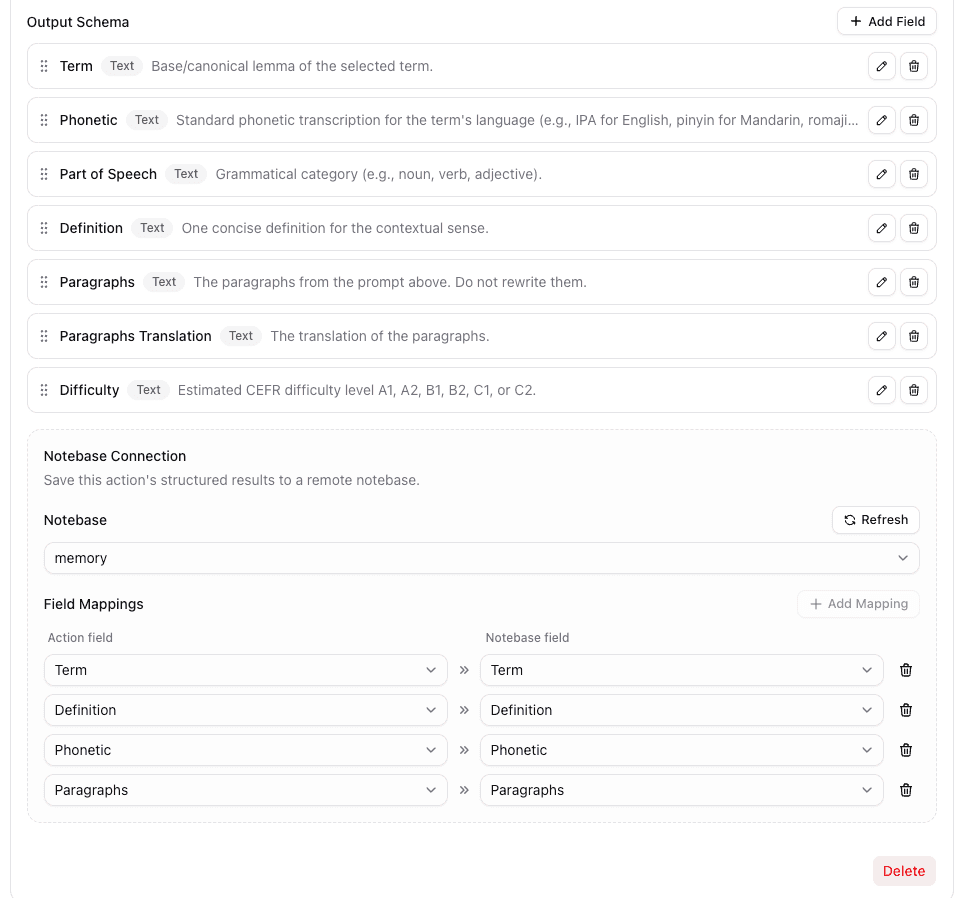
Here you can:
- choose a notebase
- map AI action fields to notebase fields
- save structured results from the selection panel
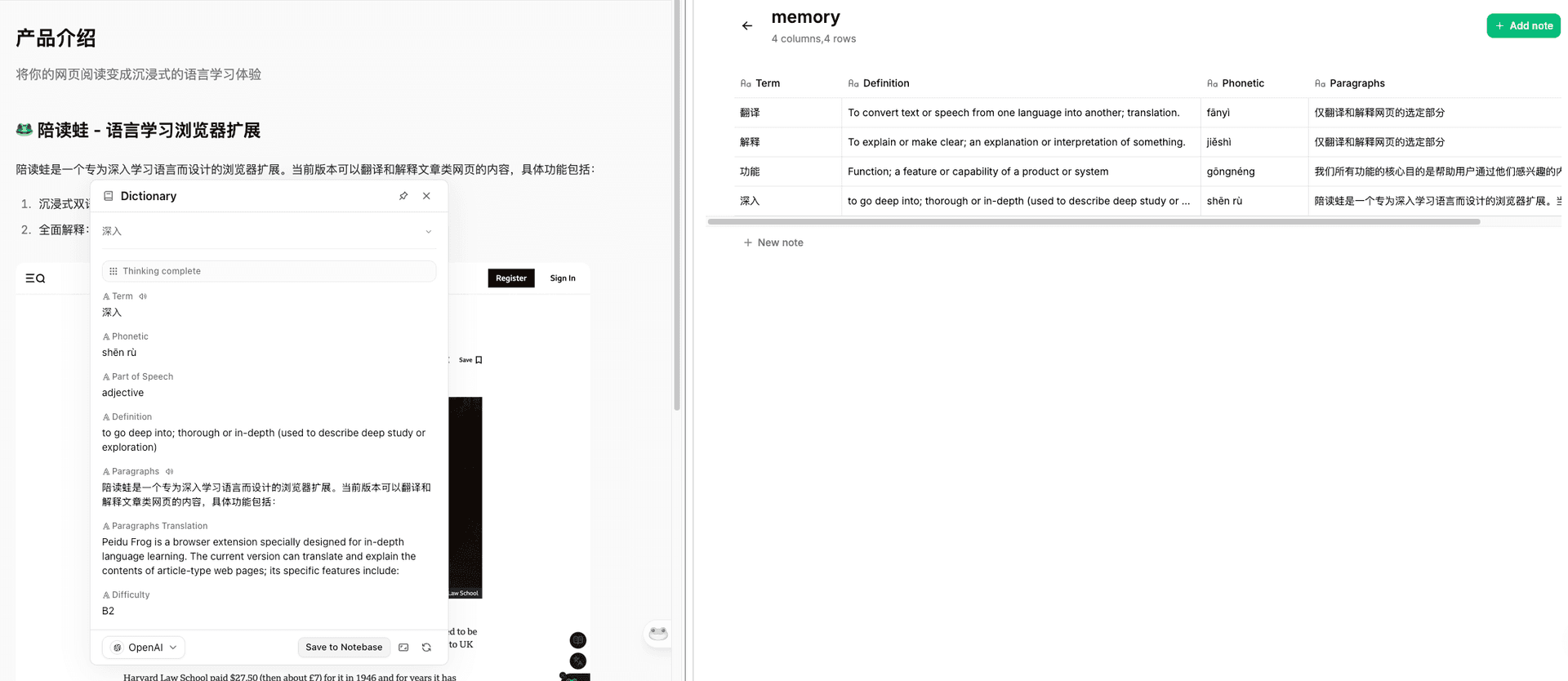
This is very useful if you want to turn dictionary results into your own vocabulary list.
In the future, these saved words support review with the FSRS algorithm.
Build One: Reading Summary Action
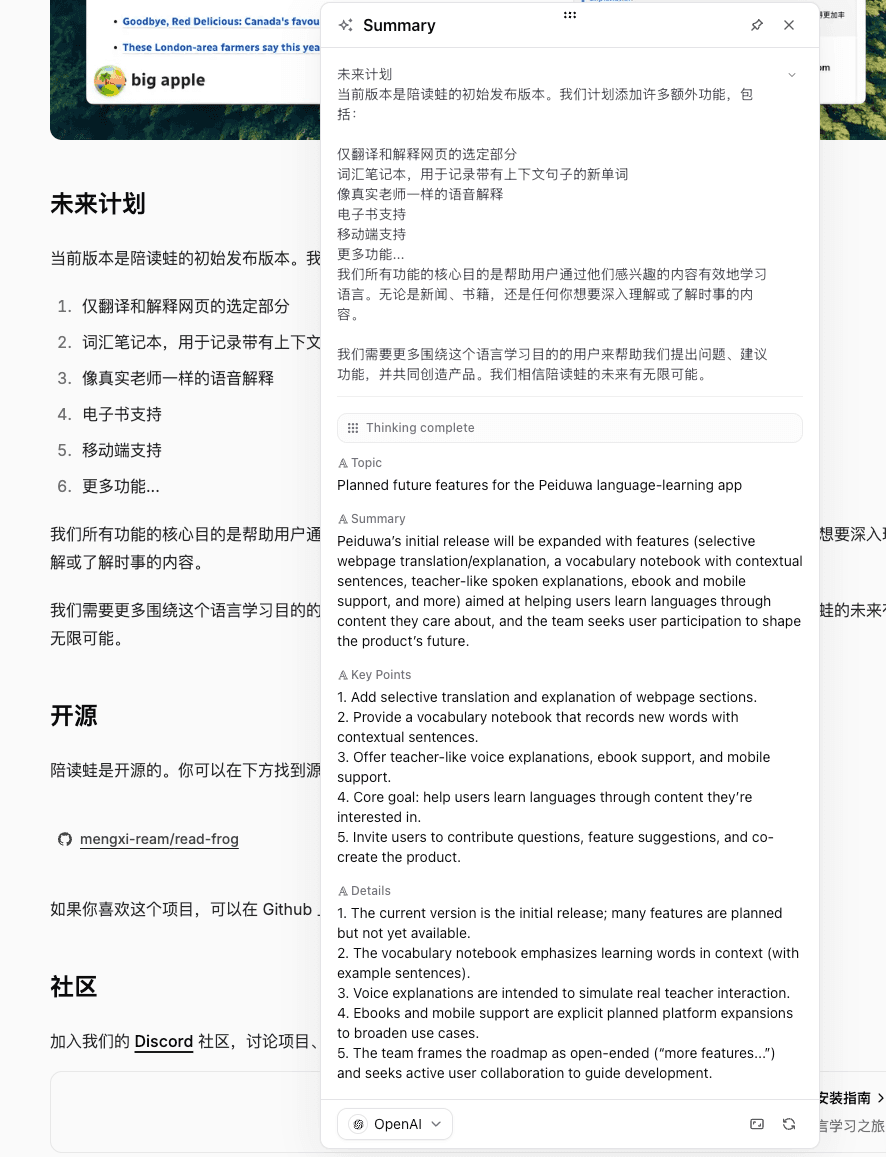
If you want to build your first custom action, start with Blank and make a reading summary tool.
System Prompt
You are a summary assistant for learners and researchers.

## Goal

Read the given article content and produce a clear and accurate summary that matches the required output object.

## Rules
1. Only use information from the given content. Do not add new facts.
2. Focus on the main topic, the core summary, the key points, and important details.
3. Stay faithful to the original meaning.
4. Use clear and simple language that is good for reading and review.
5. Do not rewrite the full text line by line. Extract information instead.
6. Keep important technical or academic terms when needed.
7. Important details should help the reader understand the text better.
8. If a field cannot be determined from the text, return an empty string.
9. Use {{targetLanguage}} for every field except original source content.
10. Keep the output tightly related to the input text.

## Examples

### Example 1

Input:
Selection: hybrid models
Paragraphs: Remote work has changed how companies operate. It gives employees more flexibility, reduces commuting time, and can improve work-life balance. However, it also creates challenges in communication, team cohesion, and performance management. Many companies are now trying hybrid models to balance flexibility and collaboration.
Target language: English

Output:
- Topic: The impact of remote work on companies and employees
- Summary: The text explains that remote work brings flexibility and efficiency benefits, but it also creates problems in communication, team cohesion, and performance management, so many companies now use hybrid work as a practical balance.
- Key Points:
1. Remote work gives employees more flexibility.\r\n
2. Remote work reduces commuting time.\r\n
3. Remote work can improve work-life balance.\r\n
4. Remote work can cause communication and teamwork problems.\r\n
5. Hybrid work is a common way to balance flexibility and collaboration.\r\n
- Details:
1. The text covers both employee benefits and management challenges.\r\n
2. The main problems are communication, team cohesion, and performance management.\r\n
3. Hybrid work is presented as a practical solution, not just a theory.\r\n

### Example 2

Input:
Selection: 誤分類が依然として多かった
Paragraphs: この論文では、画像認識における小規模データ問題を解決するために、事前学習済みモデルの転移学習を活用した。実験の結果、少量データ環境でも高い精度が得られたが、特定のカテゴリでは誤分類が依然として多かった。今後はデータ拡張とモデル軽量化が課題である。
Target language: English

Output:
- Topic: The effect of transfer learning on small-scale image recognition
- Summary: The text explains that transfer learning with a pre-trained model helps improve image recognition in small-data settings, but some categories still have many misclassifications, so data augmentation and model compression remain important future tasks.
- Key Points:
1. The study aims to solve the small-data problem in image recognition.\r\n
2. It uses transfer learning with a pre-trained model.\r\n
3. The results show high accuracy even with limited data.\r\n
4. Some categories still have clear misclassification problems.\r\n
5. Future work includes data augmentation and model compression.\r\n
- Details:
1. The method is effective specifically in low-data settings.\r\n
2. The results are not equally stable across all categories.\r\n
3. The text clearly gives future improvement directions instead of only reporting results.\r\n
Prompt
Selection: {{selection}}

Paragraphs: {{paragraphs}}

Target language: {{targetLanguage}}
Output Schema
| Field Name | Field Type | Description |
|---|---|---|
| Topic | Text | Summarize the core topic related to {{selection}}. |
| Summary | Text | Explain the core meaning of {{selection}} in one sentence. |
| Key Points | Text | Extract the 3 to 5 most relevant points related to {{selection}}, separated by \r\n. |
| Details | Text | List important details that are easy to miss but help the reader understand {{selection}}. |
This gives you a reusable reading helper for articles, docs, and tutorials.
Practical Tips
- Start with fewer fields. Fewer fields usually means more stable results.
- Use the System Prompt to guide the model and give examples.
- Use the Prompt to define the current input format.
- If the result is unstable, remove fields and simplify the rules first.
- For dictionary use, select a word or a short phrase, not a full sentence.
Troubleshooting
The AI action exists but does not run
First check whether the provider for this action is enabled and whether the model supports structured output.
I do not see the Save to Notebase button
This part depends on Beta Experience and Notebase beta access. If either one is missing, the button will not appear.