
Translation Tools
Configure the floating button, selection toolbar, context menu, and three-space input translation trigger.
Read Frog provides four tools for translating without starting a full-page translation. Each tool can use a provider suited to its job; provider capabilities still apply.
Floating button
Open Options → Floating Button to enable the button, place it on the left or right edge, and choose its click action. It can translate the current page directly or open the Read Frog side panel.
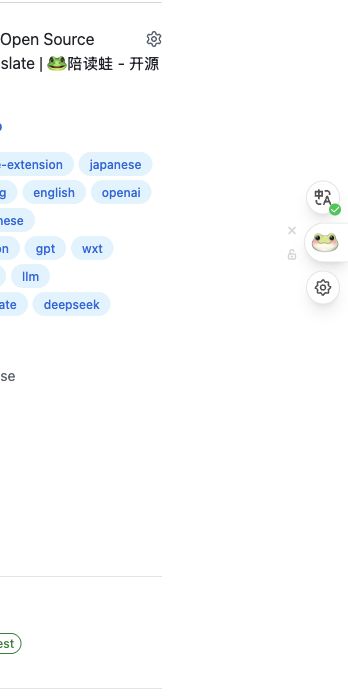
Use Disabled Websites on this page to hide only the floating button on selected hosts. This is separate from General Site Control, which can prevent the entire extension from running.
Selection toolbar
Open Options → Selection Toolbar and select text on a webpage. The toolbar can expose:
- Translate for a quick translation;
- Speak for text-to-speech;
- enabled Custom AI Actions for summaries, explanations, rewrites, or your own prompts.
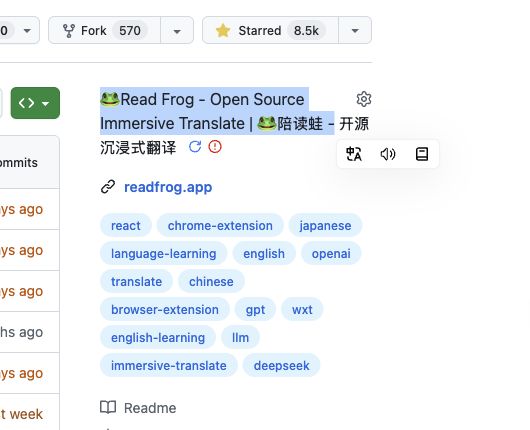
You can choose the translation provider, change toolbar opacity, configure disabled websites, and customize the keyboard shortcut. The default selection-translation shortcut is Alt+T. Custom AI Actions use the provider assigned to the action; the Free AI Service is available only for those selected-text actions and is not a full-page translation provider.
Browser context menu
Enable Options → Context Menu to add Read Frog to the browser menu shown after right-clicking selected text. It is useful when you prefer a native browser menu instead of an overlay.
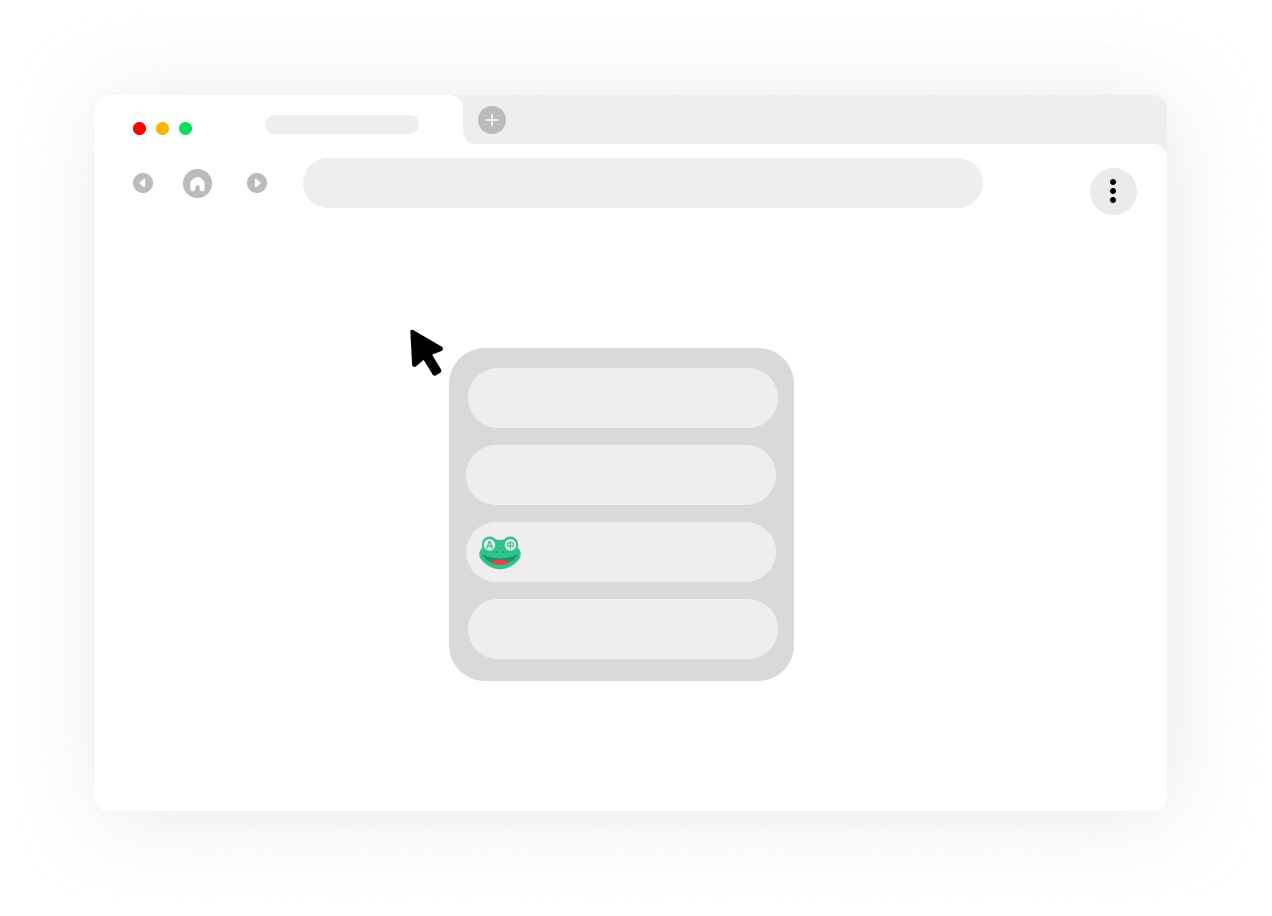
Context-menu translation still needs an enabled compatible provider. Browser-managed pages and other protected pages may not allow extension content scripts.
Input Translation
Open Options → Input Translation, enable the tool, and type three spaces in a supported editable field. Read Frog replaces the draft with its translation after the configured delay.
Configure:
- the translation provider;
- how source and target languages are chosen;
- fixed languages or cycling behavior;
- the trigger delay (default
300ms).
The trigger is deliberately simple, so use it only after finishing the text you want translated. Input Translation follows General Site Control; unlike the floating button and selection toolbar, it does not have a separate disabled-website list.
Which provider does each tool need?
Ordinary translation services and LLM providers can translate selected text when supported by their provider adapter. Custom AI Actions, AI explanations, and similar prompt-driven tools require an LLM. Text-to-speech uses its own voice settings rather than a translation model.
If a tool does nothing, check these in order:
- the tool is enabled;
- the current website is not blocked globally or for that tool;
- its selected provider is enabled and passes Test Connection;
- the page is not a protected browser or extension page.