
Custom AI Actions
Run your own AI actions on selected text, and decide what each result says, how it looks and what a click does
Overview
Custom AI Actions turn a prompt into a small tool that you can run again and again. Select text on any page, click an action in the selection toolbar, and Read Frog sends the text to AI with the same setup every time. The answer comes back as a card.
Each action has:
- prompts: what the AI is asked to do
- output fields: what the answer contains
- a layout: how the card looks, and what happens when you click it
- a provider: the AI model that runs it
Unlike a chat, the answer always has the same fields in the same places. That makes actions good at the things you do again and again while reading: looking up words, taking long sentences apart, checking your own writing, summarizing.
Actions run on Built-in AI by default, so there is nothing to set up. Without an account you get a small daily allowance, and signing in raises it (see Account and Plans). To use your own model instead, choose an LLM provider that supports structured output. If you are not sure whether yours does, check AI SDK Model Capabilities or the model provider's official docs.
Built-in Actions
Read Frog comes with three actions:
| Action | What it does | Where to find it |
|---|---|---|
| Dictionary | Looks up a word or short phrase in the sentence where you found it | Selection toolbar |
| Sentence Analysis | Marks up a long sentence like a teacher: its core, every clause, and what makes it hard | Selection toolbar |
| Improve Writing | Marks mistakes and awkward phrasing in your own writing, and gives you a fixed version | More actions menu, until you pin it |
A built-in action can't be edited, but you can turn it off, choose its provider, and connect it to a Notebase. To change anything else, open it in Custom AI Actions and click Customize next to its name. Read Frog makes an editable copy and leaves the original as it is.
Sentence Analysis
Select a sentence in the language you are learning and click Sentence Analysis. It comes back marked up, with a translation underneath.
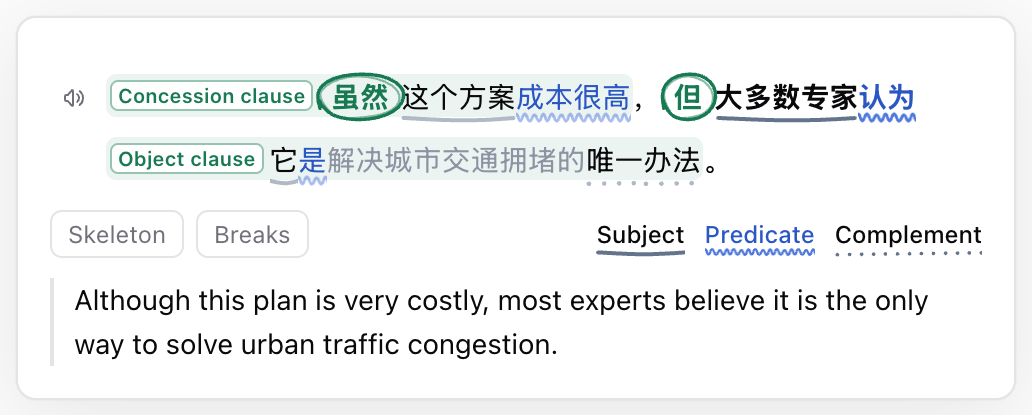
| What you see | What it means |
|---|---|
| Bold words | The core of the main clause. Everything else adds detail |
| Blue words, wavy line | A predicate: the whole verb group, such as has been meeting |
| Other lines under words | The role of a phrase: subject, object, complement or adverbial. The key under the sentence shows which line is which |
| A shaded box with a label | A clause. The label says what it does: a relative clause, an object clause, a condition clause… |
| A circled word | The word that opens a clause, such as which, that or if |
| A red star with a small label | Something that tends to trip readers up: a passive, an inversion, a missing word… |
Hover over or tap any part to see what it is and which word it belongs to. The rest of the sentence fades while you look. The speaker button reads the sentence aloud.
Two switches show the same sentence in two more ways:
| Switch | What you see |
|---|---|
| Skeleton | Every clause folds into its label and every modifier into "…". Only the bones are left |
| Breaks | The slashes a teacher would pencil in, so you can read the sentence one chunk at a time |
Dictionary
Select a word or a short phrase and click Dictionary.
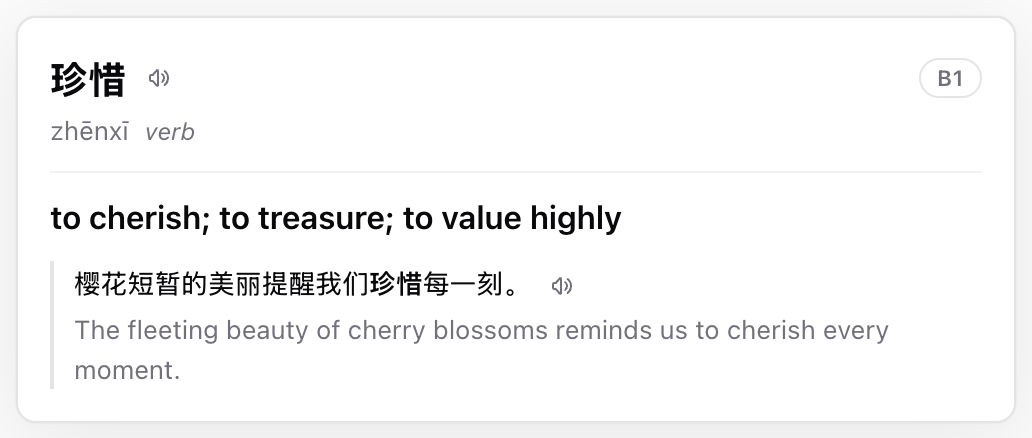
The card shows the word in its base form with its pronunciation, part of speech and CEFR level, then one definition: the one that fits the page. Below it is the sentence where you found the word, with the word in bold, and the sentence's translation. The speaker buttons read the word and the sentence aloud.
Its output fields are Term, Phonetic, Part of Speech, Sentence, Term in Sentence, Definition, Sentence Translation and Difficulty. Term in Sentence tells the card which words to bold.
Select a word or a short phrase, not a whole sentence. For a whole sentence, use Sentence Analysis.
Create Your Own Action
- Open Read Frog settings.
- Go to Custom AI Actions.
- Click Add AI action.
- Choose a template: Dictionary, Sentence Analysis, Improve Writing or Blank.
- Fill in the settings on the Config tab. Everything saves as you edit.
- Keep the action enabled. A new action gets its own button in the selection toolbar.
The Config tab has these settings, in this order:
- Name: the action's name, shown when you hover over its button
- Icon: an icon name such as
tabler:bulb. You can search for icons on icon-sets.iconify.design and copy the name - Provider: Built-in AI, or an LLM provider of your own that supports structured output
- System prompt: the role, goal, rules and examples
- Prompt: the input, usually just the prompt tokens below
- Output schema: the fields the answer contains
- Layout: how the card looks and what a click does
The Notebase tab saves results to a Notebase (see Save Results to Notebase).
Configure with AI
Not sure what to write? The AI chat you already use can fill in the settings for you.
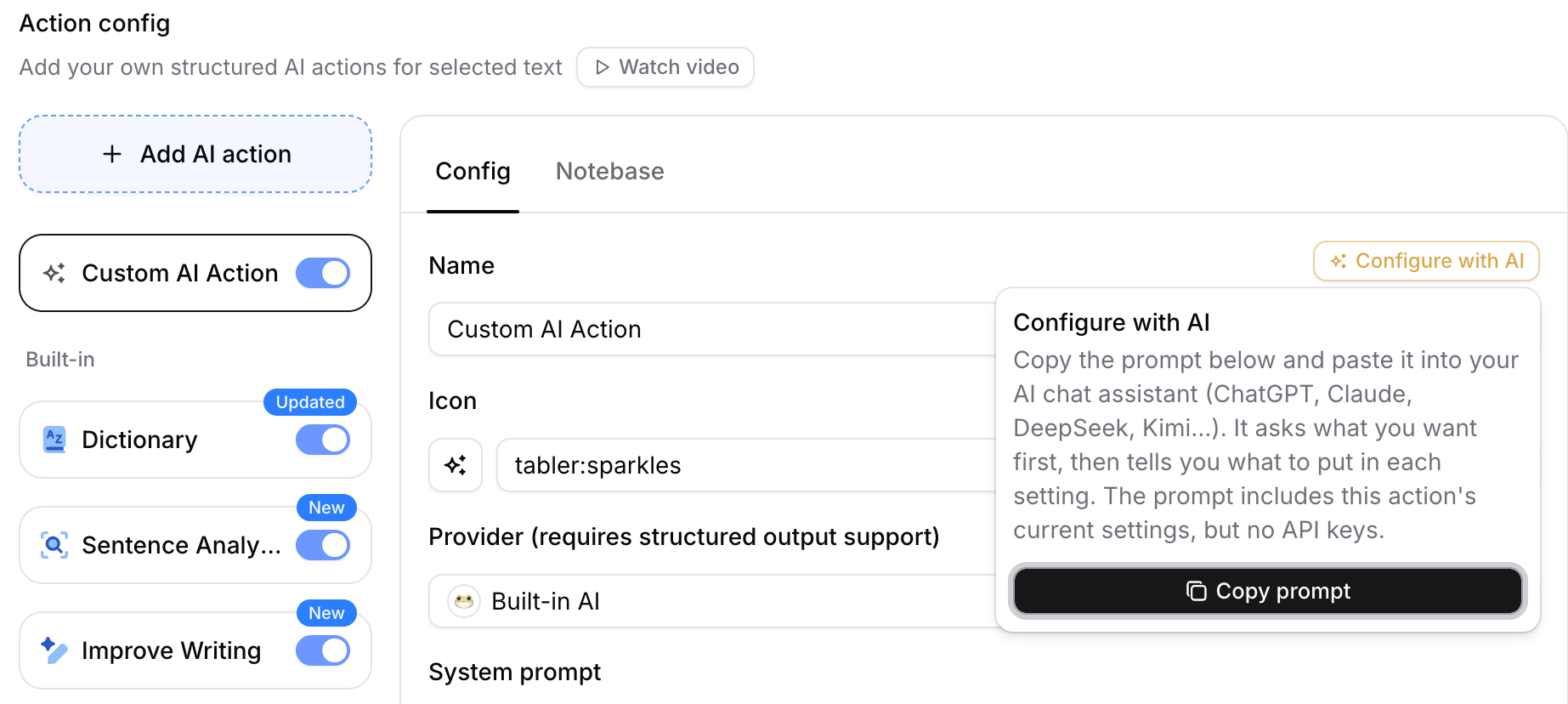
- Open an action you created, click Configure with AI next to its name, then click Copy prompt.
- Paste the prompt into ChatGPT, Claude, DeepSeek, Kimi or any other AI chat.
- Say what you want, such as "An idiom card: pinyin, literal meaning, meaning and story". The assistant asks what it needs to know, then gives you each setting, ready to paste.
- Paste each setting into the editor, and check the card in the layout preview.
The prompt includes the action's current settings, so you can also ask for changes to an action you already have: "Make it look like character tiles", "Hide the meaning until I click". It never includes your API keys.
Prompt Tokens
The system prompt, the prompt and every field description can use these tokens. Read Frog replaces them with plain text before it sends the request.
| Token | Replaced with |
|---|---|
{{selection}} | The selected text |
{{paragraphs}} | The paragraphs that contain the selection, joined with blank lines, up to 2000 characters |
{{targetLanguage}} | Your target language |
{{webTitle}} | The page title |
{{webUrl}} | The full URL of the page |
{{webContent}} | The main content of the page, up to 2000 characters |
How Output Schema Works
The output schema lists the fields the AI fills in. Each field has:
- Field name: also the label the plain field list shows above the value, so name it in the language you read
- Field type: Text or Number
- Description: what goes in the field, and in which language
The output schema has two jobs:
- It tells the model which fields must be returned.
- It gives the layout the values to show.
The field description is not only a note for humans: it is the model's main guide for that field. Use it to set the language, length, format and other rules.
A few things to know:
- Fields arrive in order while the answer streams in, so put what you want to read first at the top.
- Fewer fields give faster and more reliable answers. Try to stay at eight or fewer.
- There is no list type. For a list, use a Text field whose description asks for a JSON array, and show it as a list in the layout.
- Renaming a field also updates the layout's references to it.
- To read a field aloud, add a speak button to the layout. It replaces the old Enable speaking option.
Layout
The layout decides how the card looks and what happens when you click it. An empty layout shows the plain field list: each field's name above its value.
Under Layout, click Edit to open the layout editor.
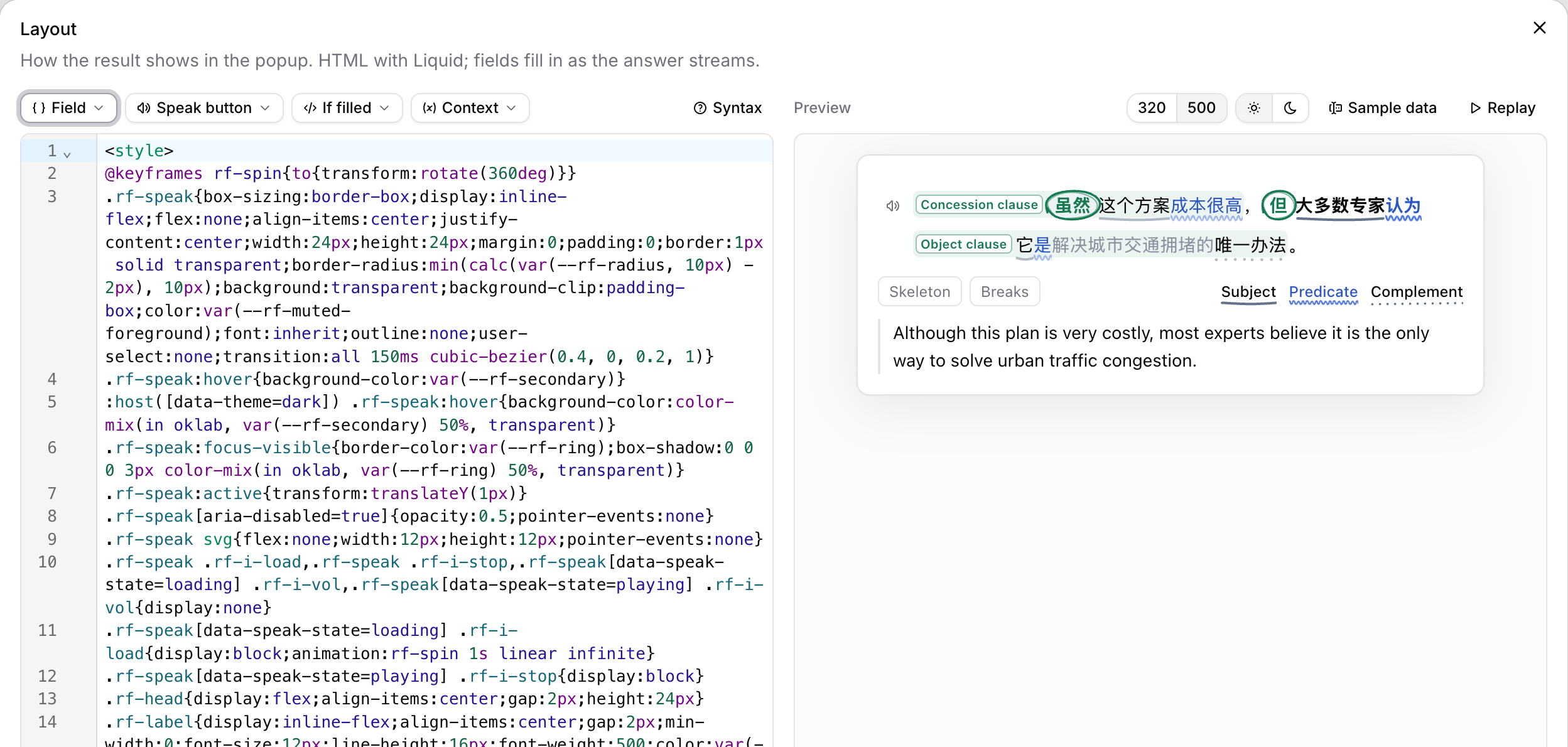
- On the left is the layout's source. Field, Speak button, If filled and Context insert ready-made pieces at the cursor, and Syntax explains what you can write.
- On the right is a live preview. Check it at 320 and 500 pixels wide (the popup's narrowest and default widths), in the light and the dark theme. Sample data changes the values it shows, and Replay plays the answer streaming in.
- Restore default replaces the layout with the plain field list or, when your fields fit, a built-in card.
A built-in action's layout is read-only: click Customize to edit a copy.
Writing a Layout
A layout is HTML with Liquid tags. It updates as the answer streams in, so each field fills in when it arrives.
| Write | To |
|---|---|
{{ ["Field name"] }} | Show a field. A plain English name also works bare: {{ Word }} |
{% if ["Field name"] %}…{% endif %} | Show something only once the field has a value |
{{ ctx.selection }} | Show the selected text |
newline_to_br, lines, parse_json | Keep line breaks, split text into lines, or read a JSON list |
Filters go after a pipe, as in {{ ["Notes"] | newline_to_br }}. Put CSS in a <style> block: it applies only inside the card. Colors such as var(--rf-muted-foreground) follow the light and dark themes.
These attributes make a card interactive, with no JavaScript:
| Attribute or element | What it does |
|---|---|
data-speak="text" | Clicking reads the text aloud |
data-tip="text" | Hovering or tapping shows the text in a bubble |
data-toggle="name" | Clicking switches name on and off. Style it with :host([data-toggles~=name]) |
data-copy="text" | Clicking copies the text |
<details> and <summary> | Clicking opens and closes a section |
For example, this card reads an idiom aloud and keeps its meaning covered until you click (it uses two Text fields, Idiom and Meaning):
<style>
  .idiom { font-size: 18px; font-weight: 600; }
  button {
    border: 1px solid var(--rf-border); border-radius: 6px;
    background: none; color: inherit; font: inherit; cursor: pointer;
  }
  .meaning { display: none; }
  :host([data-toggles~=meaning]) .meaning { display: block; }
</style>
{% if Idiom %}
<p class="idiom">
  {{ Idiom }}
  <button type="button" data-speak="{{ Idiom }}" aria-label="Speak">🔊</button>
</p>
{% endif %}
{% if Meaning %}
<button type="button" data-toggle="meaning">Show the meaning</button>
<p class="meaning">{{ Meaning }}</p>
{% endif %}
Layouts can't run scripts or load anything from the web: no <script>, forms or iframes, no @import or @font-face, and images must be data: URIs. If a layout has an error or breaks a limit, the card falls back to the plain field list, and the layout editor shows why.
The More Actions Menu
The selection toolbar ends with a More actions menu that lists every action you have:
- Click an action in the menu to run it.
- Choose Pin to toolbar for the ones you use most, or Unpin from toolbar to move one back into the menu.
- Drag actions to put them in the order you like.
- Choose Add custom AI action at the bottom to create a new one.
Save Results to Notebase
Every action can save its results to a Notebase, for example to turn your dictionary lookups into your own vocabulary list.
The quickest way: run the action, click Save to Notebase in the result, and choose Create and save. Read Frog creates a Notebase named after the action, with one field for each output field, and saves the result as its first note. Later saves from that action go to the same Notebase. If you are not logged in on readfrog.app, the button offers to log you in first.
To save into a Notebase you already have, open the action's Notebase tab, choose the Notebase, and map the action's fields to its fields.
For the full setup, see Save from the Extension. To review what you save as flashcards, add a card template to the Notebase.
Build One: Reading Summary Action
If you want to build your first custom action, start with Blank and make a reading summary tool.
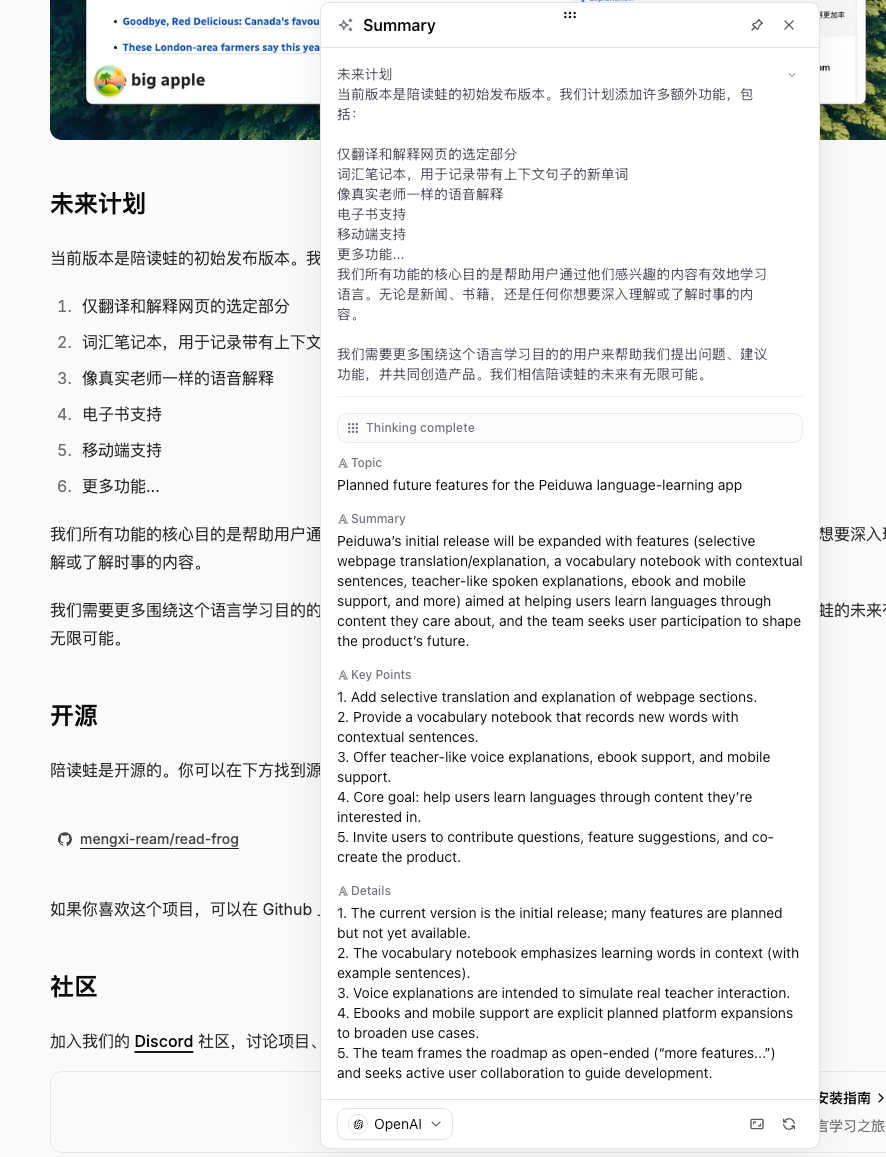
System Prompt
You are a summary assistant for learners and researchers.

## Goal

Read the given article content and produce a clear and accurate summary that matches the required output object.

## Rules
1. Only use information from the given content. Do not add new facts.
2. Focus on the main topic, the core summary, the key points, and important details.
3. Stay faithful to the original meaning.
4. Use clear and simple language that is good for reading and review.
5. Do not rewrite the full text line by line. Extract information instead.
6. Keep important technical or academic terms when needed.
7. Important details should help the reader understand the text better.
8. If a field cannot be determined from the text, return an empty string.
9. Use {{targetLanguage}} for every field except original source content.
10. Keep the output tightly related to the input text.

## Examples

### Example 1

Input:
Selection: hybrid models
Paragraphs: Remote work has changed how companies operate. It gives employees more flexibility, reduces commuting time, and can improve work-life balance. However, it also creates challenges in communication, team cohesion, and performance management. Many companies are now trying hybrid models to balance flexibility and collaboration.
Target language: English

Output:
- Topic: The impact of remote work on companies and employees
- Summary: The text explains that remote work brings flexibility and efficiency benefits, but it also creates problems in communication, team cohesion, and performance management, so many companies now use hybrid work as a practical balance.
- Key Points:
1. Remote work gives employees more flexibility.\r\n
2. Remote work reduces commuting time.\r\n
3. Remote work can improve work-life balance.\r\n
4. Remote work can cause communication and teamwork problems.\r\n
5. Hybrid work is a common way to balance flexibility and collaboration.\r\n
- Details:
1. The text covers both employee benefits and management challenges.\r\n
2. The main problems are communication, team cohesion, and performance management.\r\n
3. Hybrid work is presented as a practical solution, not just a theory.\r\n

### Example 2

Input:
Selection: 誤分類が依然として多かった
Paragraphs: この論文では、画像認識における小規模データ問題を解決するために、事前学習済みモデルの転移学習を活用した。実験の結果、少量データ環境でも高い精度が得られたが、特定のカテゴリでは誤分類が依然として多かった。今後はデータ拡張とモデル軽量化が課題である。
Target language: English

Output:
- Topic: The effect of transfer learning on small-scale image recognition
- Summary: The text explains that transfer learning with a pre-trained model helps improve image recognition in small-data settings, but some categories still have many misclassifications, so data augmentation and model compression remain important future tasks.
- Key Points:
1. The study aims to solve the small-data problem in image recognition.\r\n
2. It uses transfer learning with a pre-trained model.\r\n
3. The results show high accuracy even with limited data.\r\n
4. Some categories still have clear misclassification problems.\r\n
5. Future work includes data augmentation and model compression.\r\n
- Details:
1. The method is effective specifically in low-data settings.\r\n
2. The results are not equally stable across all categories.\r\n
3. The text clearly gives future improvement directions instead of only reporting results.\r\n
Prompt
Selection: {{selection}}

Paragraphs: {{paragraphs}}

Target language: {{targetLanguage}}
Output Schema
| Field Name | Field Type | Description |
|---|---|---|
| Topic | Text | Summarize the core topic related to {{selection}}. |
| Summary | Text | Explain the core meaning of {{selection}} in one sentence. |
| Key Points | Text | Extract the 3 to 5 most relevant points related to {{selection}}, separated by \r\n. |
| Details | Text | List important details that are easy to miss but help the reader understand {{selection}}. |
This gives you a reusable reading helper for articles, docs, and tutorials. It shows as the plain field list. To turn it into a card of your own, open Configure with AI and ask for one, such as "Put the topic on top and the key points in a checklist".
Practical Tips
- Start from the template closest to what you want. A built-in card is a good model for your own layout.
- Start with fewer fields. Fewer fields usually means more stable results.
- Use the System prompt to guide the model and give examples.
- Use the Prompt to define the current input format.
- Say in each field's description which language it should be in, usually
{{targetLanguage}}. - If the result is unstable, remove fields and simplify the rules first.
- Know what you want but not how to write it? Use Configure with AI.
Troubleshooting
The AI action exists but does not run
Check that the action's provider is enabled and that its model supports structured output. If the action runs on Built-in AI, you may have used up today's allowance: sign in for a larger one, or choose a provider of your own.
The result shows as a plain list
The layout is empty, or it can't be shown. Open Layout and click Edit: the editor marks what is wrong, such as a syntax error or a field name that doesn't exist.
Save to Notebase does not work
Make sure you are logged in to the same account on readfrog.app, and the extension is up to date. If the action's Notebase tab says a mapping needs attention, fix the mapping there.