
Installation
Install Read Frog, pick a provider, and translate your first page.
Install the extension
Read Frog is on the Chrome Web Store and Microsoft Edge Add-ons. The Chrome listing also installs on any Chromium browser — Edge, Brave, Arc, Vivaldi.
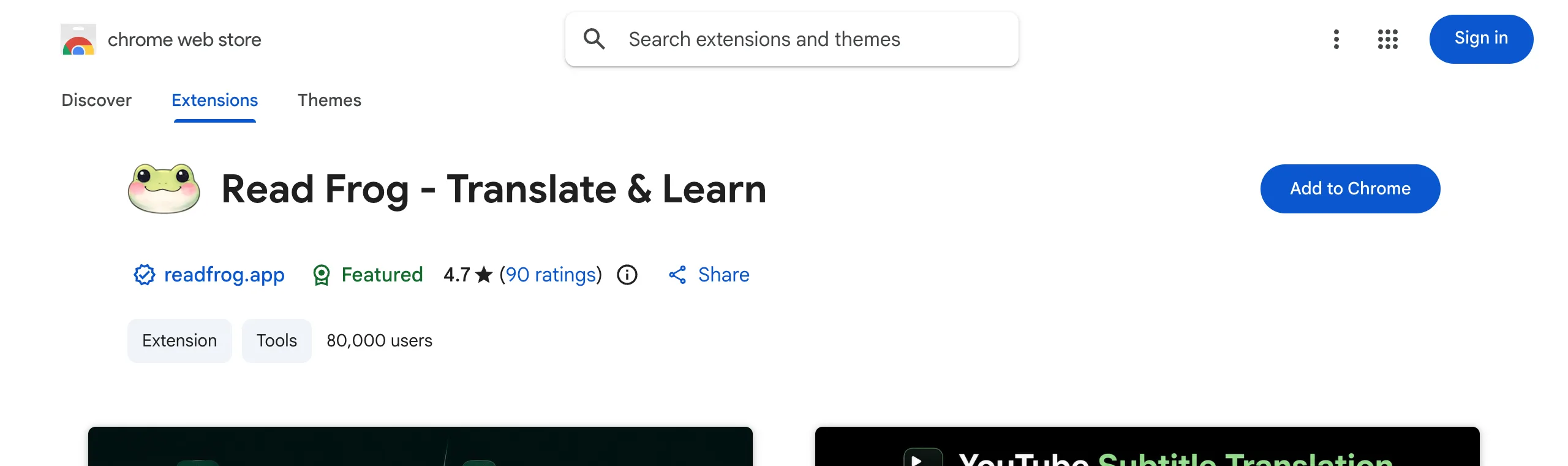
Can't reach the Chrome Web Store?
Install from Microsoft Edge Add-ons instead — the listing works in Chrome too. If neither store is reachable, crxsoso mirrors the package for manual installation.
After installing, pin Read Frog to the toolbar: click the puzzle-piece icon in the browser toolbar and click the pin next to Read Frog. The extension works without pinning, but the popup is where you switch languages and turn translation on for one site.
Pick a provider
Read Frog does not translate anything by itself — it calls a provider you choose.
Google Translate and Microsoft Translator are enabled out of the box and need no account or API key. If you only want pages translated, you are already done; skip to the next section.
Everything beyond plain translation — AI Smart Context, custom prompts, subtitle segmentation, Custom AI Actions, saving to a Notebase — needs an LLM provider, which means your own API key or one of the built-in options. Open the popup, choose Options, and add one under API Providers.
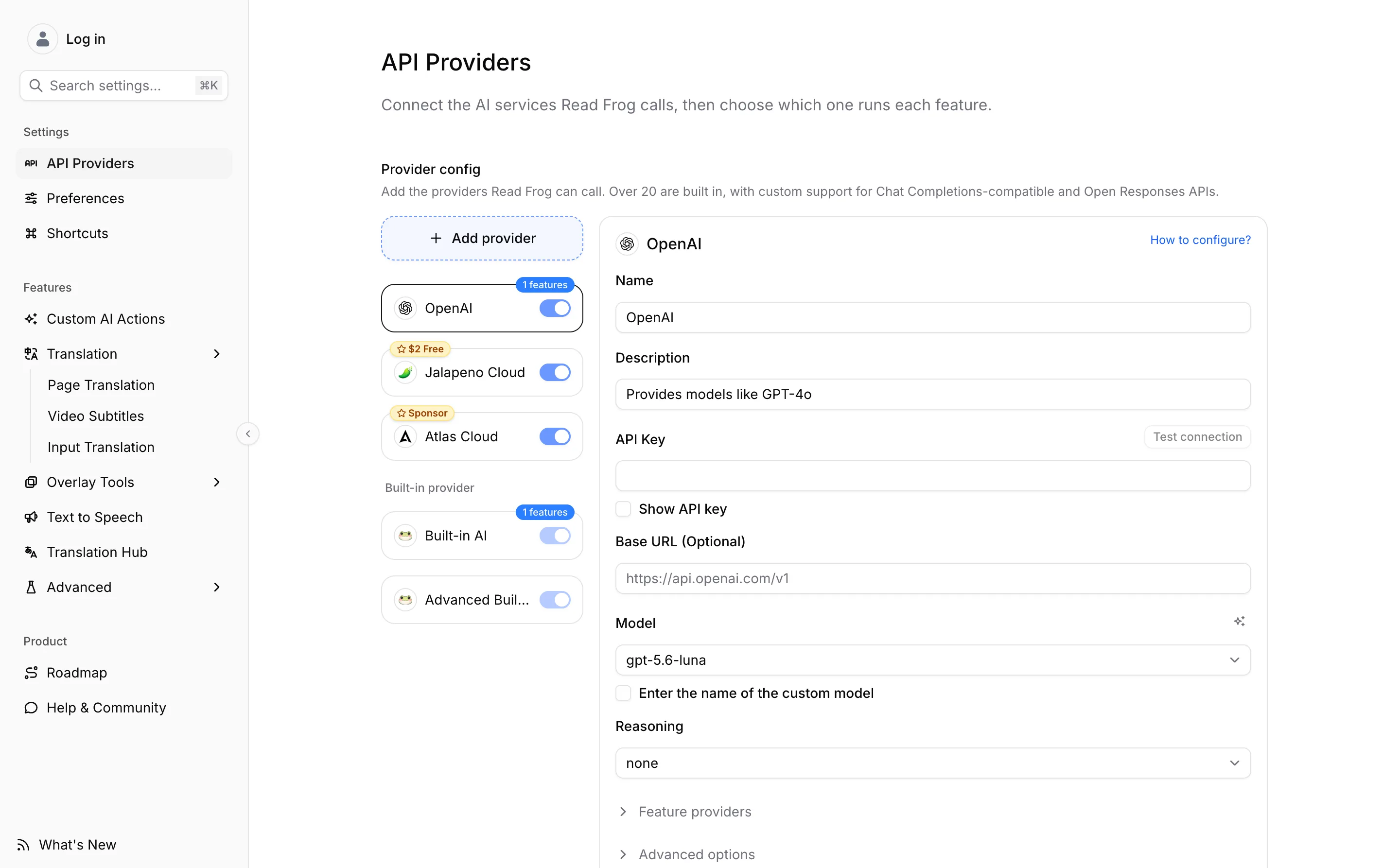
Use Test connection before assigning a provider to a feature. Providers and API Keys explains which kind of provider each feature needs.
Translate your first page
Set the target language in the popup — the second selector is where the translation goes.
Press Alt + E, click the floating frog button at the edge of the page, or press Translate in the popup. Press the same shortcut again to go back to the original.
By default translations appear under each paragraph so you can read both. Page Translation covers switching to translation-only, choosing how much of a page counts as content, and translating a single paragraph on hover.
Where to go next
- Page Translation — the settings you will actually touch.
- Video Subtitles — bilingual captions on YouTube, Netflix, and X.
- Translation Hub — compare several providers on the same text before committing to one.
- Glossary — keep names and terms translated your way.