
Site Control
Decide which websites Read Frog is allowed to run on at all, with a blacklist you add exceptions to or a whitelist you opt sites into.
Site control is the outermost switch Read Frog has. It decides whether the extension loads on a page in the first place — before any question of translating it comes up.
Open Options → Preferences → Extension activation → Manage sites.
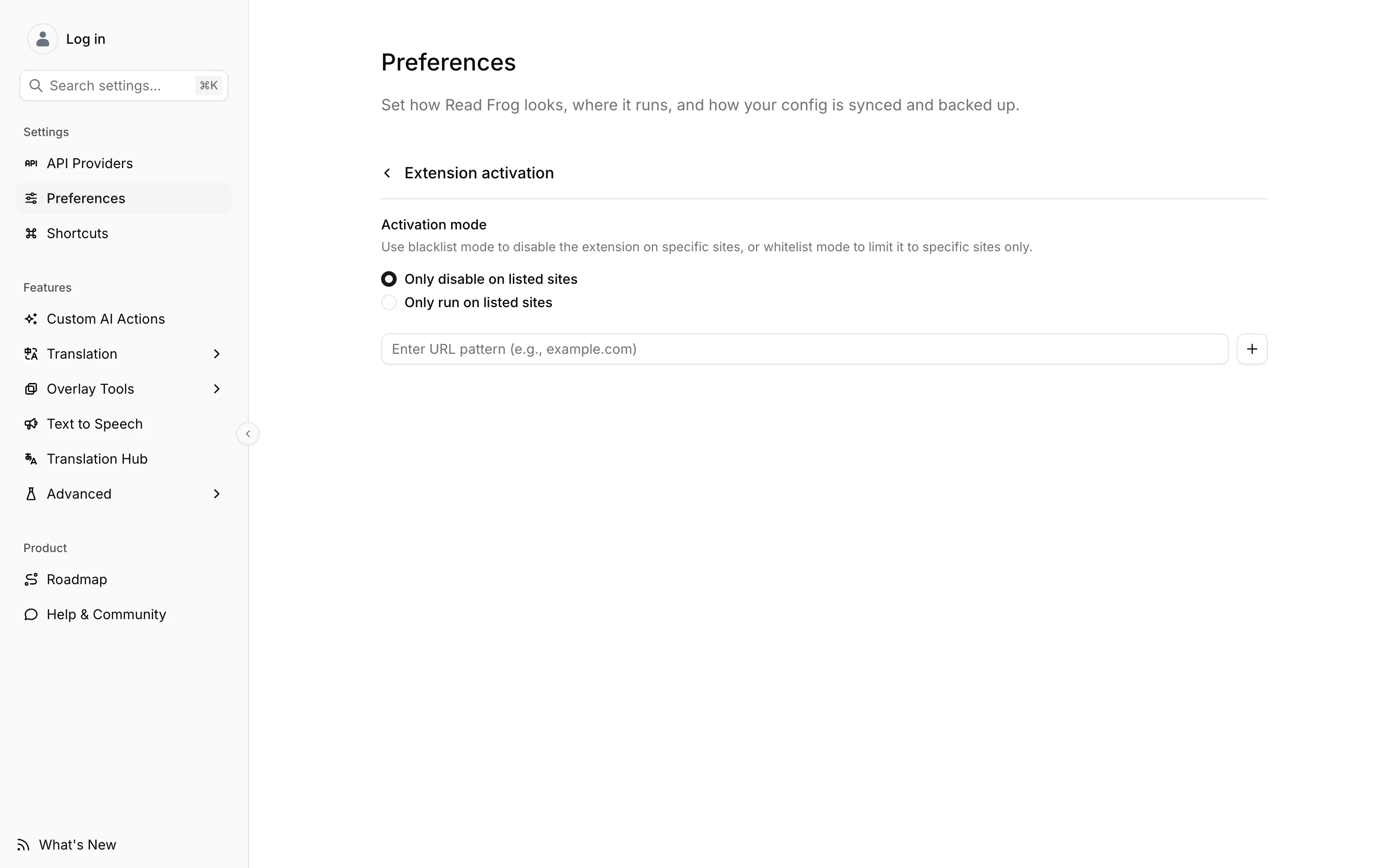
The two modes
Only disable on listed sites is the default. Read Frog runs everywhere except the addresses you list. Use it to carve out the handful of sites where the extension is in the way — your bank, an internal tool, a page whose own shortcuts you want left alone.
Only run on listed sites inverts that. Read Frog stays out of every site except the ones you list. Use it when you read in another language on a few known places and would rather the extension were absent everywhere else.
Each mode keeps its own list. Switching modes does not empty the list you are leaving, so you can switch back and find it intact.
What "off" actually means
On a site the current mode excludes, Read Frog's page scripts never load. That takes out everything that lives on the page at once: the floating button, the selection toolbar, input translation, every shortcut, hover translation, and page translation itself — including any automatic translation the site would otherwise have started.
This is not the same as turning individual features off. It is the extension not being there.
Writing patterns
The field takes the same URL patterns as every other site list in Read Frog.
| Pattern | Matches |
|---|---|
example.com | That host alone, on any path — www.example.com is a different host |
*.example.com | example.com and every subdomain — docs.example.com, mail.example.com |
example.* | Any top-level domain — example.com, example.net, example.co.uk |
example.com/admin/* | Only that section of the site |
https://example.com | Only over HTTPS; without a scheme, both HTTP and HTTPS match |
Ports are not supported, and neither are schemes other than http and https. A pattern that cannot be understood is dropped rather than applied loosely.
The fast way to add a site
You do not have to come here to exclude the page you are on. Open the Read Frog popup on it and use the site switch — it reads Disable extension on this site in blacklist mode and Enable extension on this site in whitelist mode, and it writes to whichever list the current mode uses.
Site control is not auto-translate
This is the distinction people lose most often, so it is worth stating plainly.
| Question | Where it is answered |
|---|---|
| May Read Frog run on this site at all? | Site control — this page |
| Should translation start on its own? | Auto-translate lists, in Translation Control |
| Should this one tool appear on this site? | The per-tool disabled lists in Entry Points |
| Should this site's DOM be handled specially? | Site Rules |
The auto-translate and never-auto-translate lists assume Read Frog is already running; all they choose is whether it starts translating without being asked. Site control comes first and overrides them: a site in your auto-translate list that is also excluded here translates nothing, because nothing of Read Frog ever loaded.
Whitelist mode is easy to forget you turned on. If Read Frog seems dead everywhere — no floating button, no toolbar, no shortcuts — check the mode here before looking anywhere else.