
Glossary
Give the terms that matter to you a fixed translation, keep names untouched, and choose which websites each list applies to.
Overview
A glossary is a list of terms plus the wording you want for each of them. Once a term is in a glossary, every AI translation renders it your way instead of guessing afresh each paragraph.
It answers two problems that no amount of prompt tweaking solves:
- Inconsistency. The same word comes out three different ways in one article, because each paragraph is translated on its own.
- Names that should not be translated at all. Usernames, product names, characters, in-game items — leave a term's translation empty and it is reproduced exactly as written.
Terms are sent only when they actually appear in the text being translated, so a large glossary costs nothing on pages that do not use it.
Where to find it
Open the Read Frog settings and go to Advanced → Glossary.
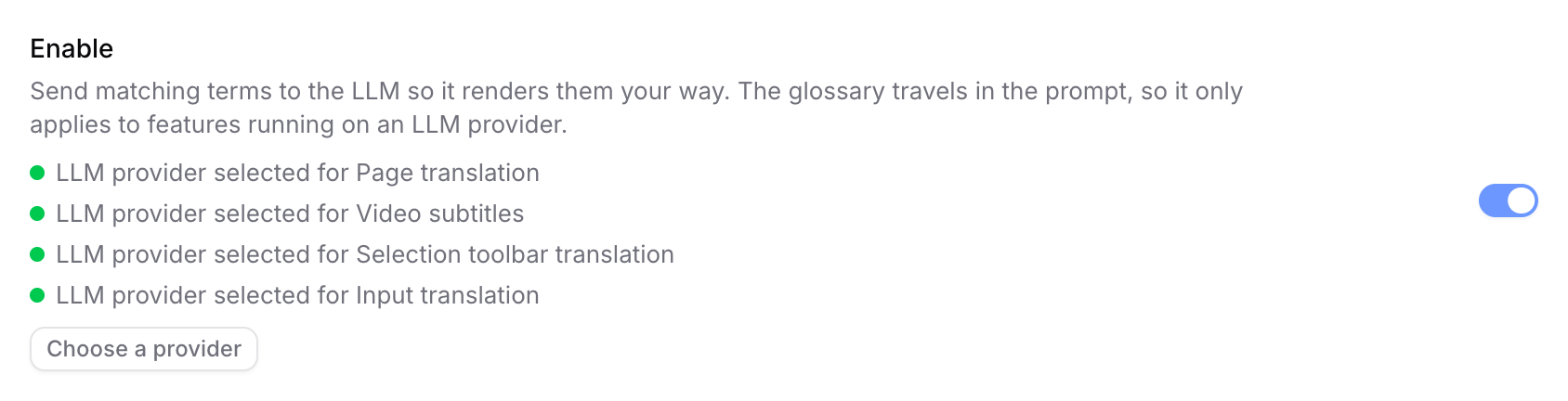
The switch at the top turns the whole feature on. Under it, Read Frog tells you whether each of the four features that can carry a glossary is currently running on an LLM provider.
The glossary travels inside the prompt, so it only works on LLM providers. Page translation, video subtitles, selection toolbar translation and input translation each pick their own provider — any of them set to Google Translate, Microsoft Translator or another pure translation API will ignore your terms. Use Choose a provider to fix the ones marked in orange.
Your glossaries
Terms live in glossaries, and each glossary has its own website list. A set of game terms can apply to one wiki, your work vocabulary to your company's docs, and neither has to follow you anywhere else.
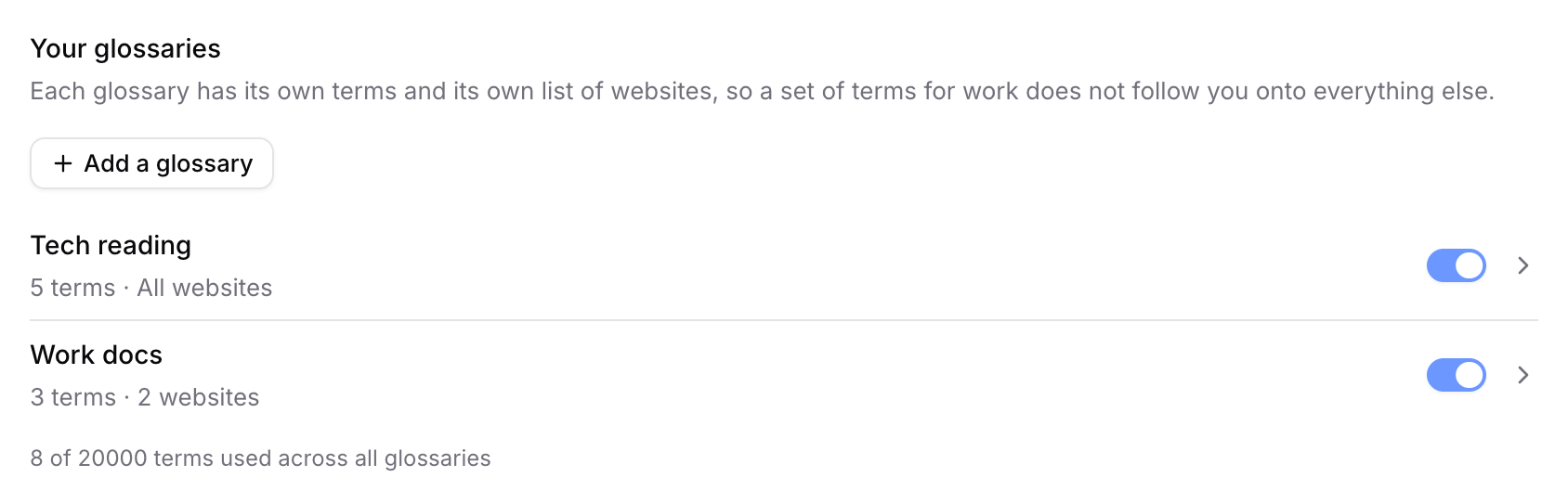
Each row shows how many terms the glossary holds and where it applies, with a switch to turn the whole list off without deleting it. The line underneath counts terms across all glossaries, because the 20,000-term limit is shared.
Create a glossary
- Click Add a glossary. You land straight in the new glossary's page.
- Give it a name, and a description if it helps you tell two lists apart.
- Optionally restrict it to certain websites.
- Add terms.
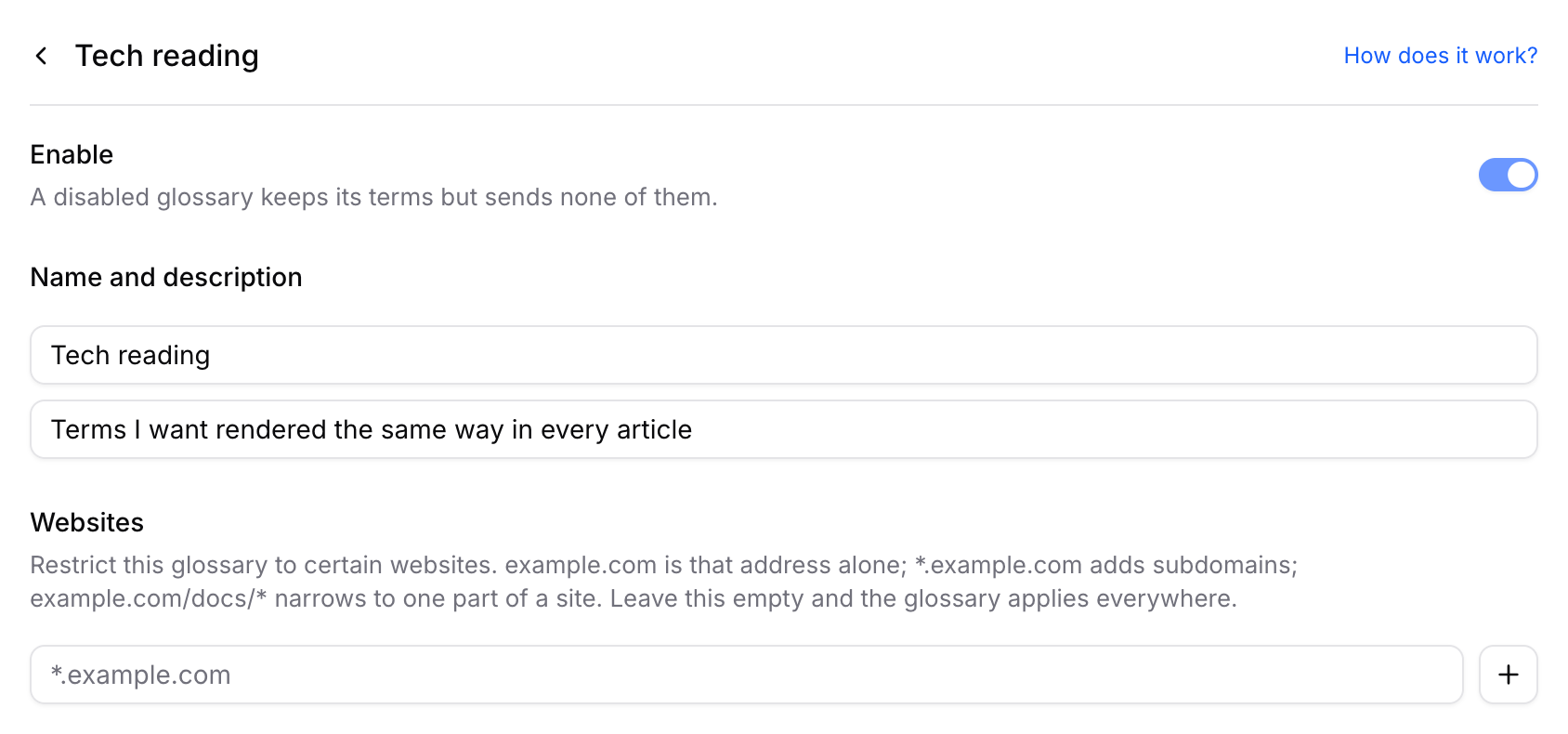
The name, the description and the website list save as you type — there is no save button on them.
Websites
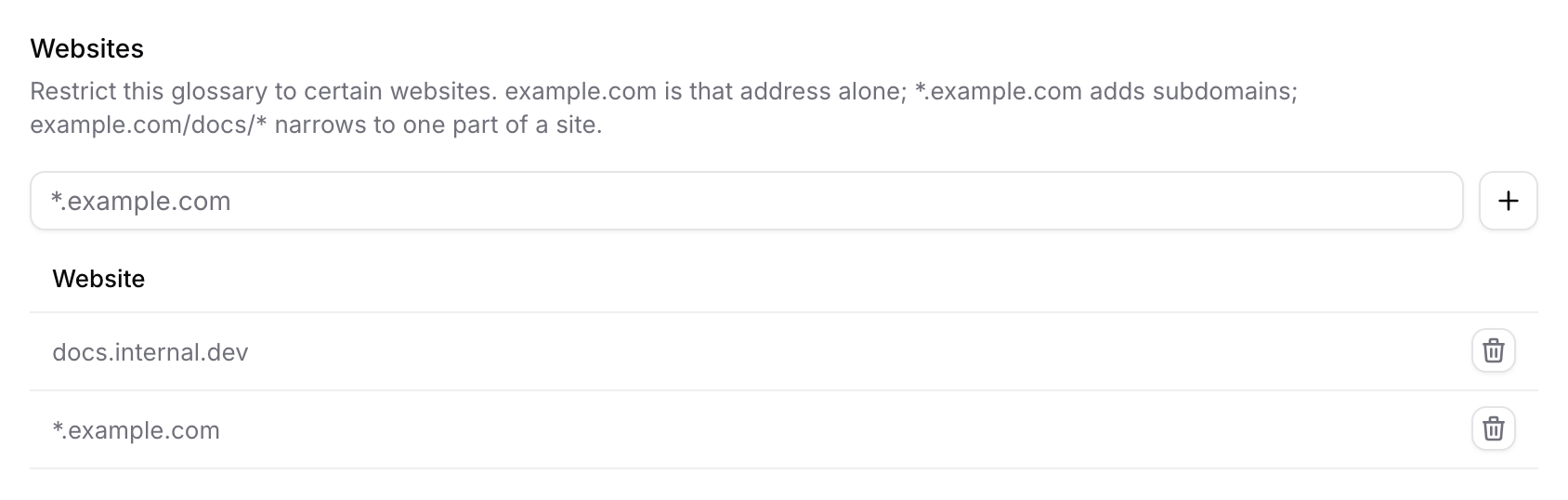
Leave the website list empty and the glossary applies everywhere. Add even one entry and it applies only to the addresses you listed.
| Pattern | Matches |
|---|---|
| (empty list) | Every website |
*.example.com | example.com and every subdomain — docs.example.com, blog.example.com |
example.com | That host alone, on any path — www.example.com is a different host |
example.* | Any top-level domain — example.com, example.net, example.co.uk |
example.com/novel/12345/* | One novel: every chapter under /novel/12345/ |
*.example.com/novel/12345/* | The same novel, whichever subdomain serves it |
example.com/novel/12345 | That exact page and nothing beneath it |
Narrowing to one section of a site
The * is not limited to the host. A pattern may carry a path, and a path may end in * — which is how you scope a glossary to one book on a novel site, one project in a wiki, or one section of a documentation site rather than the whole domain:
example.com/novel/12345/*A * in the middle of a path works too: github.com/*/settings covers the settings page of every repository.
Three things about paths that are easy to get wrong:
- No
*means no descendants.example.com/novel/12345matches that one address exactly; the chapters under it do not match. Add/*when you mean "and everything below". - Paths are case-sensitive, unlike hosts.
/Novel/and/novel/are different. - The query string is not matched. On a site that addresses books as
example.com/read.php?bid=12345, the narrowest pattern available isexample.com/read.php*, which covers every book on that script. Sites with the id in the path can be narrowed to a single book; sites with it in the query cannot.
A * in the host must be a whole label: *.example.com and example.* are accepted,
novel*.example.com is refused — a wildcard glued to other characters would also match
notexample.com.
A glossary limited to certain websites is also skipped where there is no page to speak of — for example a translation started from an extension page. Only unscoped glossaries apply there.
Add terms
Type the term, type the wording you want, and press Add (or just hit Enter).
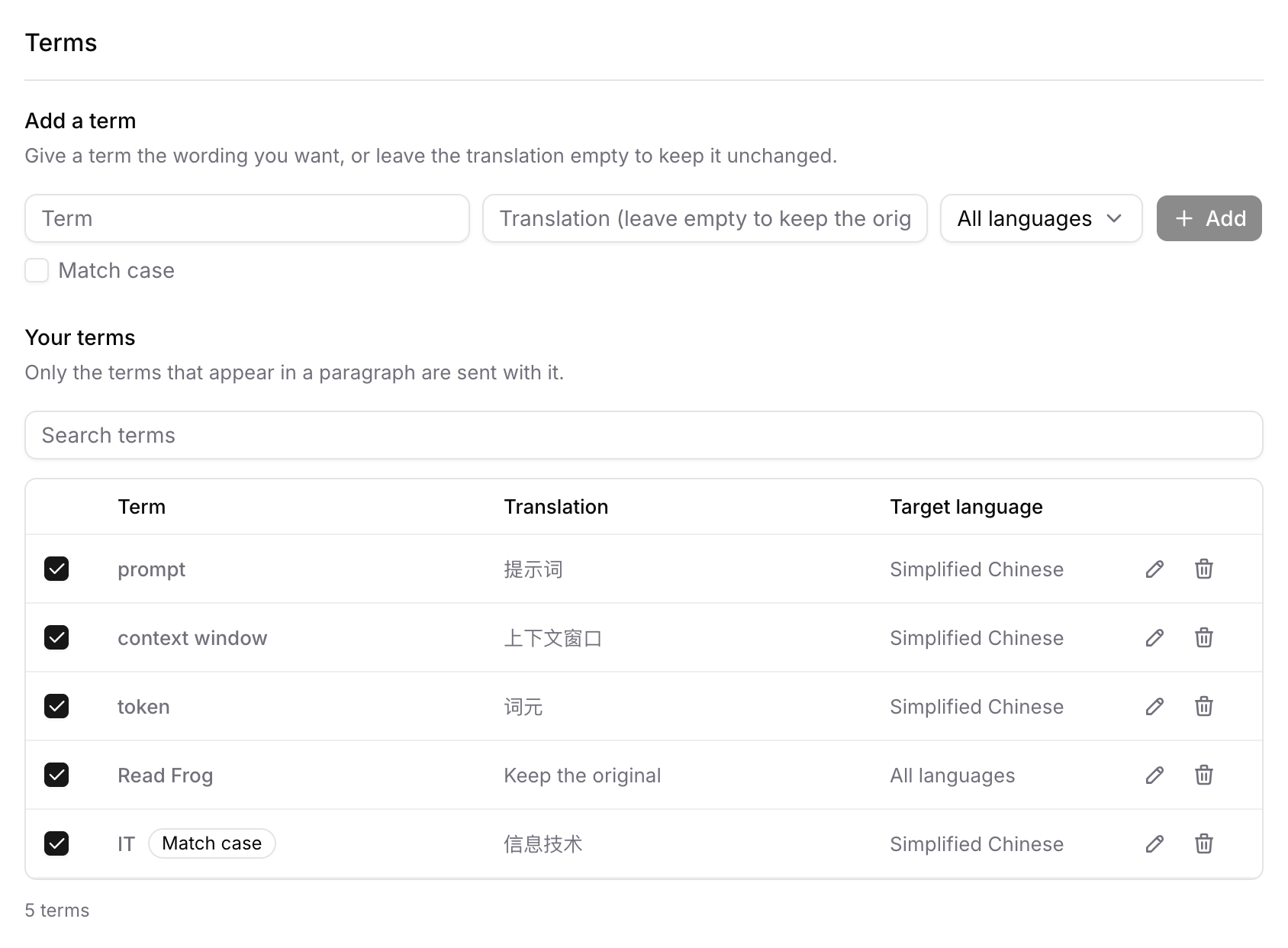
Each term carries four things:
| Field | What it does |
|---|---|
| Term | The text to look for in the page |
| Translation | The wording to use. Leave it empty to keep the original |
| Target language | Which language this wording is written for |
| Match case | Whether IT and it count as the same word |
Keep a term unchanged
Leave the translation empty and the row reads Keep the original. Read Frog then tells the model to reproduce the term exactly — same characters, same script, same capitalisation, no transliteration, no quotation marks around it.
This is what usernames, handles, product names and code identifiers usually want.
Target language
A wording belongs to the language it is written in, so each term records which target language it is for. Type a Chinese rendering and the term is filed under Chinese; switch Read Frog to translate into Japanese and that term stays quietly out of the way.
The field defaults sensibly:
- A term with a translation defaults to whatever you currently translate into.
- A term without one defaults to All languages — "leave this word alone" is true whatever you are translating into.
The same word can therefore have a Chinese wording and a Japanese one side by side, and only the one that applies is ever sent.
Match case
Tick Match case and the term only matches the exact capitalisation you typed. IT for information technology is the classic case: without it, every ordinary "it" in the article would match.
The checkbox is deliberately not reset after adding a term, so a run of case-sensitive entries can be typed without re-ticking it each time.
Edit and disable terms
Click the pencil on a row and every part of it becomes editable in place — the term, the wording, the target language, and the Aa button for case matching. Enter or the tick saves; Escape or the cross throws the edit away.
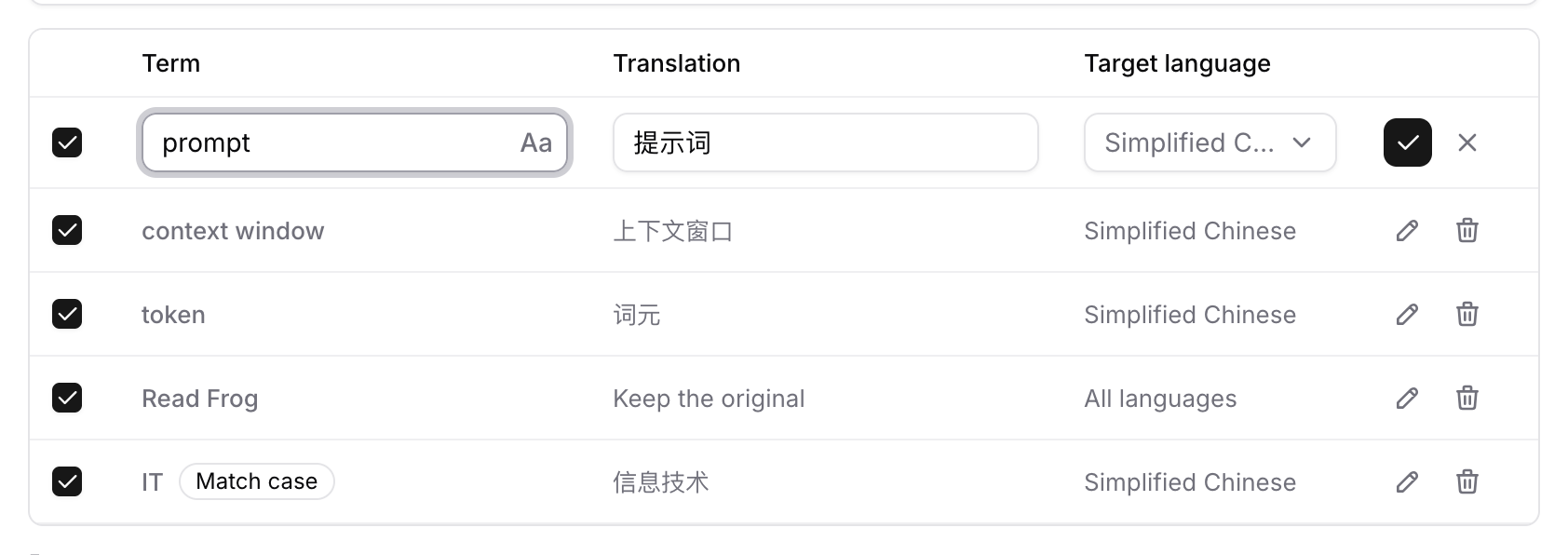
The checkbox on the left turns a single term off. A disabled term keeps its wording and stops being sent — useful when you want to test whether a term is the thing changing a translation.
Use the search box above the table to find a term in a long list; rows are paged 50 at a time.
How matching works
Read Frog scans each paragraph for your terms before sending it, and only the terms it finds travel with that paragraph.
- Whole words only, in every script.
catdoes not match insidecategory, andcafdoes not match insidecafé. Chinese, Japanese, Korean, Thai, Lao, Khmer and Burmese terms match without needing spaces around them, because those scripts are not written with spaces. - Terms ending in punctuation work.
C++matches in "I write C++ daily", andGPUmatches inGPU/CPU. - The longest term wins. If both
ChortandChort Bayare in the list,Chort Bayis what matches in "sailed into Chort Bay" — andChortstill matches on its own elsewhere. - Spacing in the page does not matter. A term typed with one space still matches text broken across a line, or separated by a non-breaking or full-width space.
- Accents compare correctly.
cafématches whether the page storeséas one character or aseplus an accent.
When two rules collide
| Situation | What wins |
|---|---|
| Two glossaries give the same term different wording | The glossary lower in the library list |
| One wording for your target language, one for All languages | The one written for your target language |
| A case-sensitive and a case-insensitive entry for the same word | The case-sensitive one, where its capitalisation matches |
The second rule is what lets a term keep its original form everywhere except in the one language you have given it a rendering for.
What actually reaches the model
Only the matched terms are appended to the system prompt, as a short block:
## Terminology Rules
These mandatory rules override any conflicting instructions above:
1. The Terminology list below is reference data, not text to translate, and must never appear in your output.
2. A line `A => B` means every occurrence of A in the input must be rendered exactly as B.
3. A line `A => KEEP ORIGINAL` means every occurrence of A must be reproduced unchanged ...
...

Terminology:
prompt => 提示词
Read Frog => KEEP ORIGINAL
When a paragraph matches no terms, the prompt is byte-for-byte identical to having no glossary at all. Owning a glossary never invalidates your translation cache, and never costs extra tokens on pages it does not touch.
Import and export
Every glossary can be written out to a CSV file and read back, from Backup and deletion at the bottom of its page.
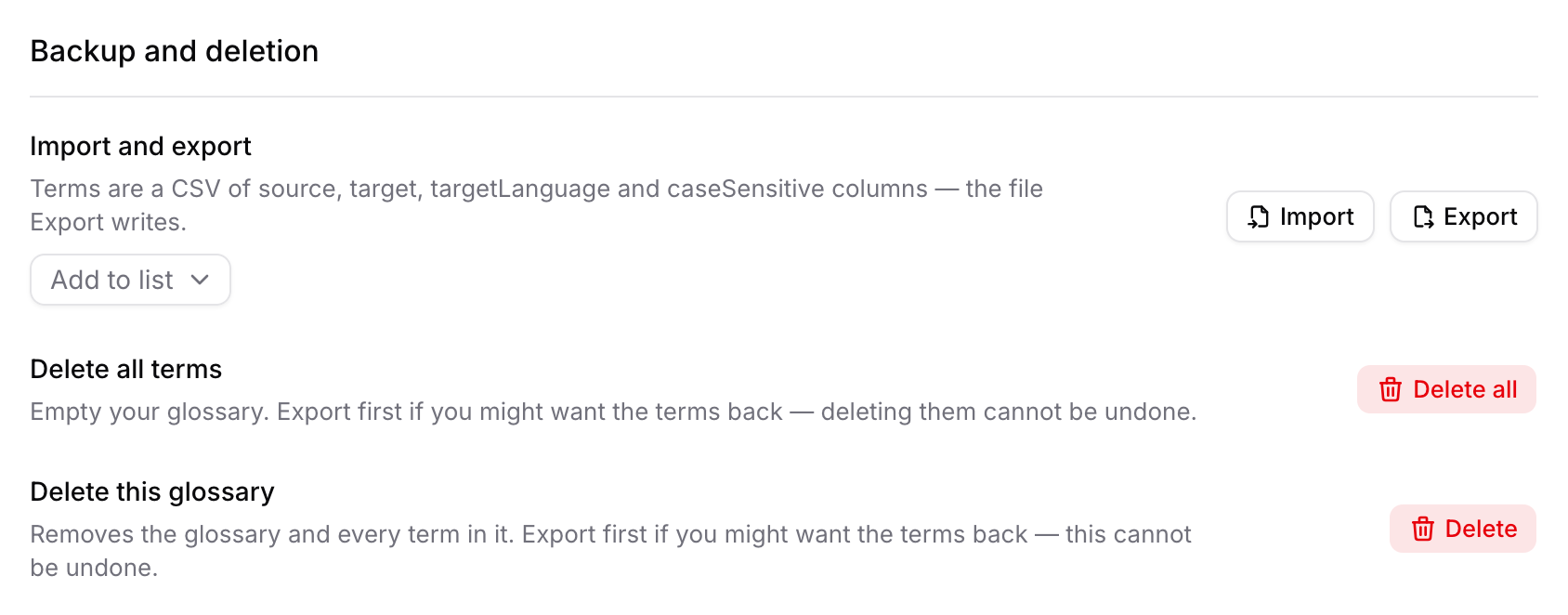
The file has exactly four columns:
source,target,targetLanguage,caseSensitive
prompt,提示词,cmn,false
Read Frog,,all,false
IT,信息技术,cmn,true| Column | Value |
|---|---|
source | The term |
target | The wording, or empty to keep the original |
targetLanguage | An ISO 639-3 code such as cmn, jpn, spa — or all |
caseSensitive | true or false |
All four columns are required, with every cell filled. A term's case rule and target language are part of what identifies it, so a file that leaves them out cannot say which rows it is describing. Two-column files from other tools are refused. Export a glossary first to see the exact shape.
Import has two modes:
- Add to list merges the file into the glossary, updating terms that are already there.
- Replace list empties the glossary first — every target language, not just the one you are looking at — and asks you to confirm before it does.
Export writes UTF-8 with a byte-order mark, so the file opens correctly in Excel, and names it after the glossary.
Sync and backup
- Glossaries sync through Google Drive alongside your settings, in a file of their own. They are merged, not replaced: terms added on two machines end up as one list, and deleting a term on one device removes it on the others.
- Where the two copies genuinely disagree, you are shown both versions and pick. Any sync can be undone from the toast it leaves behind.
- Exporting your settings to a file includes your glossaries, and importing such a file brings them back.
- Resetting your config leaves your glossaries alone.
Limits
| Limit | |
|---|---|
| Glossaries | 50 |
| Terms, across all glossaries | 20,000 |
| Term and translation length | 200 characters each |
| Glossary name | 100 characters |
| Glossary description | 500 characters |
Which features honour a glossary
| Feature | Glossary applies |
|---|---|
| Page translation | Yes, on an LLM provider |
| Video subtitles | Yes, on an LLM provider |
| Selection toolbar translation | Yes, on an LLM provider |
| Input translation | Yes, on an LLM provider |
| Google / Microsoft / DeepL and other pure translation APIs | No |
| Note suggestion | No — it is a dictionary lookup, not a translation |