
Shortcuts
Every key Read Frog listens for while you read, what it does, and how to record your own.
Six things in Read Frog can be triggered from the keyboard. They all live in one place: Options → Shortcuts.
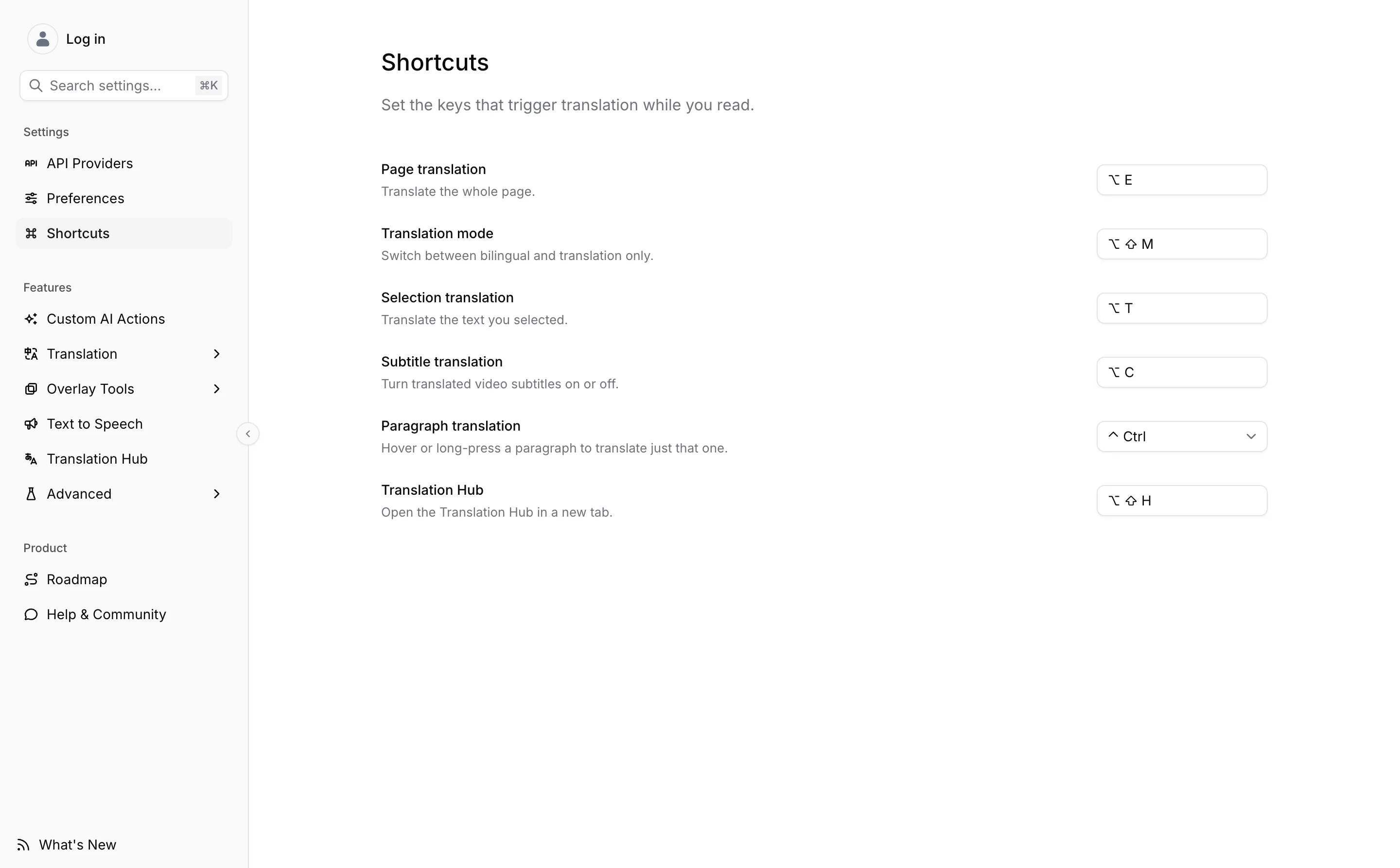
What each one does
| Shortcut | What it triggers | Default |
|---|---|---|
| Page translation | Translates the whole page, and translates it back on a second press | Alt + E |
| Translation mode | Switches between bilingual and translation only | Alt + Shift + M |
| Selection translation | Translates the text you have selected | Alt + T |
| Subtitle translation | Turns translated video subtitles on or off | Alt + C |
| Paragraph translation | Translates the one paragraph under your pointer | Ctrl held — see below |
| Translation Hub | Opens Translation Hub in a new tab | Alt + Shift + H |
Recording a new one
Click a shortcut's field and press the combination you want. It is saved the moment you press it — there is no confirm step.
Three things are worth knowing while the field is recording:
- A shortcut needs at least one modifier plus one ordinary key. Pressing T alone records nothing and the field keeps waiting.
- Esc cancels and leaves the old shortcut alone.
- Backspace or Delete clears the field, which turns that shortcut off. An empty field is a valid state.
On macOS, ⌘ and Ctrl are recorded as distinct keys and displayed with their usual symbols, so a combination you record on a Mac reads the way the rest of the system does.
Paragraph translation is the odd one
Its field is a dropdown rather than a recorder, because what it takes is a single held key, not a combination. The five choices are ⌃ Control, ⌥ Alt, ⇧ Shift, ` backtick, and click and hold — press and hold the mouse button instead of a key.
This page only sets the key. Whether the feature runs at all is a switch on the Page Translation screen. See Hover Translation for both halves.
Long press belongs to paragraph translation and nothing else. Selection translation has no press-and-hold variant — it needs text you have already selected.
Where the keys work, and where they do not
Every one of these is handled by Read Frog on the page itself, not registered with the browser. Two consequences follow.
They only work on pages where Read Frog is allowed to run. On a site you have excluded in Site Control, and on the browser's own internal pages, nothing listens for them. They also stay quiet while your cursor is inside a text box, so typing Alt + E into a search field does not translate the page under it.
And chrome://extensions/shortcuts has nothing to show for Read Frog. There are no browser-level commands to assign there; this page is the only place shortcuts are set.
If a shortcut stops working on one site, the page has probably claimed the same combination for itself. Record a different one here rather than fighting the site for it.
Related
Input translation is triggered by three taps on the space bar rather than a shortcut — see Input Translation. The floating button, the selection toolbar, and the context menu are covered in Entry Points.
Text to Speech
Pick a voice for each language from 300+ free voices in 70+ languages, and tune speaking rate, pitch, and volume for Read Frog's Speak actions.
Site Control
Decide which websites Read Frog is allowed to run on at all, with a blacklist you add exceptions to or a whitelist you opt sites into.