
Entry Points
The floating button, the selection toolbar, and the browser context menu — the three places Read Frog can be reached from while you are reading.
Three surfaces put Read Frog within reach of the page you are on. Each can be turned off on its own, and each is configured under Options → Overlay Tools.
None of them replaces the others: the button acts on the whole page, the toolbar acts on what you selected, and the context menu does either from the browser's own menu.
Floating button
A small frog docked to one edge of the page.
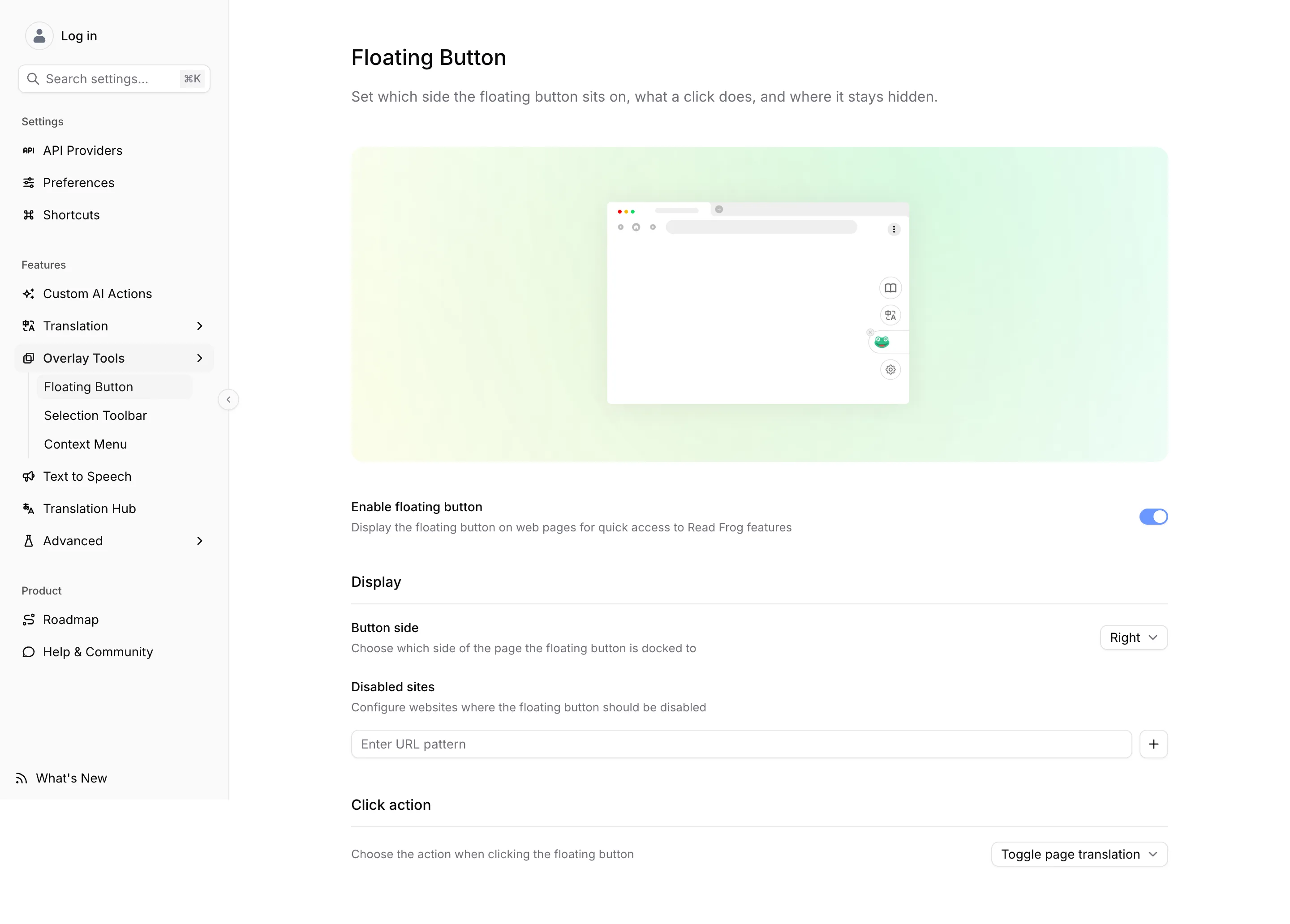
| Setting | What you can set |
|---|---|
| Enable | Whether the button appears on web pages at all |
| Button side | Left or right edge. The default is right |
| Disabled sites | URL patterns where the button stays hidden, without affecting anything else |
| Click action | Toggle page translation (the default) or Open side panel |
You can drag the button up and down its edge, and lock it in place from its own menu once it sits where you want it. That menu also reaches settings, feedback, and two quick exits — Disable for this site, which adds the current site to the list above, and Disable globally, which flips the enable switch off.
Selection toolbar
Select text on a page and a small toolbar appears next to it.
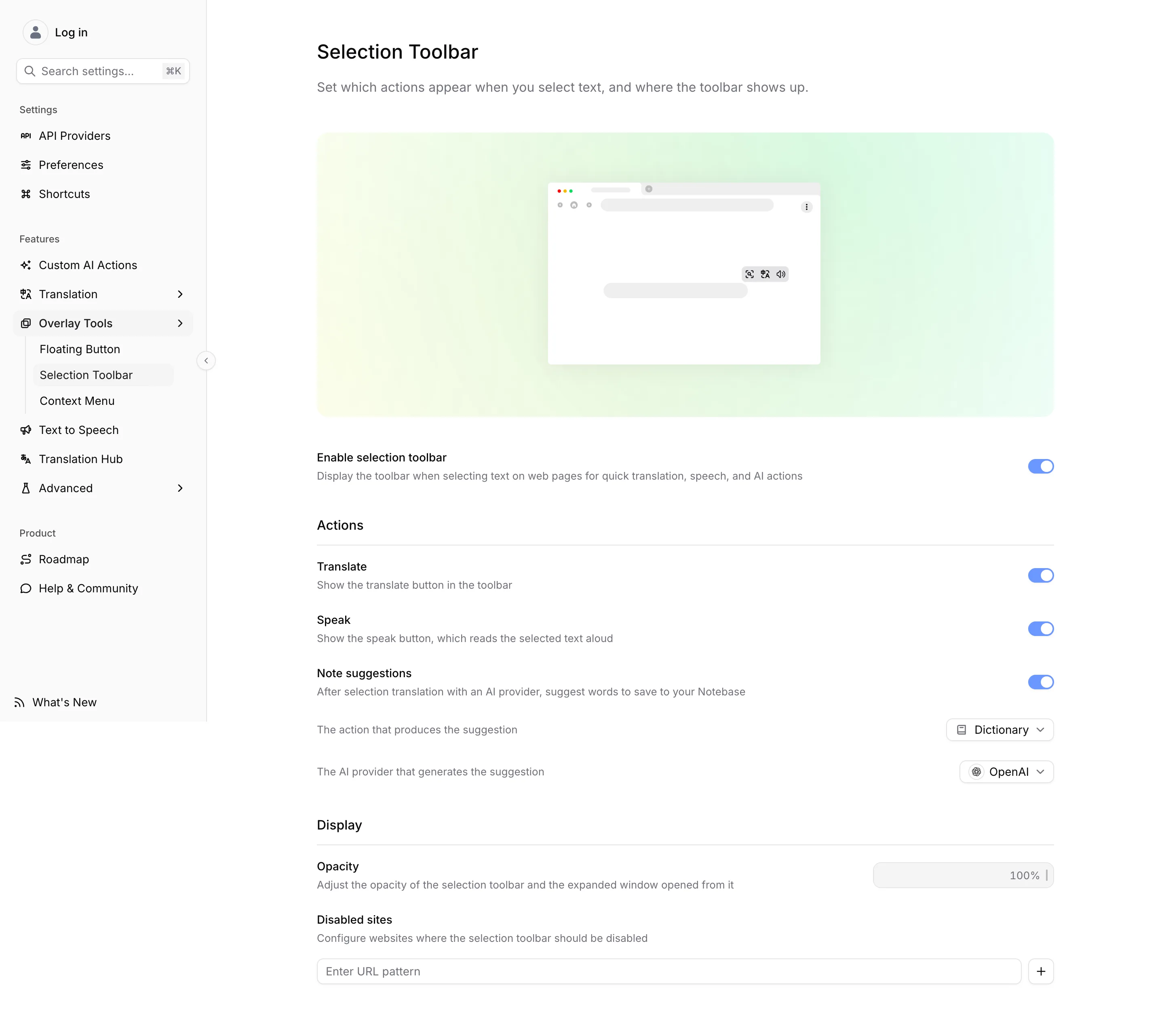
The Actions section decides which buttons the toolbar carries:
- Translate — translates the selection in place. It also has a keyboard shortcut, Alt + T by default; see Shortcuts.
- Speak — reads the selection aloud with your voice settings from Text to Speech.
- Note suggestions — after an AI translation of the selection, offers the words worth keeping so you can save them to your Notebase. The two rows under the switch choose which action produces the suggestion and which AI provider runs it.
Your AI actions appear as buttons of their own alongside these, each with the icon you gave it. The built-in Dictionary action is one of them. They are created and enabled in Custom AI Actions, not here.
Under Display, Opacity applies to the toolbar and to the window it expands into, and Disabled sites takes URL patterns where the toolbar never appears. As with the floating button, the toolbar's own close menu offers Disable for this site and Disable globally.
The toolbar can get in the way on sites where selecting text already does something — an editor, a highlighting tool, a reader with its own popup. Add those to Disabled sites rather than turning the toolbar off everywhere.
Browser context menu
Open Options → Overlay Tools → Context Menu. It is a single switch, and it adds Read Frog to the menu you get from right-clicking a page.
With it on, the menu carries:
- Translate when you right-click the page itself. Once the page is translated the same entry reads Show Original.
- Translate "…" and Read aloud "…" when you right-click a selection, quoting the text you selected.
- One entry per enabled AI action, again on a selection.
The switch is all or nothing: turning it off removes every Read Frog entry, AI actions included.
This is the entry point to reach for when an overlay is not welcome — a page whose layout the toolbar covers, or a site where you would rather Read Frog stayed invisible until asked.
What applies to all three
Site Control comes before all of them. On a site it excludes, the floating button and the toolbar never appear, and no per-tool list is needed to keep them away.
The context menu is the one exception worth knowing. Its entries are registered with the browser rather than drawn on the page, so they stay in the right-click menu even on an excluded site — and clicking them does nothing, because there is no Read Frog on that page to answer.
The per-tool Disabled sites lists are narrower by design. They hide one surface and leave everything else — shortcuts, automatic translation, the other entry points — working as before.