
Input Translation
Write a message in your own language, tap the space bar three times, and have the text box hold the translation instead.
Input translation works on text you are writing, not text you are reading. You type a reply in the language you think in, trigger it, and the draft in the box is replaced by its translation — before you press send.
Open Options → Translation → Input Translation.
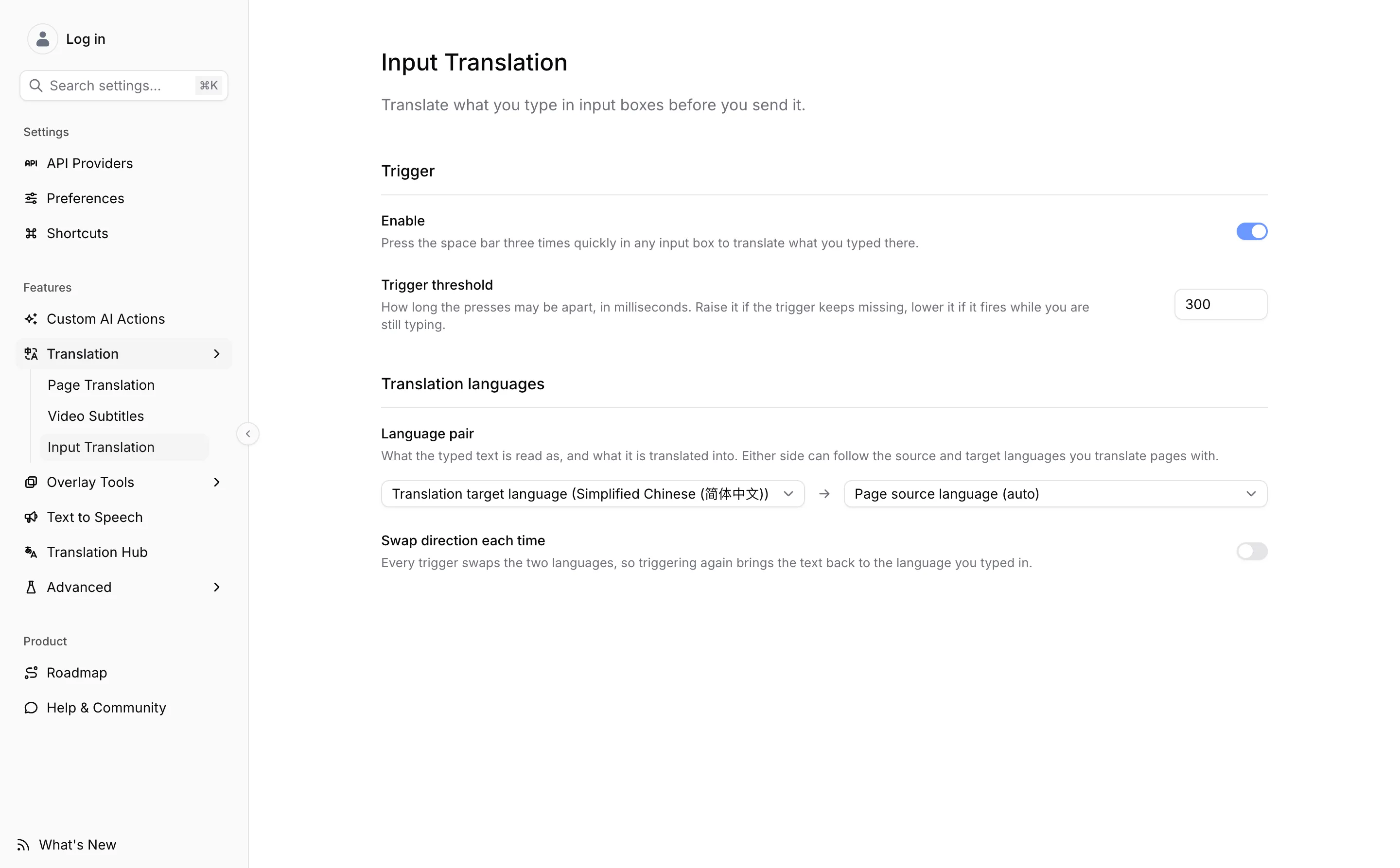
The trigger
Press the space bar three times in a row inside any text box. The keys are fixed; the only thing you set is how close together the presses have to land.
Trigger threshold is the longest gap allowed between two presses, in milliseconds. The default is 300, and the field accepts 100 to 1000. Raise it if the trigger keeps missing you, lower it if it fires while you are still typing an ordinary sentence.
A spinner appears at the right edge of the box while the request is out. The trailing spaces you typed are removed first, so they never reach the translation.
Input translation is not on the Shortcuts page, because it has no key combination to record — three spaces is the whole trigger.
Which language into which
The Language pair row sets what your typed text is read as, and what it comes back in. Either side can be a fixed language, or it can follow the languages you translate pages with:
| Option | What it resolves to |
|---|---|
| Translation target language | Your target language from Preferences |
| Page source language | Your source language from Preferences, auto included |
| A named language | That language, whatever your page settings say |
Out of the box the pair reads your typed text as your target language and writes it out in your source language — you type in the language you read translations in, and get back the language the web is in. That is the direction most people want; reverse it if yours differs.
Swap direction each time flips the pair on every trigger, so triggering a second time on the same box brings the text back to the language you typed in. The arrow between the two selectors changes shape to show which mode you are in.
Where it can and cannot reach
It works in plain <input> and <textarea> fields, and in the contenteditable boxes that rich text editors use. Password fields are skipped deliberately, so nothing you type there is ever sent.
Ctrl/⌘ + Z puts your original draft back — the replacement is written as an ordinary edit, not a reset of the field.
If you keep typing while the translation is in flight, the result is discarded rather than pasted over your newer text.
A few editors draw their text onto a canvas rather than into an editable element. There is nothing there to read or replace, so the trigger does nothing at all on those — no spinner, no error.
Provider and coverage
The provider is assigned in Options → API Providers, under the feature list, not on this page. Any translation provider can do the job, including the pure translation services; see Model Providers.
A Glossary only travels with an LLM provider. If your terms matter in what you write, put input translation on an LLM rather than on Google or Microsoft Translator.
Input translation follows Site Control: on a site where Read Frog does not run, the trigger does nothing. Unlike the floating button and the selection toolbar, it has no per-site list of its own.