
Translate Local Web Pages
Allow Read Frog to access file URLs and translate local HTML files in Chrome or Edge.
Before you start
Chrome and Edge do not allow extensions to access file:// pages by default. This is a browser-controlled permission, so Read Frog cannot enable it automatically during installation. You only need to enable it once; the browser remembers your choice until you turn it off or remove the extension.
Enable access to local files
Open Read Frog's extension details
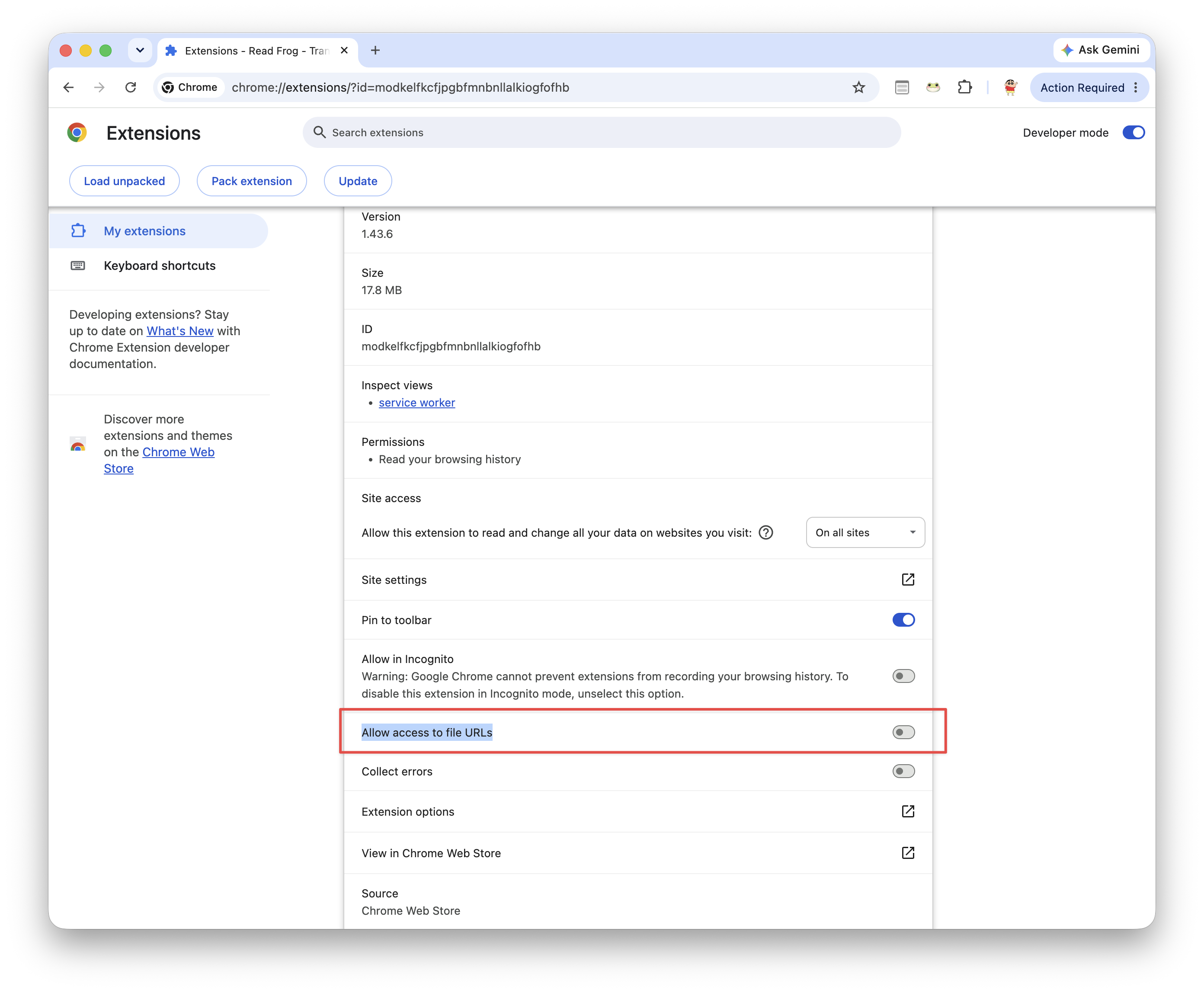
Right-click the Read Frog icon in the browser toolbar and select Manage extension. If the icon is not visible, open the Extensions menu first.
You can also enter chrome://extensions in Chrome or edge://extensions in Edge, find Read Frog, and select Details. Browser settings URLs must be typed or pasted into the address bar.
Turn on file URL access
Enable Allow access to file URLs. You do not need to turn on Developer mode.
Reload the local page
Return to the local page and reload it so Read Frog can run on the page.
Translate a local HTML file
Open an .html or .htm file in the browser by dragging it into a tab or using Ctrl+O on Windows/Linux or Command+O on macOS. When the address starts with file://, use Read Frog's floating button, popup Translate action, or page shortcut as usual.
This guide applies to HTML pages loaded from file://. Browser-internal pages such as chrome:// and edge:// pages cannot be translated by extensions. For translation modes and controls, see Page and Paragraph Translation.
Alternative: serve the folder locally
If you prefer not to grant file URL access, serve the folder over HTTP and open the page from localhost. For example, run this command inside the folder if Python 3 is installed:
python3 -m http.server 8000Then open http://localhost:8000 in the browser. Tools such as VS Code Live Server provide the same kind of local address.
Privacy reminder
Local pages can contain private information. Their text is processed according to your configured translation provider. Check your provider settings before translating sensitive files.
Troubleshooting
- If Read Frog does not appear or respond, confirm that Allow access to file URLs is enabled, then reload the page.
- If the address does not begin with
file://orhttp://localhost, confirm that the file was opened in the browser. - If the page itself cannot load scripts, fonts, or other files, use a local HTTP server to avoid browser restrictions on local resources.