
Video Subtitles
Translate YouTube captions, including Shorts and embedded players, with independent display, provider, prompt, rate, and batch settings.
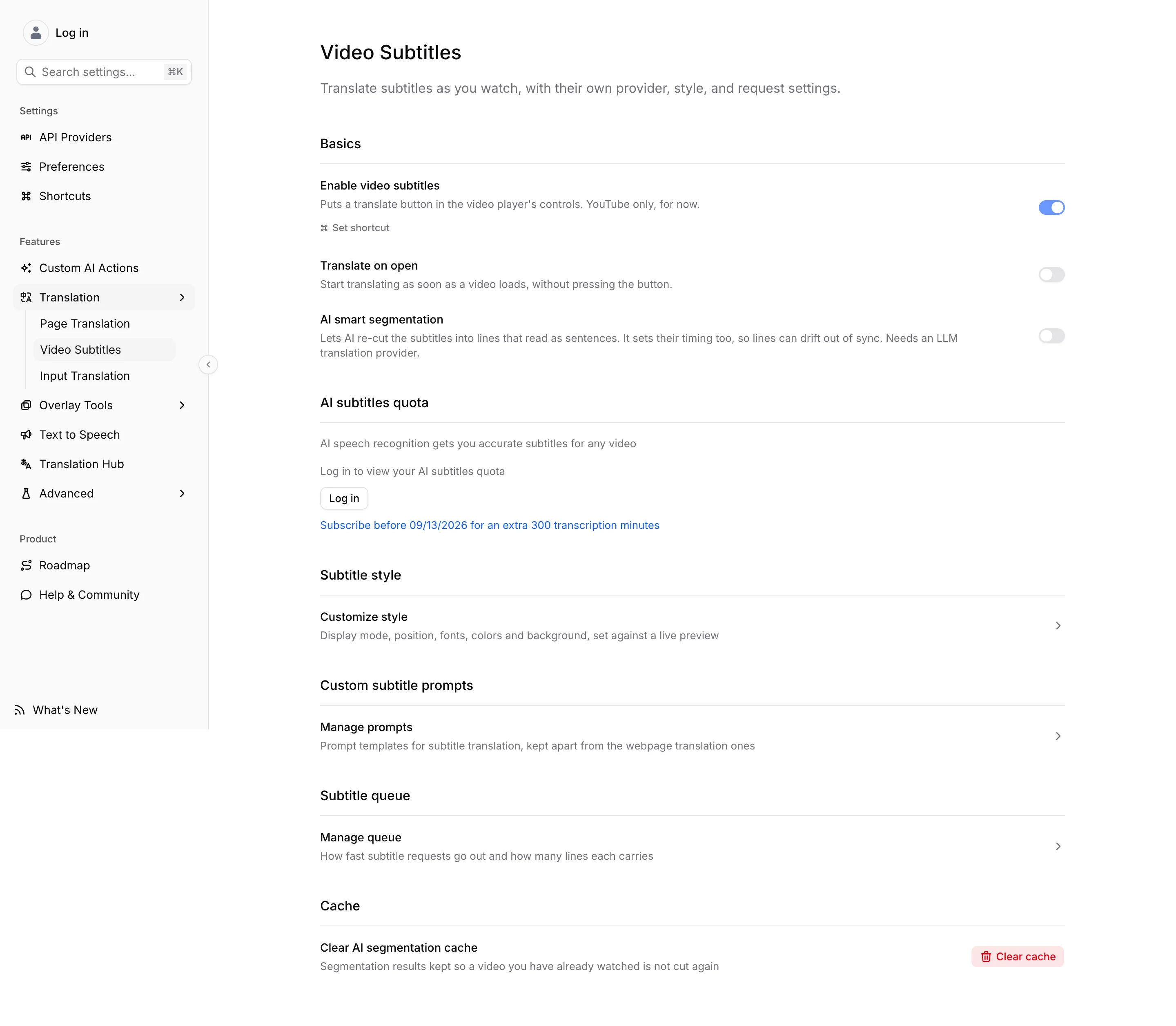
Read Frog can translate captions in normal YouTube videos, YouTube Shorts, and embedded YouTube players on other websites. The video must have captions that YouTube exposes to the player.
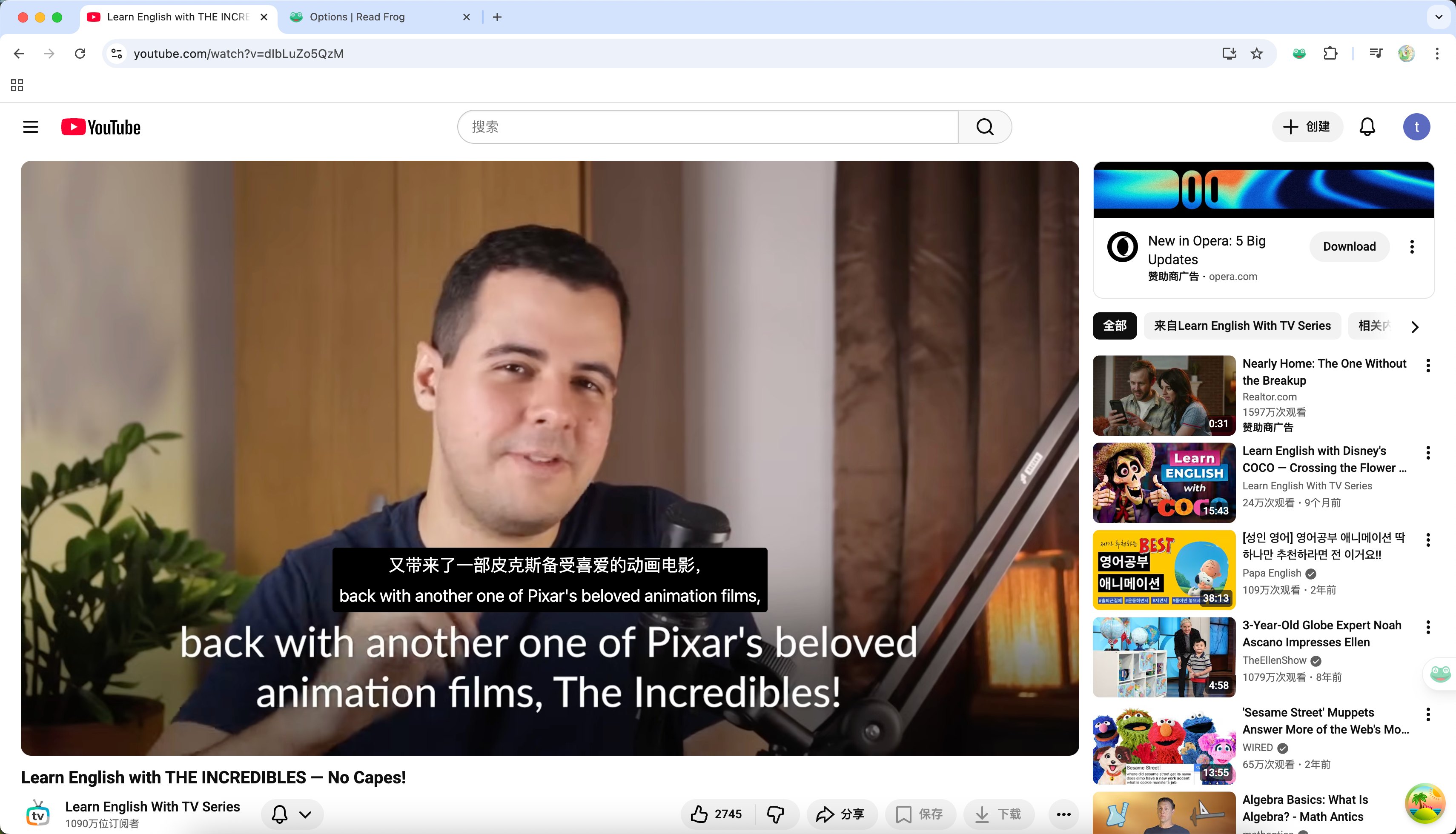
Enable subtitle translation
- Open Options → Video Subtitles.
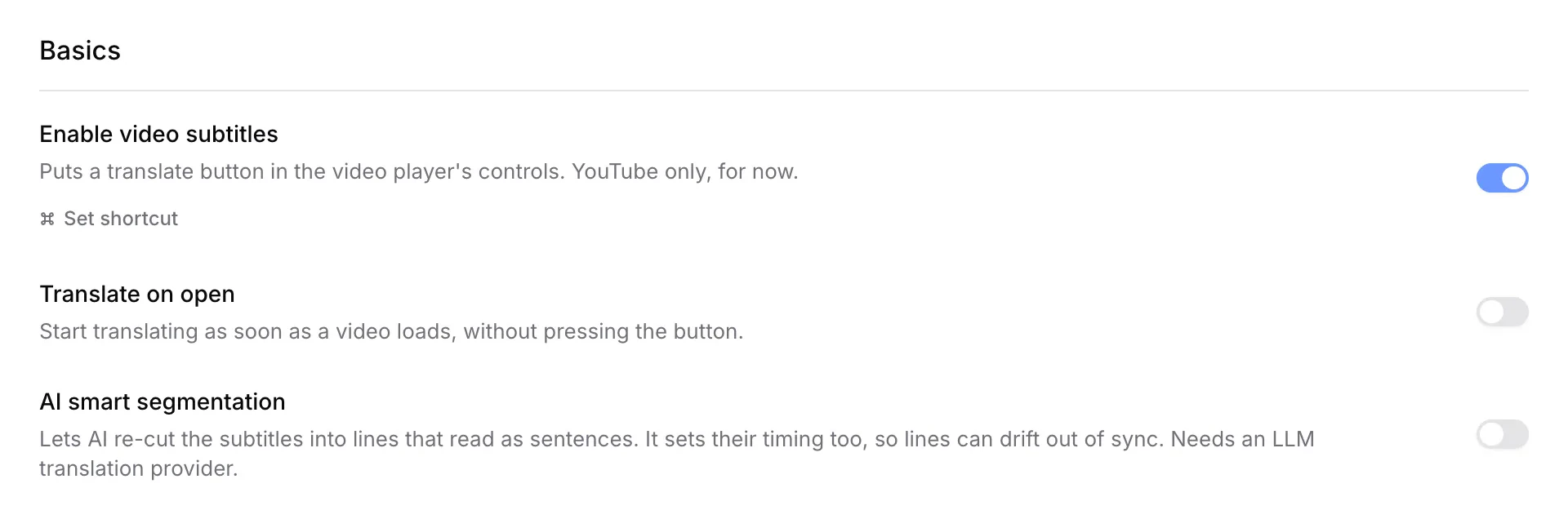
- Turn on Enable video subtitles.
- Select an enabled translation provider.
- Open a supported YouTube video and use the Read Frog control in the player.
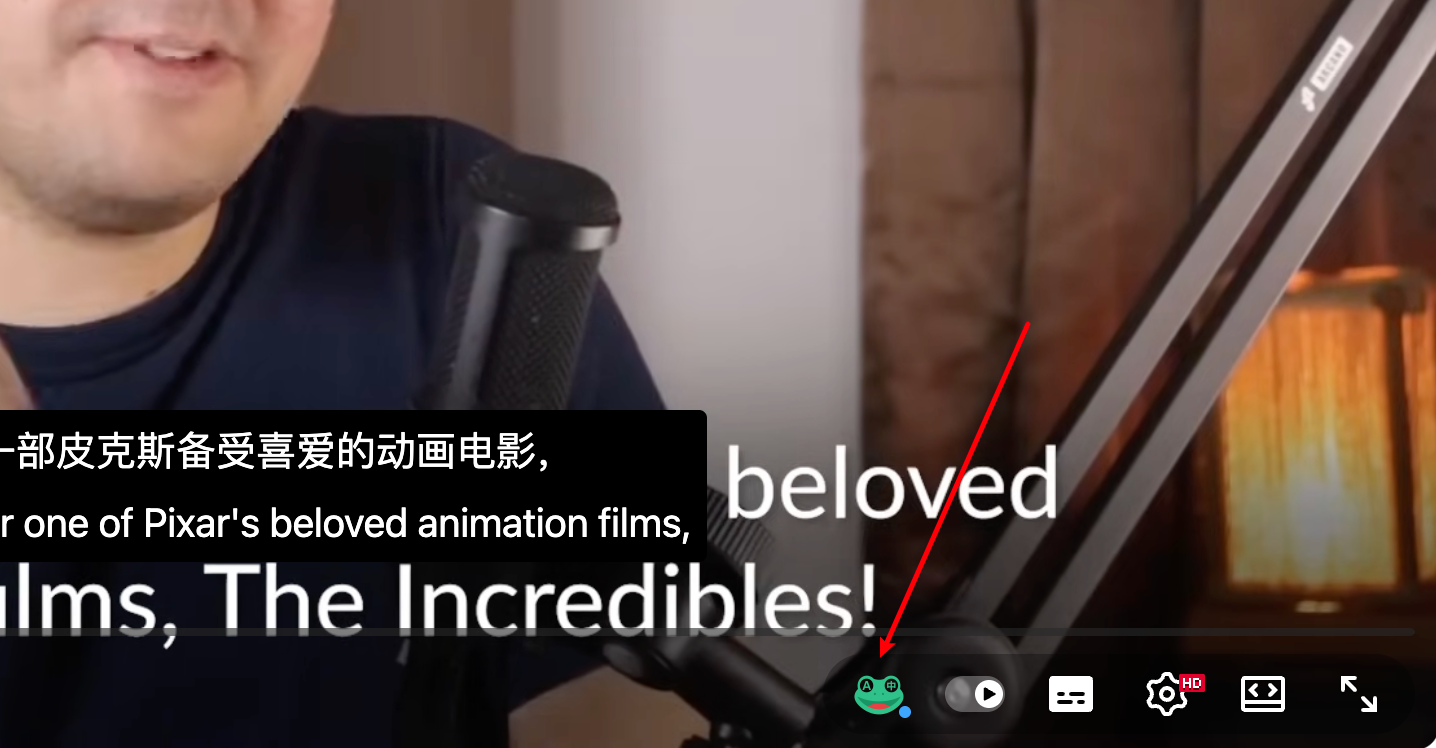
Translate on open starts Read Frog translation whenever a supported player loads. It does not manufacture captions: videos without available captions still cannot be translated.
Display and style
Choose bilingual, original-only, or translation-only captions. For bilingual captions, place the translation above or below the source. Style controls include font family, size or scale, weight, text colors, background opacity, and player position.
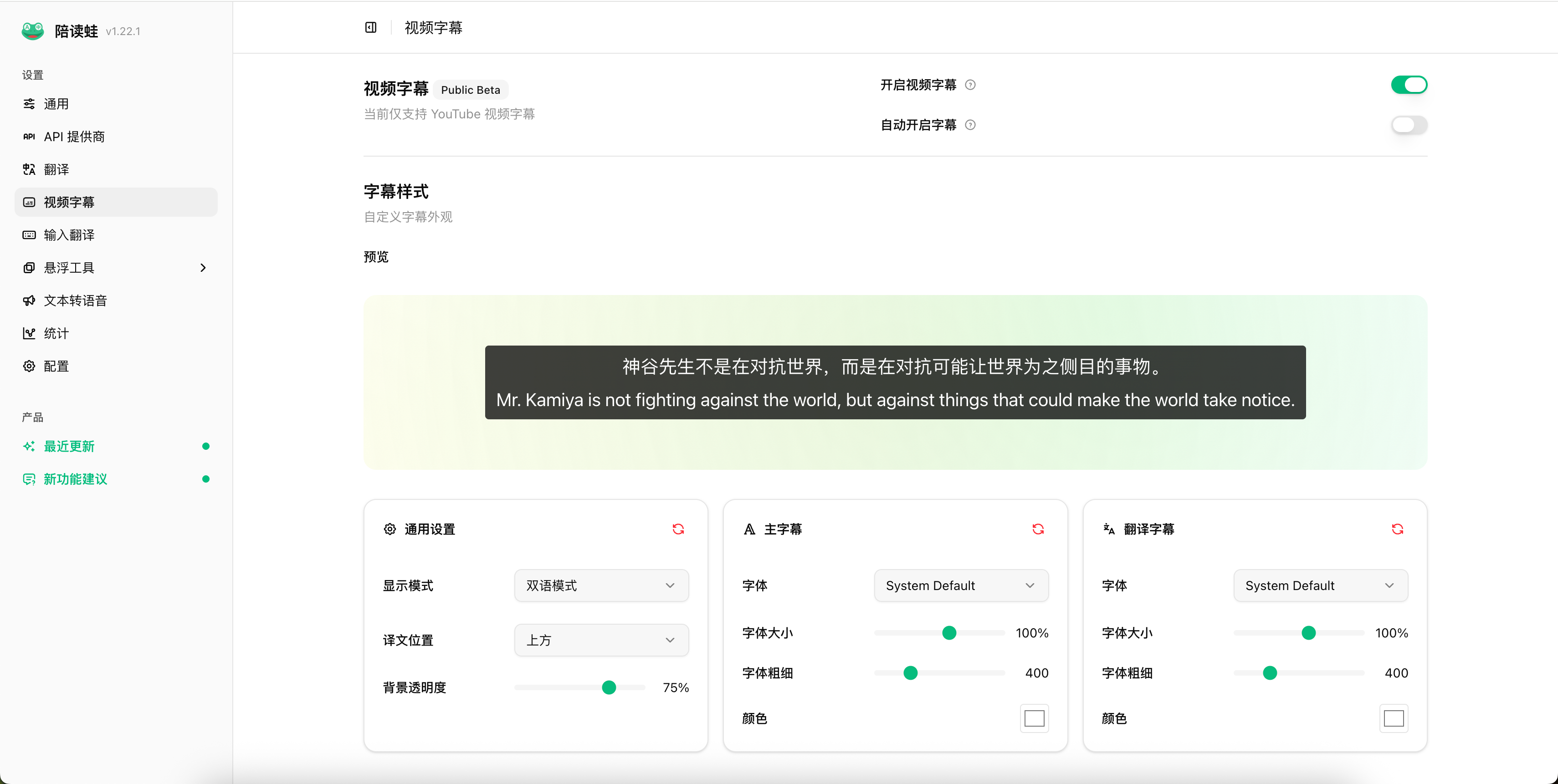
These values affect the player overlay only. They do not change page-translation layout or Custom CSS. For effects the controls do not cover — blurring the translation, dimming the original, reshaping the caption box — see Custom Subtitle Styles.
AI smart segmentation
AI smart segmentation uses an LLM to regroup raw caption fragments into more natural reading units. It can improve sentences split at awkward boundaries, but it:
- requires an LLM provider;
- adds model latency and token cost;
- can occasionally make timing less exact;
- stores a cached segmentation result for reuse.
Clear the segmentation cache when you want the next playback to process the captions again. If subtitles disappear or lag, first turn segmentation off to separate caption availability from LLM processing.
Independent request settings
Video subtitles have their own provider, prompt, request rate, burst capacity, and LLM batch limits. Changing them does not change webpage translation.
The defaults are 8 requests/second, burst capacity 60, 1000 characters per batch, and 4 caption segments per batch. Rate and capacity use the same Token Bucket semantics described in Request Control & Batch Translation: capacity is an immediately available burst, not a concurrency limit. Batch translation applies only to LLM providers.
For a low-quota subtitle provider, start with burst capacity 1 and the documented sustained rate. For example, 0.25 requests/second releases one request every four seconds.
Troubleshooting
- No Read Frog control: confirm Enable video subtitles is on, then reload the video tab.
- No translated captions: verify that the video has captions and that the selected provider passes Test Connection.
- Frequent 429 errors: lower the subtitle rate and set burst capacity to
1. - Awkward caption boundaries: try AI smart segmentation with an LLM provider.
- Timing became worse: turn off AI smart segmentation or clear its cache and retry.
The screenshots show the same controls described here; small visual details can differ as the YouTube player and extension UI evolve.