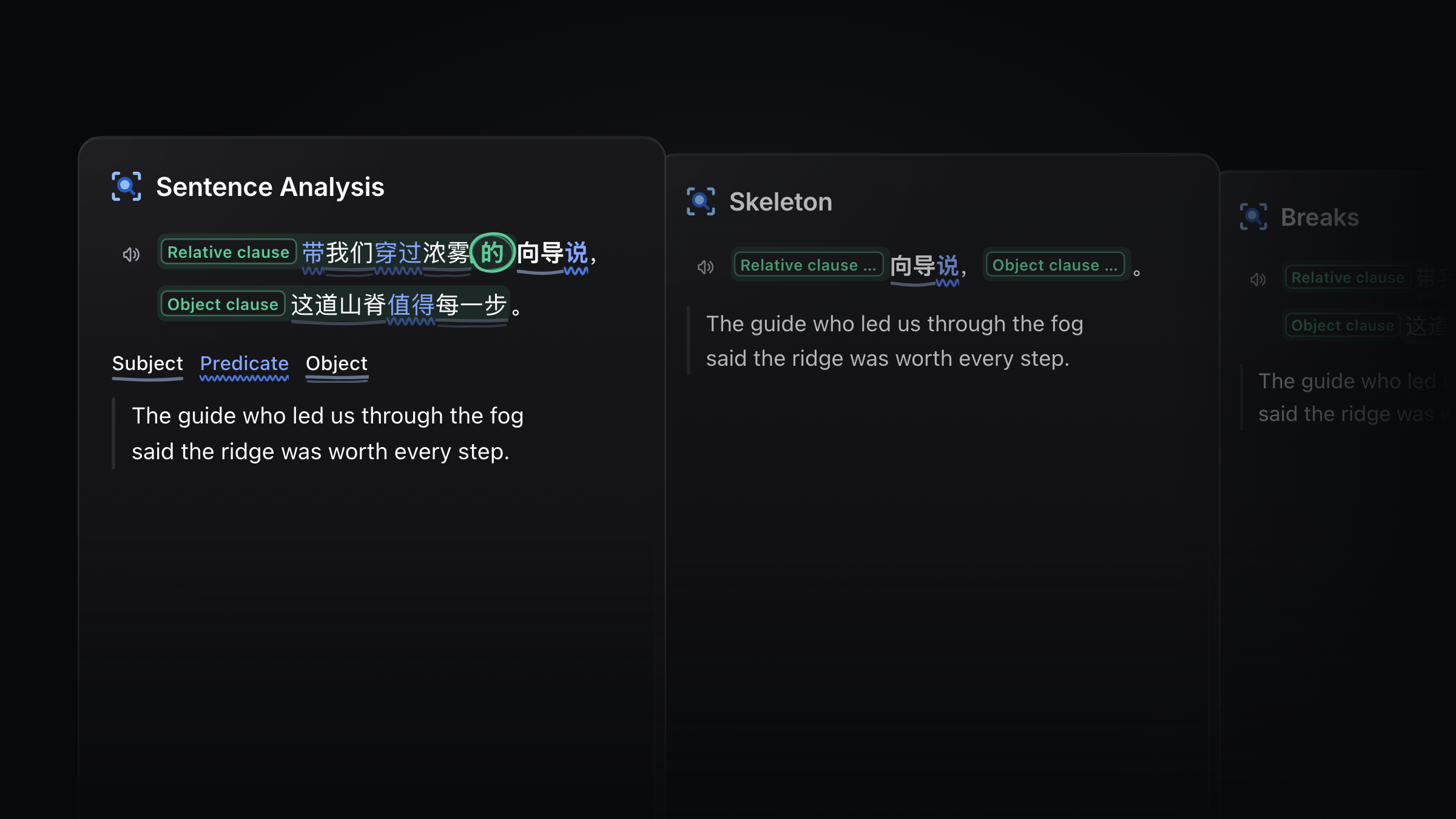
Custom AI Actions used to give you a list: a field name, its value, then the next field. It worked, but every result looked the same, whether it was a dictionary entry or a sentence taken apart.
From Read Frog 1.49, every answer is a card. The built-in actions show what a card can do: Sentence Analysis marks up a long sentence the way a teacher would. Your own actions can be cards too, and what they say, how they look and what happens when you click are all up to you.
Here it is in 30 seconds:
Long sentences, marked up like a teacher would
Some sentences you can translate and still not see how they work. Take the one on the cover: 带我们穿过浓雾的向导说,这道山脊值得每一步。(The guide who led us through the fog said the ridge was worth every step.) Where is the main verb? Which words only describe the guide?
Select a sentence in the language you're learning and click Sentence Analysis in the selection toolbar. It comes back marked up:
- The core (its subject, verb and object) is bold over a pencil line. Verbs are blue.
- Every clause sits in a shaded box, with a label that says what it does, such as a relative clause or an object clause.
- The word that opens a clause is circled.
- What makes the sentence hard, such as an inversion, a passive or a missing word, gets a star and a short note between the lines.
Hover over or tap any part to see what it is and which word it belongs to. The rest of the sentence fades while you look, and the translation sits underneath.
Two switches give you two more ways to read the same sentence:
| Switch | What you see |
|---|---|
| Skeleton | Every clause folds into its label and every modifier into "…". Only the bones are left. |
| Breaks | The slashes a teacher would pencil in, so you can read the sentence one chunk at a time. |
Sentence Analysis is turned on for everyone, existing users included. It runs on the Built-in AI, so there is nothing to set up: select a sentence and it's in the toolbar.
Your own card: what it says, how it looks, what a click does
Your own actions now work the same way. A card has three parts you can change:
| Part | What you decide | Example |
|---|---|---|
| What it says | The fields the AI fills in | An idiom card with pinyin, literal meaning, meaning and story |
| How it looks | The card's layout | Each character on its own tile, with its pinyin above |
| What a click does | What happens when you click | The meaning stays covered until you click |
The third part is new. A card can hide an answer until you click, read a word aloud, copy a result, or explain a part when you hover over it: the same things Sentence Analysis does.
Layouts are written in HTML, and the fields fill in while the answer streams. The Layout editor shows a live preview in the light and dark themes, at any width, with sample data you can edit. You can start from the plain field list or from any built-in card. Built-in actions can't be edited directly: click Customize to get an editable copy.
Not into HTML? Ask your AI
Every action you create has a Configure with AI button next to its name. It copies a prompt that you paste into the AI chat you already use, such as ChatGPT, Claude, DeepSeek or Kimi. The assistant asks what you want, then tells you what to put in each setting: the name, the icon, the fields, the prompt and the layout.
The card in the video took three requests: "An idiom card: pinyin, literal, meaning, story", "Make it look like character tiles" and "Hide the meaning until I click".
The prompt includes the action's current settings, so you can also use it to change an action you already have. It never includes your API keys.
Every action, one menu away
The selection toolbar now ends in a More actions menu that lists every action you have. Run one from there, choose Pin to toolbar for the ones you use most, and drag them into the order you like. To make a new one, choose Add custom AI action at the bottom.
Also in this update
- Improve Writing is built in. It marks mistakes and awkward phrasing like a teacher, judged against what you are writing (an email to a professor is not a message to a friend), and gives you a fixed version. It waits in the More actions menu until you pin it.
- The Dictionary card is redesigned, and the word you looked up is bold in its example sentence.
- Four templates to start from: Dictionary, Sentence Analysis, Improve Writing and Blank. A new action runs on the Built-in AI straight away.
Make one card today
Think of what you look up most often: how formal a word is, what each variable in a formula stands for, what a legal term means in plain words. Ask your AI for that card, paste its answers into Read Frog, and select some text.
The Custom AI Actions guide covers fields, prompts and saving results to your Notebase.
Written by
Read Frog Team
At
Wed Sep 30 2026
Extension Version
1.49.0