Dual Subtitles for YouTube
Read Frog turns YouTube captions into bilingual subtitles, including Shorts and embedded players, and AI can transcribe videos that have no captions at all. Click any word in the subtitles to look it up and save it for review.
Last updated November 1, 2026
Bilingual subtitles on any captioned video
With Read Frog installed, open a YouTube video that has captions and click the Read Frog button in the player's control bar. The captions become bilingual: the translation and the original line stacked together, in sync with the video.
- Works on regular videos, Shorts, and YouTube players embedded on other sites.
- Turn on Translate on open and every video starts translating as soon as it loads, without clicking the button.
AI subtitles for videos without captions
Plenty of talks, podcasts and tutorials have no captions, or only auto-captions full of misheard words. Read Frog can have AI transcribe the audio itself, then show the result as the same bilingual subtitles.
- Transcription runs in the cloud, so your machine does no heavy lifting, and the spoken language is detected automatically.
- It works on regular videos, Shorts, live replays and embedded players.
- Pro includes 300 minutes a month; Ultra includes 1,000.
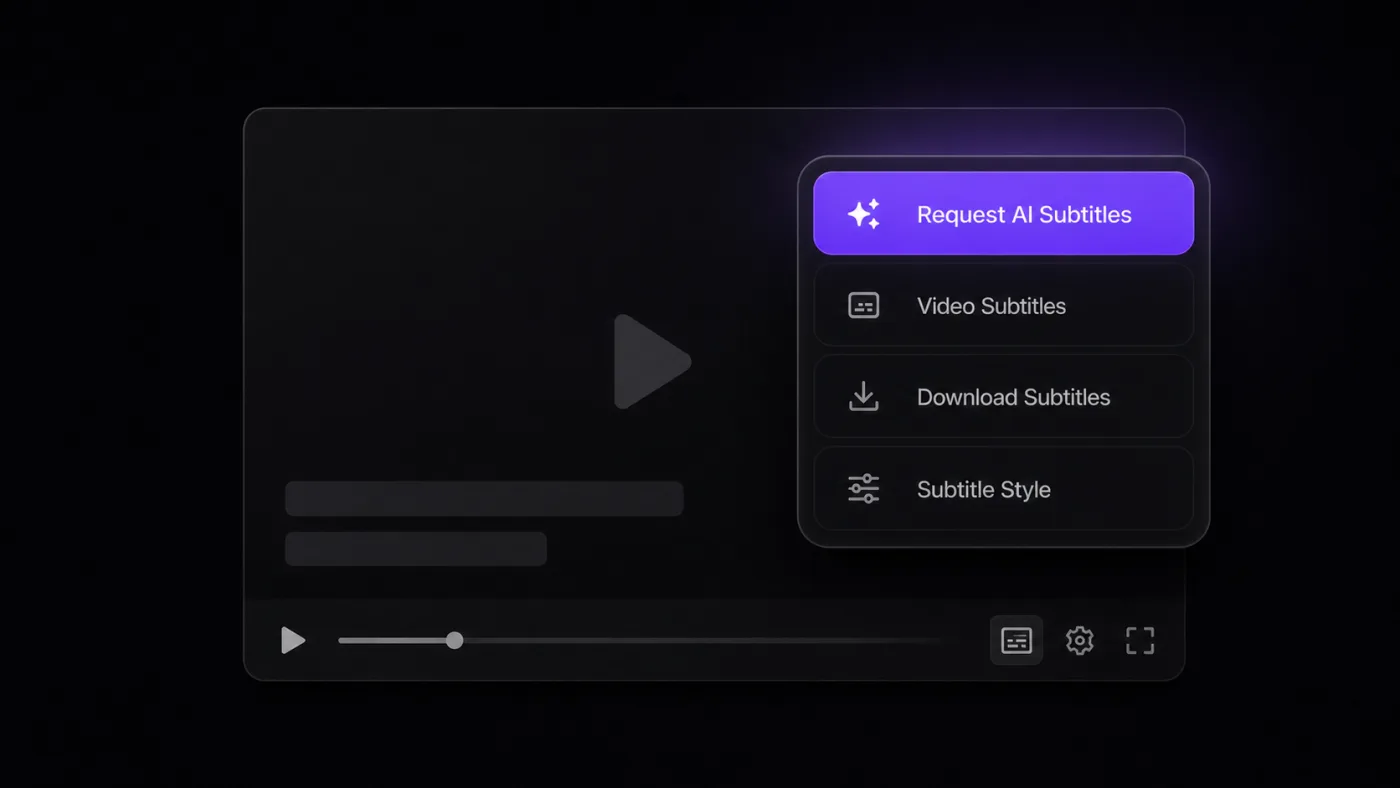
Subtitles the way you like them
Layout
Show the original only, the translation only, or both, with the translation above or below the original.
Style and position
Adjust the font, size, colors and background opacity, and drag the subtitles anywhere on the player. For effects beyond the controls, such as blurring the translation until you have listened once, write CSS with Custom Subtitle Styles.
Downloads
Download the original or the translated subtitles.
Smoother sentences, and the whole video at a glance
Sentences that read naturally
YouTube's auto-captions often split one sentence into several fragments. Turn on AI smart segmentation and Read Frog has an LLM regroup the fragments into whole sentences before translating them, so they read more smoothly. It needs an LLM provider.
The whole transcript, and an AI summary
Open Learning in the Read Frog menu and a panel opens on the right of the page, with two tabs:
- Subtitles lists every line of the video with its timestamp and translation. Click a line to jump to that moment.
- AI summary sums up the whole video, using the LLM you picked for video subtitles.
Learn while you watch
Move the pointer onto the subtitles and the video pauses. Click a word and AI explains what it means in that line, with the Dictionary action or one of your own; for a phrase or a whole sentence, select it instead. Save it to Notebase in one click. Add a card template to the notebase and your notes become flashcards that FSRS schedules for review, so the time you spend watching builds a vocabulary list of your own.
On X and Netflix, too
Captioned videos on X (Twitter), in a post, in the replies or in your timeline, and shows on Netflix get the same bilingual subtitles in one click, with the same style settings as YouTube.
Which Netflix subtitle track it uses, and more: Dual Subtitles for Netflix.
Your choice of translation service
Video subtitles have their own translation service, prompt and request rate, separate from page translation. Use the free Google or Microsoft translator, connect an LLM such as OpenAI, DeepSeek or Gemini, or run a local model with Ollama. See Set Up Providers and API Keys.

























































Getting started
- 1
Install Read Frog
Follow the installation guide.
- 2
Turn on subtitle translation
Open a YouTube video with captions, click the Read Frog button in the player's control bar, and turn on subtitle translation.
- 3
Make it yours
Adjust the display and style in Video Subtitles.
Frequently Asked Questions
If you have more questions, please contact us.
Translating videos that have captions is free for everyone. AI transcription for videos without captions needs Pro or Ultra.
Check that Enable video subtitles is on in the Video Subtitles settings, then reload the video page.
For awkward splits, try AI smart segmentation. If the timing gets worse with it on, turn it off, or click Clear AI segmentation cache in the settings and try again.