
Card Templates
Turn a notebase's fields into a card front and a card back, and watch the result before you save.
A card template is what makes a notebase reviewable. It decides what goes on the Front of a card and what goes on the Back, and every note in the notebase is turned into one card through it.
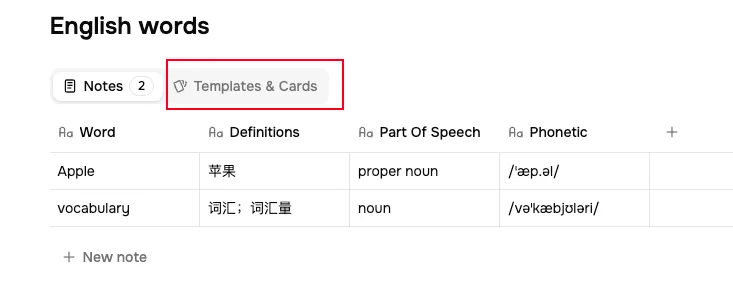
Until a notebase has at least one template it has no cards, and the Review button takes you to the template editor instead of a session.
Ready-made cards
These cards are ready for any notebase whose fields match them. Each card needs the fields it cannot do without, named as the extension names them in any interface language, and shows the others when they are there:
- Recognition card: a term field (such as Term, Word or 词条) and a definition field (such as Definition, Meaning or 释义), as in the notebase the extension's Dictionary action saves to. The front shows the term and the sentence you saved it from, with the term in bold. The back shows its pronunciation, meaning, the sentence's translation and memory tips.
- Cloze card: the Recognition card's fields and a sentence field (such as Sentence, Example or 句子). The front shows the sentence with the term blanked out, whatever form the sentence uses and even when it splits the term, and the term's meaning as a clue. Hint shows the first letter of each word and a slot for every letter. The back shows the term, read aloud, its pronunciation, the sentence with the answer marked, the sentence's translation and memory tips. When the term can't be found in the sentence, the front leaves the sentence out and asks for the term from its meaning alone.
- Sentence Analysis card: the sentence you selected (Sentence, 原句) and its annotations (Annotations, 标注), as in the notebase the extension's Sentence Analysis action saves to. The front shows the sentence. The back marks it up the way the extension does, its core, every clause and what makes it hard, above its translation.
- Improve Writing card: the text you wrote (Original, 原文) and its annotations, as in the notebase the extension's Improve Writing action saves to. The front shows your text with what to fix underlined, a solid line for a mistake and a dashed one for what is off for the setting, so you fix it in your head first. The back lists each fix with its rule and a note, what is worth keeping, the improved text and a one-line summary.
A field you add later shows at the end of the back. The extension keeps the text you selected only in a notebase it creates for one of these actions from now on: a notebase it saved to before has no such field, so it gets neither card.
Read Frog adds the Recognition, Sentence Analysis or Improve Writing card by itself, right after the notebase is created, and tries again 10 minutes and a day later for fields you add by hand, as long as the notebase still has no template. Until then, Templates & Cards and the template editor offer to add it. It is an ordinary template in Code mode, marked Auto-added: rename it, change it or delete it like any other.
Read Frog never adds the Cloze card by itself, since a second card for every word would double your reviews. To review a dictionary notebase this way, choose Cloze card under Presets when you create a template. A notebase can have both cards.
A notebase that already has a template of its own can switch it to one of these cards: on the template's edit page, click Apply on the card under Presets and confirm with Replace. Its code goes into the editor in Code mode, to change or to save as it is. The template keeps its name, its cards and their review history.
Create one
Open Templates & Cards
Open the notebase and switch to the Templates & Cards tab.
Click Add template

Name it
The name is only for you, and it shows on the card during review, so make it say what the card asks: "Term → definition", "Sentence cloze", "Concept → explanation".
Choose what goes on each face
The editor starts in Simple. It lists every field, and for each one you pick Front, Back or Hidden. A new template starts with the first field on the front and the rest on the back.
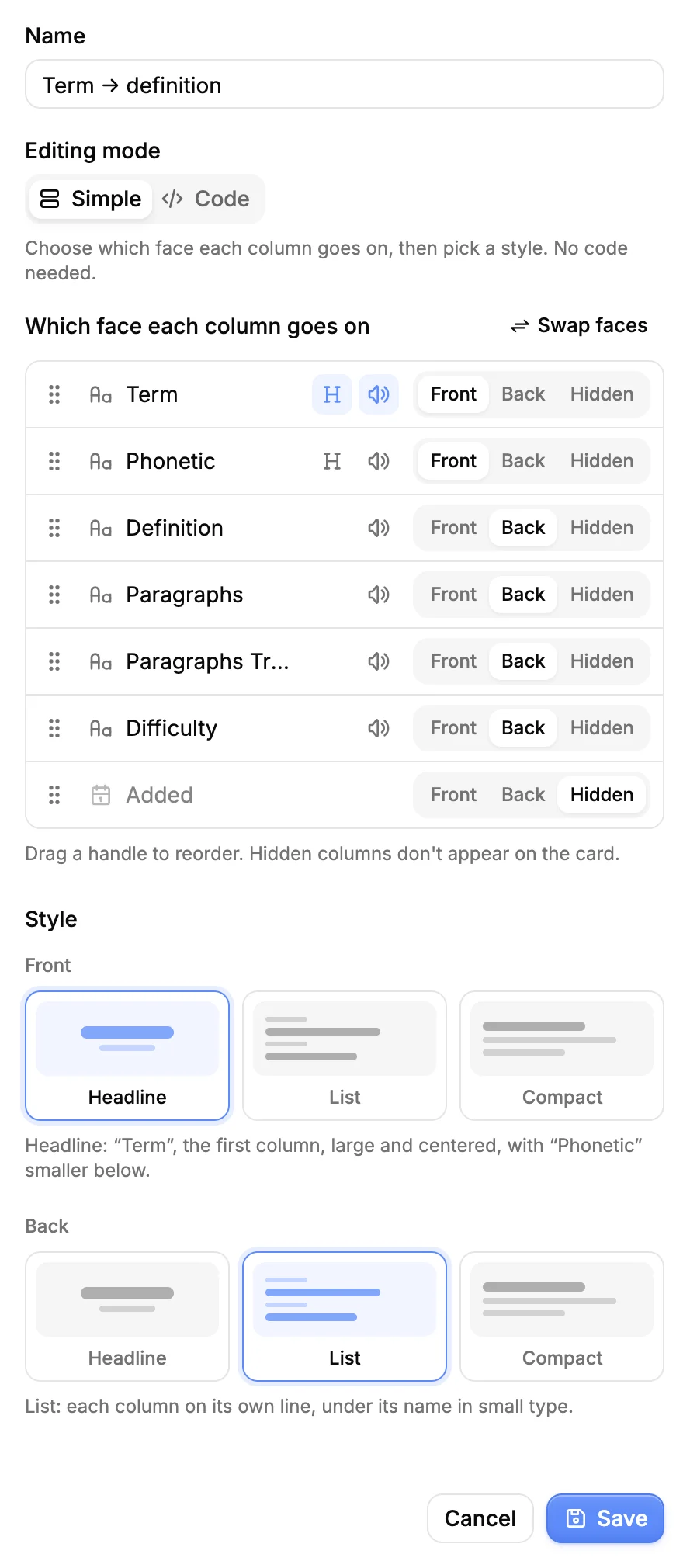
For a vocabulary notebase:
- Front: Term
- Back: Definition, then the example sentence and its translation
Drag a field by its handle to change the order. On each face the fields show in this order. The list keeps each face's fields together, the front's first, then the back's, then the hidden ones; drag a field into another group to move it to that face. Swap faces flips the front and the back, for a definition → term card.
The speaker beside a Text or Select field puts a button after its value that reads it aloud. Date, Number and Checkbox fields have no speaker. The play button next to the speaker reads the field aloud as soon as the card shows in a review; a face plays one field at most.
Pick a style for each face
Each face has a style. Headline shows the first field large and centered, and the rest smaller below it. List puts each field on its own line, under its name in small type. Compact shows the first field in bold, and the rest smaller after it, without names.
On a Headline or Compact face, the H button is highlighted on the field that leads. Press it on another field (Make headline, or Make main) to move that field to the top.
Check the live preview, then save
The right side renders the card against a real note, with Previous note and Next note to walk through them. With no notes yet, field names stand in as placeholder values and the preview is labelled Sample data.
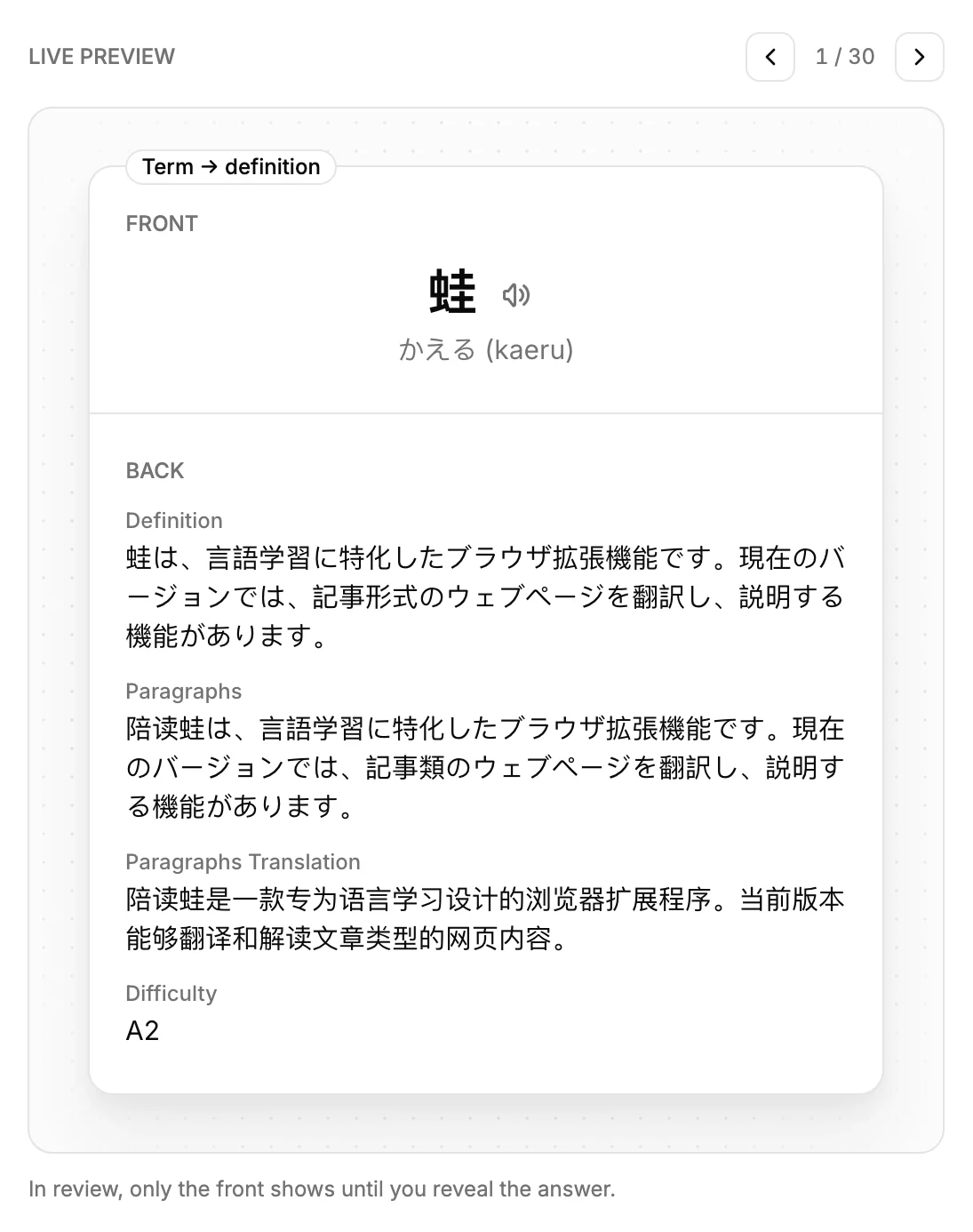
Saving generates a card for every note that already exists. Notes you add later get their card automatically.
What ends up on the card
Fields are filled in with the note's values at review time, not at save time. Edit a note and its cards show the new text immediately, schedule intact. Renaming a field changes nothing on the card but its label.
An empty field is left out, label and all. That is worth designing around: a back made of three fields where only one is usually filled reads as a mostly blank card.
Put the field you are testing recall of on the front and nothing else. Anything extra on the front — the definition's first word, the difficulty rating — is a hint, and a hint you did not mean to give makes the grade you record less honest.
Customize with code
When the styles are not enough — a word highlighted inside its example sentence, a table, your own colors — switch the editor to Code. Each face becomes a small page of HTML with Liquid tags, and the preview updates as you type.
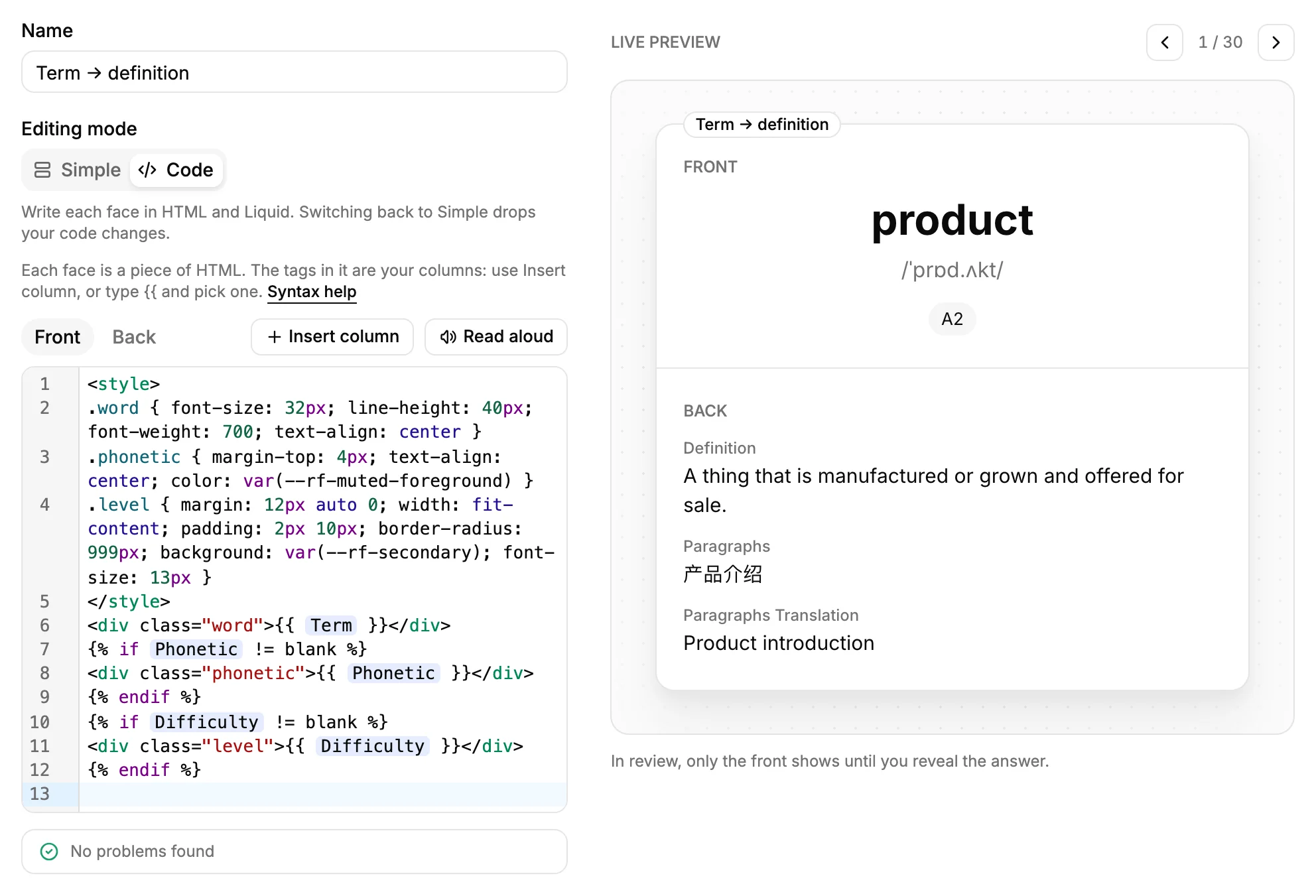
- Front and Back each have their own code. Switching to Code starts both from what the Simple settings produced, so you can begin from a working card.
- Fields appear in the code as tags with the field's name. Insert column puts one at the cursor; with Only when it has content checked, it also hides the line when the note leaves that field empty. Typing
{{offers the fields too. - Read aloud puts the speaker button from Simple at the cursor, for the
TextorSelectfield you pick, along with the styles it needs. - The list under the editor shows problems as you type. Click Go to line to jump to one.
- Copy prompt for AI copies a prompt with this notebase's fields, a few of its notes, the code so far and the syntax below. Paste it into an AI chat, say what you want the card to look like, and paste the code it writes back into each face.
- A face whose code has an error cannot be saved. Switching back to Simple drops your code changes, so the editor asks first.
In the examples below, Term and Example stand for field tags you inserted.
| To | Write |
|---|---|
| Show a field | {{ Term }} |
| Keep a field's line breaks | {{ Example | newline_to_br }} |
| Show something only when a field is filled | {% if Example != blank %}…{% endif %} |
| Style the face | <style>.word { font-size: 28px }</style> |
| Use the theme's colors | color: var(--rf-muted-foreground) |
| Read a field aloud when something is clicked | data-speak="{{ Term }}" |
| Choose the language it is read in | data-speak-lang="ja-JP" |
| Read it aloud as soon as the card shows | data-speak-autoplay |
| Style only the back | :host([data-side=back]) .word { … } |
Read-aloud buttons use the voices you pick in Settings → Text to Speech. The language is worked out from the text and the rest of the note, so a word in kanji is read as Japanese when the note also has kana. When a field is read in the wrong language, add data-speak-lang to its button.
Faces have no JavaScript, and they cannot load anything from the web: scripts, forms and external images are removed. If a face cannot be shown during review, the card falls back to a built-in style for that side.
AI assistants connected through MCP can write templates for you. They read the full syntax reference from the server, and can preview a template on your notes before saving it.
Several templates on one notebase
Add a second template and every note gets a second card, scheduled independently. This is how you get recognition and production out of one note: term → definition in one template, definition → term in the other.
Cards from the same note do not pile up in one day, though. Review one of them and the note's other cards step aside until tomorrow, so two templates do not double your daily load on the same material.
The Cards section
Below the templates, Cards lists every generated card with the template it came from and its current status — New, Learning, Review, Skipped today or Suspended. A skipped or suspended card can be brought back from here, and View memory opens that card's forgetting curve and review history.
If the list is empty, the notebase has no notes yet, or the card stream is still syncing — give it a moment and refresh.
Deleting a template
Deleting a template deletes the cards it generated, and their review history with them. The notes are untouched. If you recreate the template, its cards start from new.
A field that a template uses cannot be deleted. Set it to Hidden in the template (or remove it from the code) first, then delete the field.
Where to go next
The Review Session — what the card looks like once you start reviewing it.