
Save from the Extension
Connect a Custom AI Action to a notebase, map its output fields, and save results from the selection toolbar.
The save entry point lives in the extension, not on the web app. A Custom AI Action produces named output fields; a Notebase connection on that action says which notebase those fields go to and which field each one lands in.
You need to be logged in to readfrog.app in the same browser, under the same account you use for the notebase.
The fast path
If the action is not connected to anything yet, you can skip the setup entirely. Run the action on a selection, click Save to Notebase, and the extension asks Create a Notebase?
Choosing Create and save creates a notebase named after the action, with one field per output field of the action, saves the result as the first note, and writes the connection and the mappings back into the action. Every later save on that action goes to the same notebase with no further setup.
If you are not logged in, the same button reads Log in and auto-create. Read Frog holds the result, opens the login page, and finishes the save once you are in. The held result expires after 10 minutes.
Connecting an existing notebase
Use this when you built the notebase yourself, or when you want two actions writing into one notebase.
Open Custom AI Actions
Open the extension's options page and go to Custom AI Actions.
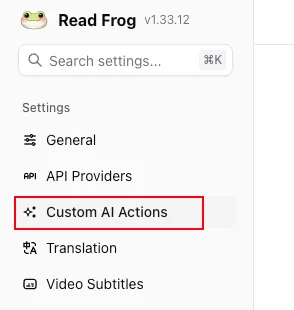
Pick the action to connect
The built-in Dictionary action is the usual choice. Any action works, as long as it is enabled and its provider can return structured output.
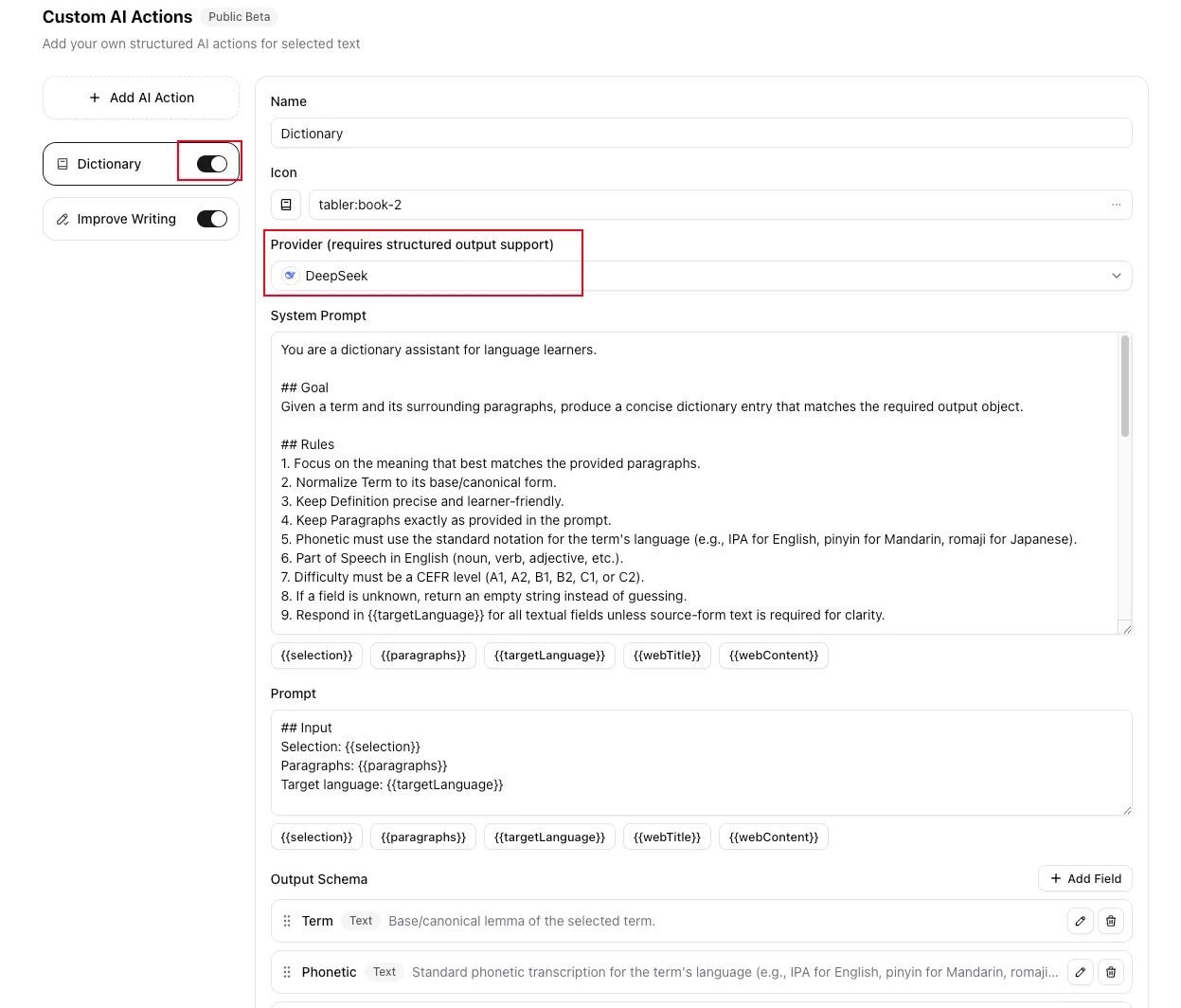
Check the output fields
Open the action and look at Output Schema. These names and types are the left-hand side of every mapping, and each one is either text or a number.
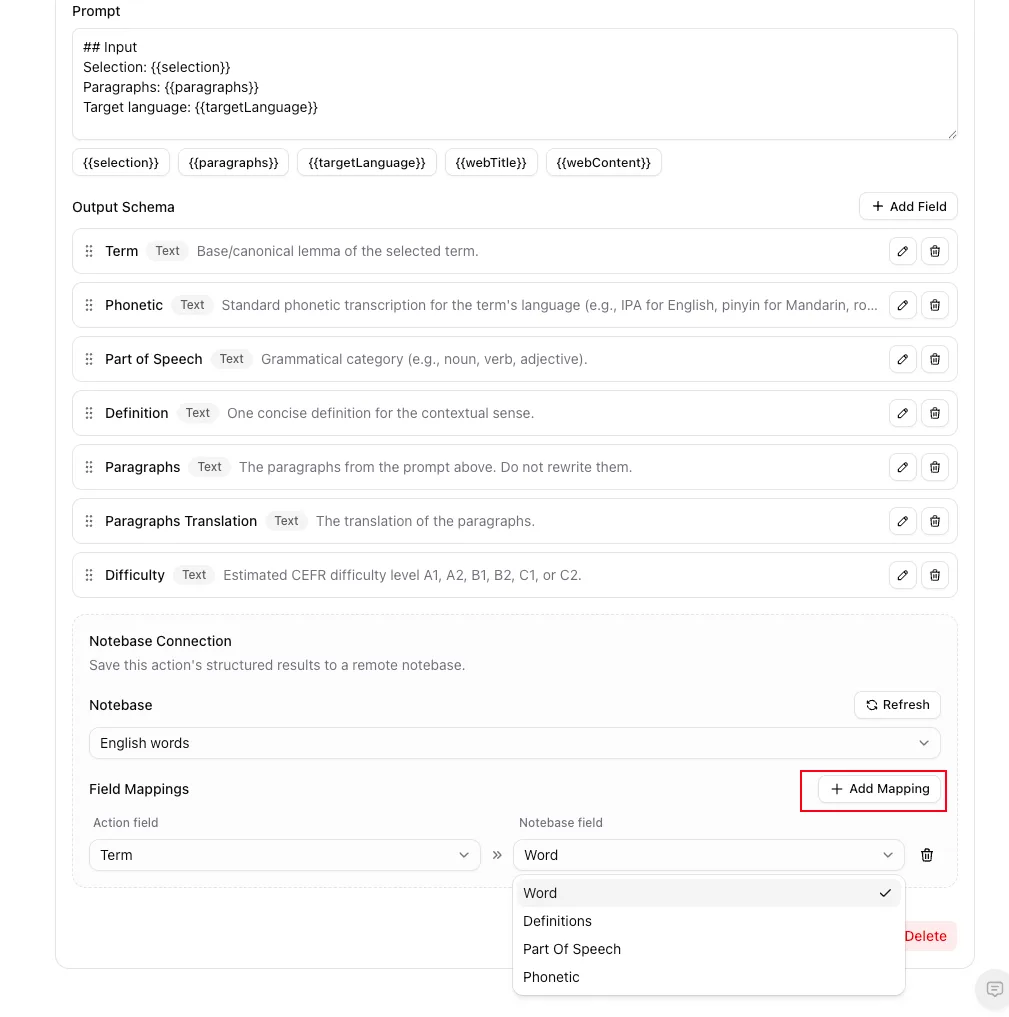
Map the fields
Scroll to Notebase connection. Choose the notebase, then click Add mapping once per field you want saved: pick an Action field on the left and a Notebase field on the right. Save the action.
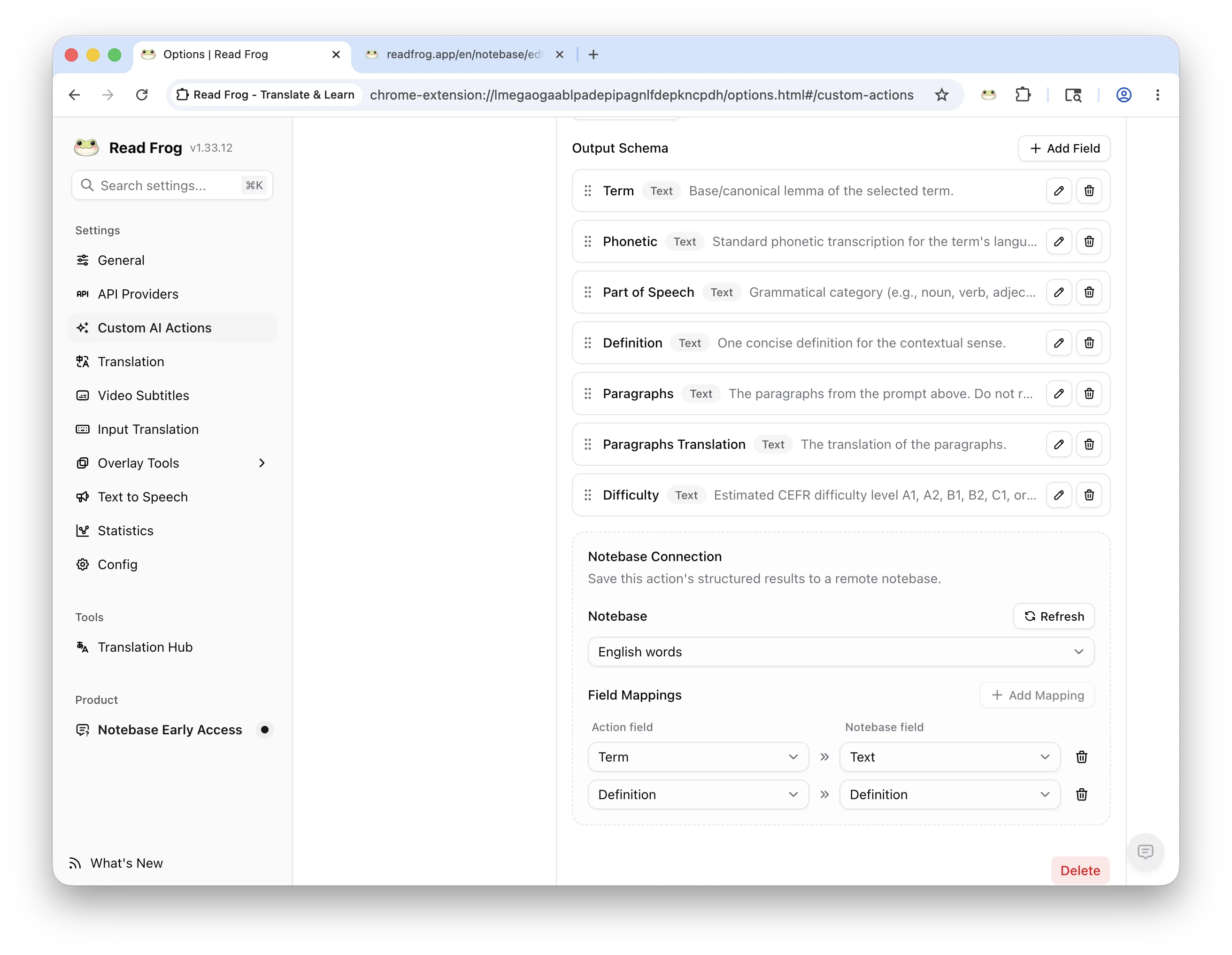
Unmapped output fields are simply not saved. You can show a field in the result panel without storing it.
What a mapping accepts
A mapping is valid only when both sides agree on the type:
| Action field | Notebase field |
|---|---|
| text | Text |
| number | Number |
Checkbox, Date and Select fields never appear in the right-hand list, because an action cannot produce those types.
If the notebase changed while the options page was open, use Refresh to re-read its fields.
Saving while you read
Select text on a page
Select a word, a phrase, or a short passage.
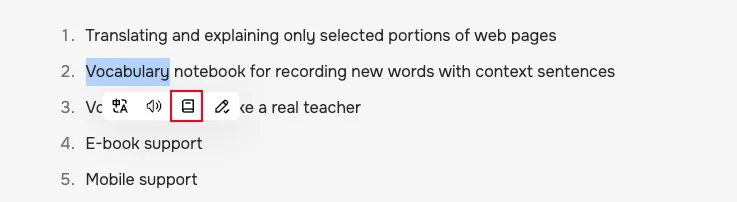
Run the action
Click the action in the selection toolbar and wait for the structured result.
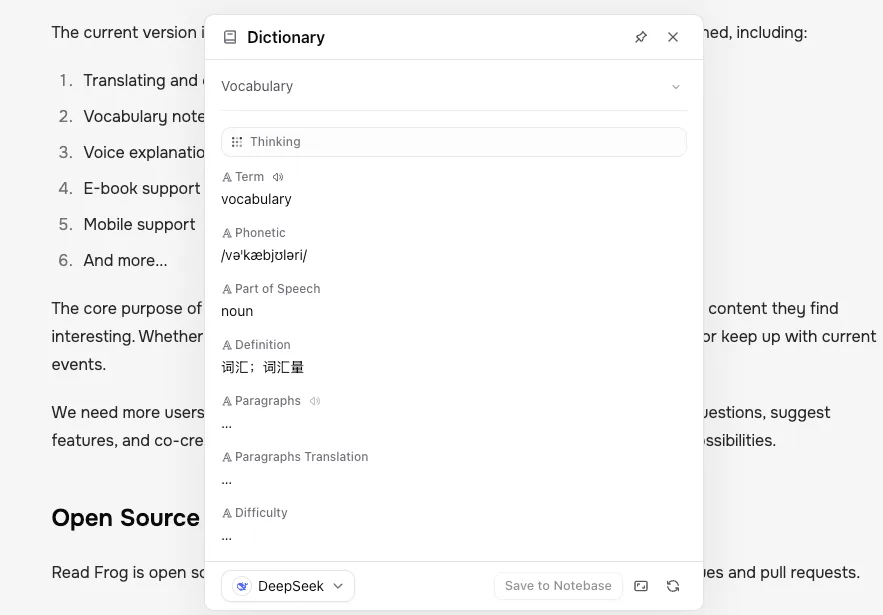
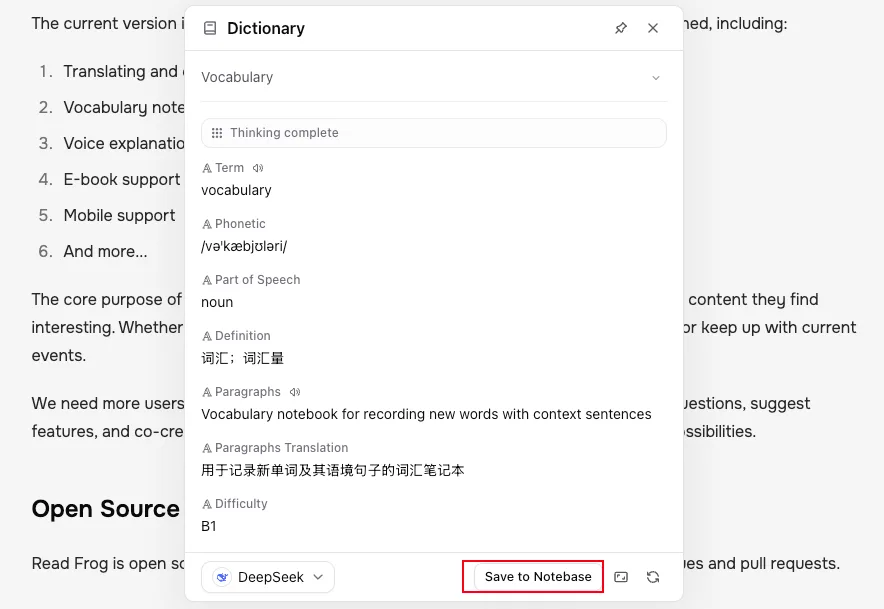
Save to Notebase
Click Save to Notebase at the bottom of the result panel. The button confirms with Saved to Notebase.
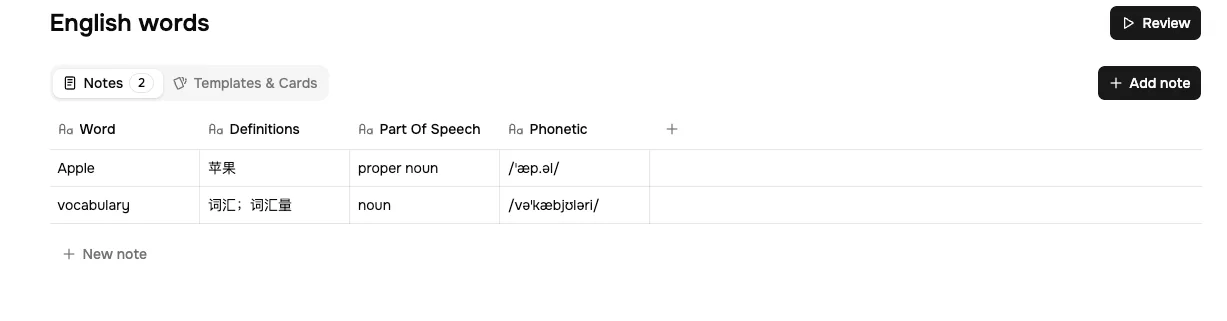
Check the notebase
Open the notebase on readfrog.app. The new note is at the bottom of the table, and a card has already been generated for it if the notebase has a template.
When saving does not work
| What you see | What it means |
|---|---|
| No Save to Notebase button | The action has no notebase connection yet, or the extension is behind. Update it and reopen the options page. |
| Add at least one valid mapping before saving | The connection exists but every mapping is broken or there are none. |
| Some mappings need attention | A mapped field was deleted on one side, or its type no longer matches. Invalid mappings are kept rather than dropped, so open the action, read the note under each row, and fix them. |
| Notebase connection belongs to another account | You are logged in as someone else. Log in as the connected account to restore the mappings, or clear the connection and pick a notebase this account can see. |
| Selected notebase is no longer available | The notebase was deleted or belongs to another account. Clear the connection or choose another notebase. |
| Upgrade is required to save more Notebase notes | The free plan's 10-note total is full. |
Where to go next
Give the notebase a front and a back in Card Templates.