
Manage Notes and Fields
The table view, editing notes, and exactly what deleting a field, a note or a notebase takes with it.
A notebase opens on the Notes tab: one row per note, one column per field. Beside it are Templates & Cards and Statistics.
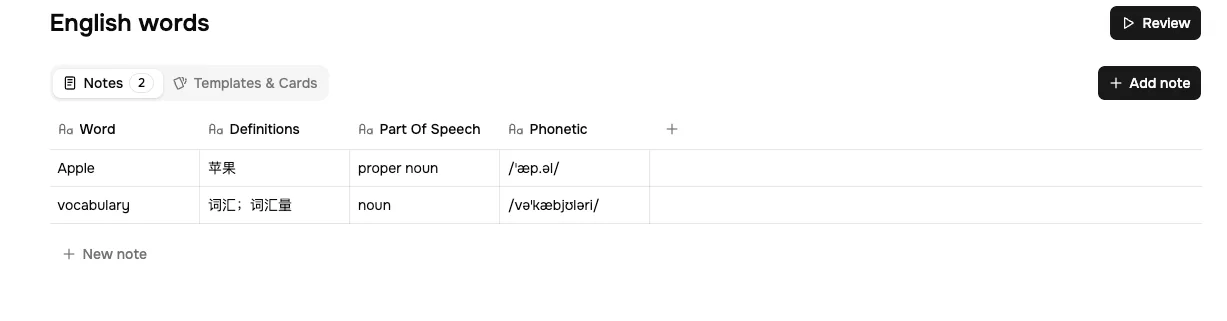
The table
- Search filters rows as you type, across all fields.
- Add note opens a blank editor with one input per field, typed to match — a date picker for a
Datefield, a checkbox for aCheckboxfield, an option list for aSelectfield. - Export CSV downloads the notes currently in the notebase.
- Column widths drag from the right edge of a header. Double-click that edge to reset one.
- Wrap content is per column, in the column's own menu. Off, a long definition is clipped to one line; on, the row grows to fit it.
Editing a note
Right-click a row, or use the button at its right edge, and choose Edit row. The editor opens as a side sheet with the note's current values.
Saving re-renders every card built from that note. The new text is what you see the next time the card comes up — including a card you are in the middle of reviewing, since the review session has its own Edit button for exactly this. The card's schedule does not change: fixing a typo does not reset your progress on it.
If you close the sheet with unsaved changes it asks before discarding them.
Adding and renaming fields
Add column sits at the right end of the header row: type a name, pick a type. New fields go at the end, and existing notes get an empty cell.
To rename a field, open its column menu and edit the name in place. Renaming is safe everywhere — card templates track the field itself, not its name, so a renamed field keeps rendering.
A field's type cannot be changed once the field exists. Changing a type means adding a new field of the right type and deleting the old one, which loses that field's data.
What deleting costs
This is the part worth reading before you tidy anything up.
Deleting a field
Delete column in the column menu permanently removes that field's value from every note in the notebase. There is no undo.
Two deletions are refused rather than done quietly:
- The primary field. The first field of a notebase cannot be deleted. Rename it instead.
- A field a card template references. Read Frog will not let a template lose a field out from under it. Open the template, remove the field from the front and the back, then delete the field.
Deleting a note
Delete row removes the note and every card generated from it, along with those cards' review history. Other notes are unaffected, and the templates stay.
Deleting a notebase
From readfrog.app/home, open the notebase's Actions menu and choose Delete. This takes the whole thing: fields, notes, card templates, cards and all review history in that notebase. Your other notebases and the statistics from them are unaffected.
Deleting a notebase cannot be undone and there is no export step built into it. If there is anything in it you might want, run Export CSV on the Notes tab first.
If an extension action was connected to the deleted notebase, its next save reports Selected notebase is no longer available. Open the action and either clear the connection or point it at another notebase — see Save from the Extension.
Statistics
The Statistics tab shows this notebase alone: reviews per day, time spent, note growth and long-term memory growth. The Statistics page in the sidebar shows the same figures across every notebase, with a notebase filter and a date range.
Where to go next
Study Settings — daily limits and target retention, set per notebase.