
The Review Session
What a card looks like, how the four grade buttons differ, and what the counts in the header are telling you.
A review session is one notebase at a time. Open the notebase and click Review in the top right.
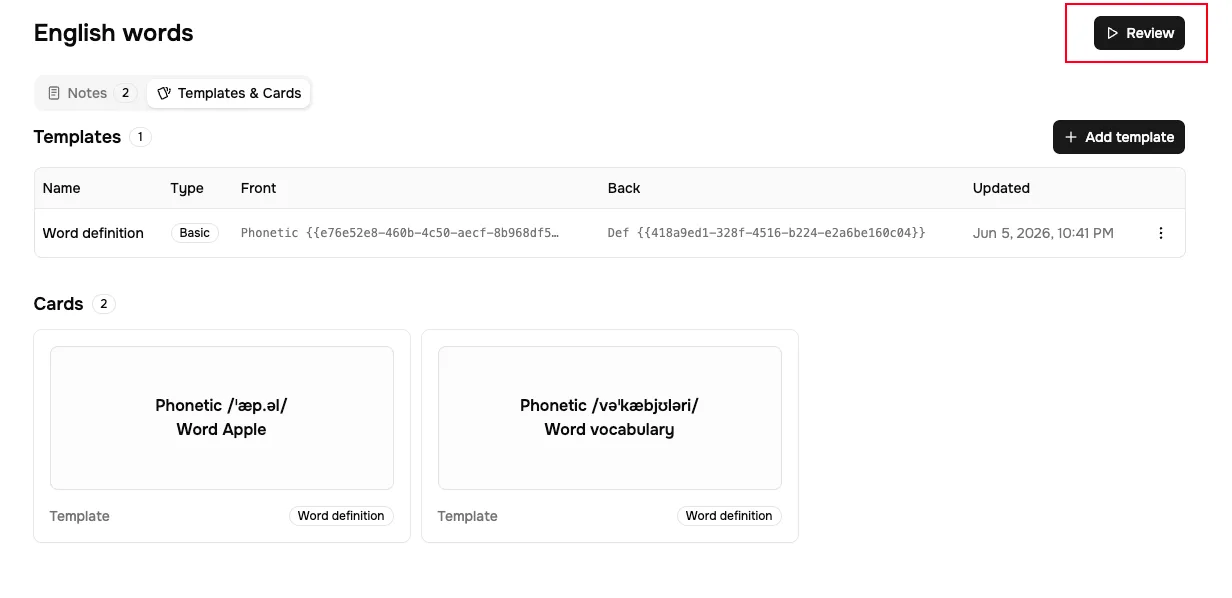
Two things can happen instead of a session starting:
- With no notes, the button is disabled and says Add a note to start reviewing.
- With notes but no card template, it takes you to the template editor first. Create the template and the session begins right after — the button there reads Create & start reviewing.
Answering a card
Read the front and try to recall the answer
The card shows its template's name at the top, the front below it, and Answer hidden where the back will be.
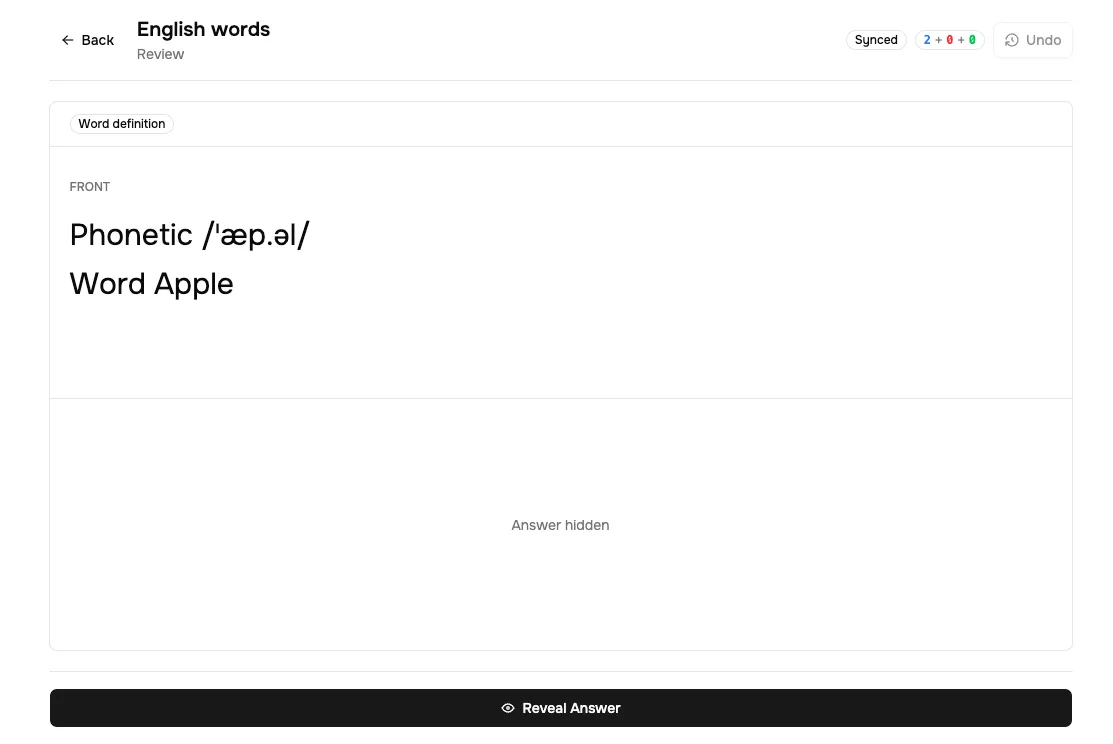
Reveal the answer
Click Reveal Answer or press Space. The back appears, and an Edit button appears with it — you can fix the note without leaving the session.
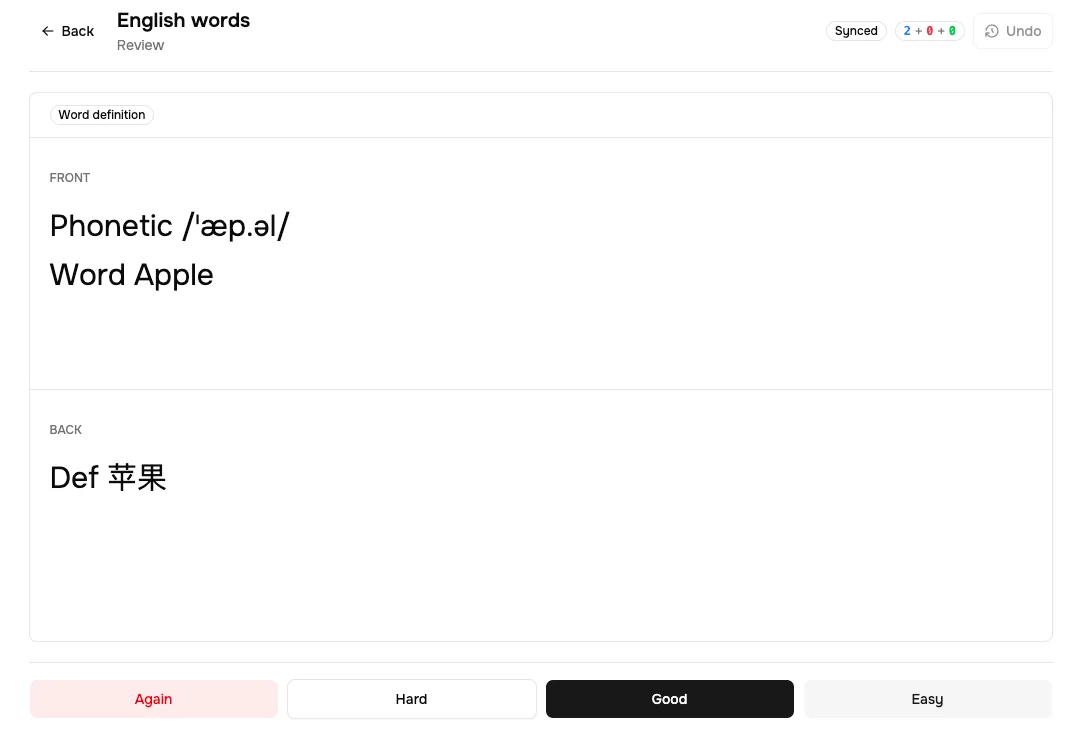
Say how it went
Four buttons, each showing the interval it would schedule.

The four grades
The number above each button is the real interval that answer would produce for this card, computed from its own history. It is not a fixed ladder — the same four buttons offer different intervals on different cards.
| Grade | Key | Say this when |
|---|---|---|
| Again | 1 | You did not recall it. The card comes back within minutes, and on a card that had reached real intervals it counts as a lapse — see How Scheduling Works. |
| Hard | 2 | You got there, but slowly or with a wrong first guess. |
| Good | 3 | You recalled it without much effort. This is the answer to reach for. |
| Easy | 4 | It was instant and the interval felt too short. |
Space does double duty: it reveals the answer, and once the answer is shown it grades Good. Holding a key down does nothing extra — each press registers once, so you cannot reveal and grade in one accidental keystroke.
Answer honestly rather than generously. The grade is the only thing the scheduler knows about how the card actually went, and the schedule it builds is only as good as that input.
The header
| Control | What it does |
|---|---|
| Synced / Syncing | Whether your last answer has reached the server. Answers queue locally and sync behind you. |
Three counts, e.g. 12 + 3 + 41 | What is left today: new, then learning, then review. Not what you have done. |
| Undo | Reverses the last thing you did to a card. |
| ⋮ | Card actions: Skip today, Suspend card. Note actions: Edit note, Delete note. |
Under Note actions, Delete note asks you to confirm before permanently deleting the note and all its associated cards and review history. This cannot be undone.
The three counts fall as you work, and the middle one can go back up: grading a new card Again moves it into learning, where it is waiting for its next step in the same session.
Undo
Undo or Mod + Z steps back one action at a time — a grade, a skip, or a suspend — restoring the card and the due date it had beforehand. Press it repeatedly to walk back through the session you are in. It does not reach into earlier sessions, and an answer that has already been superseded by a newer one on the same card is refused rather than silently applied.
Skip today and Suspend
Both live in the ⋮ menu, and both are for cards, not for the session.
- Skip today (=) puts this card aside until tomorrow without recording an answer. Use it when the card is fine but you have hit something you would rather not judge right now.
- Suspend card (!) takes the card out of the rotation indefinitely. Use it for a card that is wrong, duplicated, or one you have decided not to learn.
Both are reversible from the Cards list in Templates & Cards, where they show as Skipped today and Suspended with Unskip today and Unsuspend beside them.
Done for today
When the queue empties you get Done for today. That means no card in this notebase is due before the study day ends — a study day runs from 04:00 to 04:00 in your timezone, so a late-evening session and the next morning's are the same day.
It does not always mean you have finished everything. A daily limit can end a day early, and so can having every remaining card scheduled for a later date. Study Settings covers both.
Where to go next
- Study Settings — daily limits and target retention, per notebase
- How Scheduling Works — why the intervals look the way they do