The same word, three different ways
You are reading a long article about language models. In the first paragraph, prompt comes out as 提示. In the fourth it is 提示语. By the end of the page it has become 命令.
Nothing is wrong, exactly. Each paragraph was translated on its own, and each time the model picked a reasonable word. But you are the one holding the article together in your head, and it keeps changing its mind underneath you.
The same thing happens to names. A username in a forum thread gets helpfully translated into something that is no longer a username. A character in a game wiki is rendered three ways across one page. Code identifiers turn into prose.
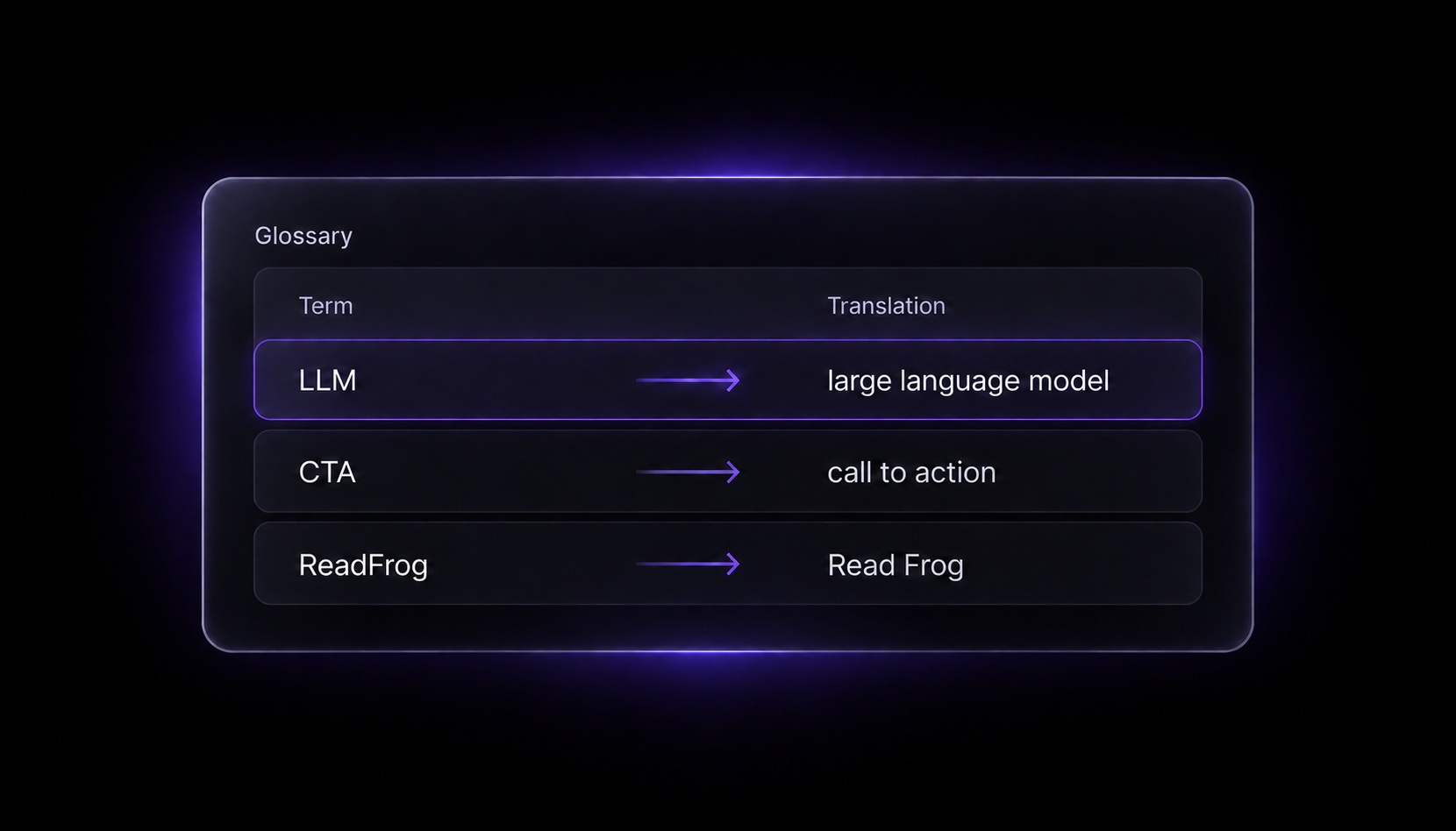
Read Frog 1.47.0 adds glossaries. Tell it once what a word should be, and every AI translation from then on uses your wording.
One list, and it just holds
Open the settings, go to Advanced → Glossary, and add a glossary. Then add terms: the word, and what you want it to say.
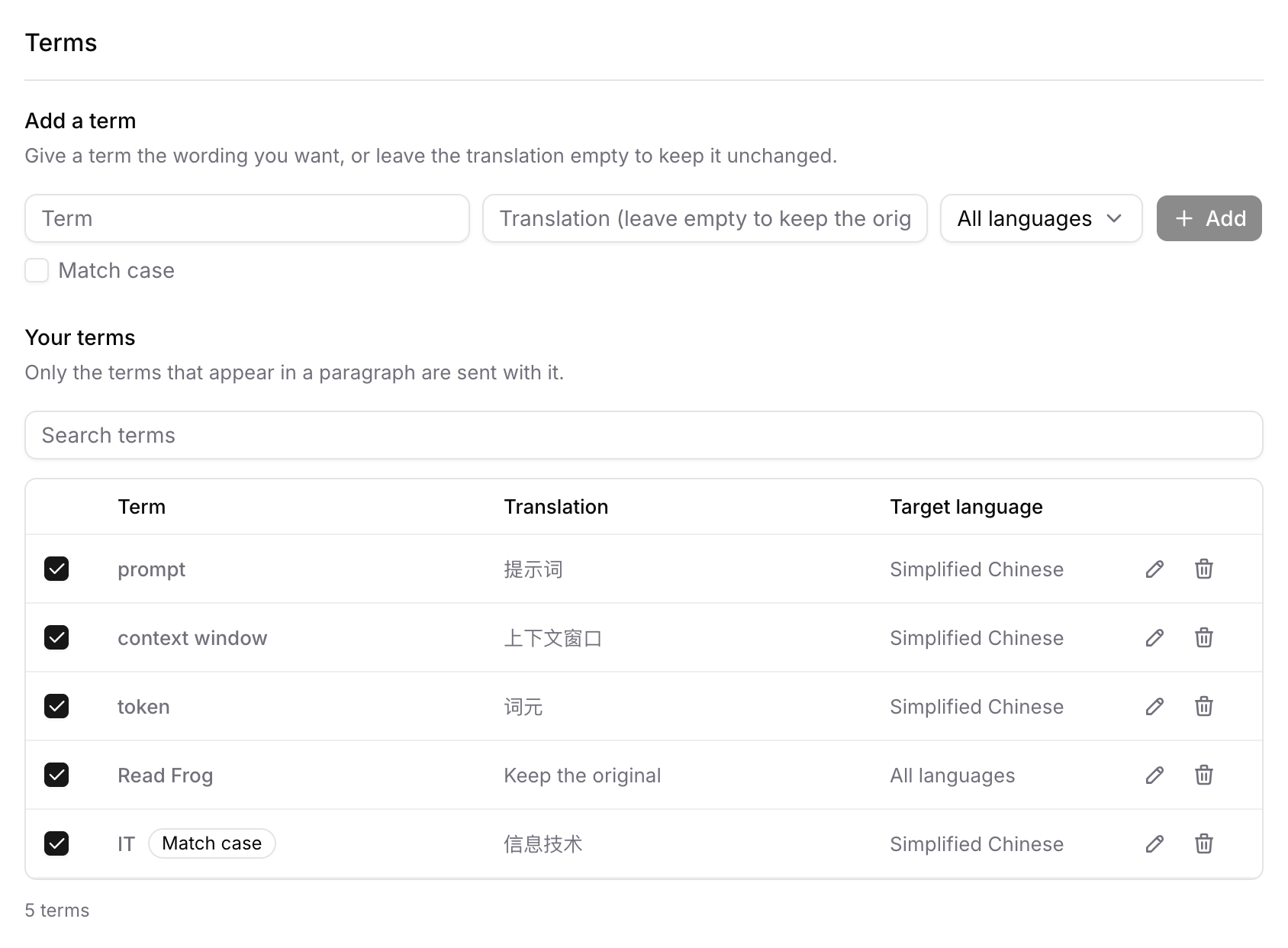
That is the whole idea. prompt is 提示词 now — in this paragraph, in the next one, and on every page you read tomorrow.
Some words should not be translated at all
Leave a term's translation empty and it reads Keep the original. Read Frog then tells the model to reproduce it exactly: same characters, same script, same capitalisation, no transliteration, no quotation marks quietly wrapped around it.
That is what names want. Usernames, handles, product names, library names, in-game items — things that stop being useful the moment they are translated.
And because "leave this word alone" is true whatever language you are translating into, those terms are filed under All languages by default. Switch your target language from Chinese to Japanese and they keep working, which is exactly what you would expect and exactly what a per-language list cannot do.
A glossary for work, a glossary for that one wiki
Your work vocabulary should not follow you onto a games wiki. So terms live in glossaries, and each glossary has its own list of websites.
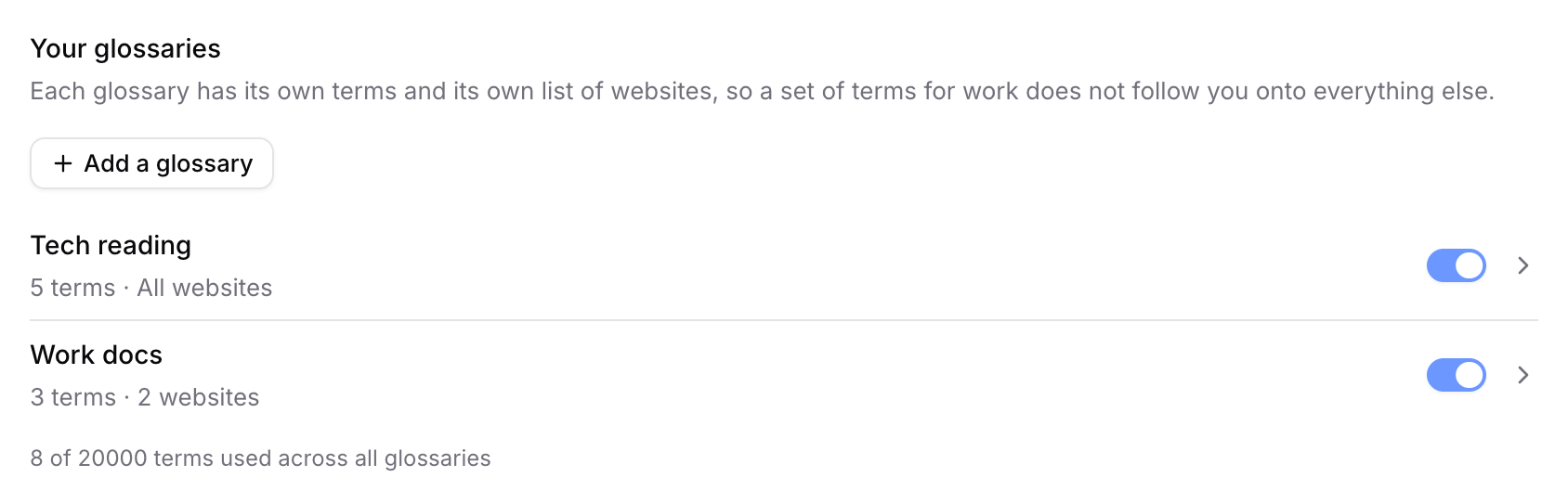
Leave the website list empty and the glossary applies everywhere. Add an entry and it applies only there.
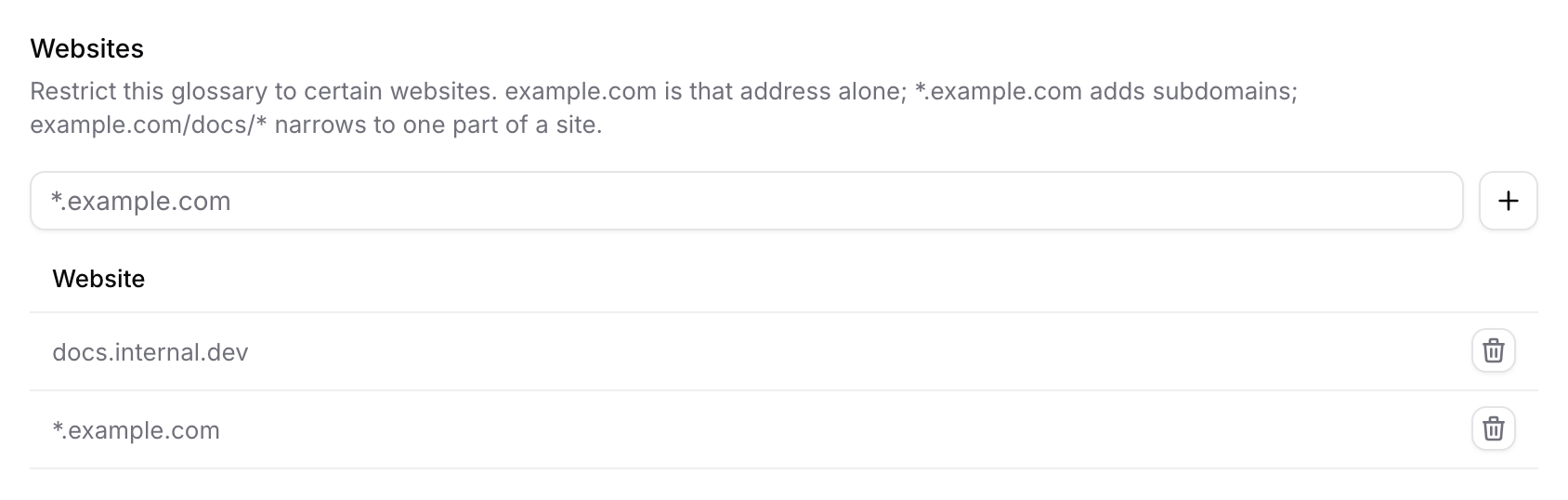
*.example.com covers the site and its subdomains; a bare example.com matches that address alone. The * is not only for the front, either: example.com/novel/12345/* scopes a glossary to one book on a novel site rather than the whole site. Turn a whole glossary off with its switch when you want it out of the way for a while — the terms stay where they are.
It costs nothing where it does not apply
A glossary could easily have become a tax on every translation: a wall of terms bolted onto every request whether or not any of them show up.
It does not work that way. Read Frog scans the paragraph first and sends only the terms that actually appear in it. A 5,000-term glossary on a page that uses none of them adds nothing to the request — the prompt is byte-for-byte identical to having no glossary at all, so your translation cache stays intact too.
Matching is careful about what counts as a word, in every script we translate. cat does not match inside category. caf does not match inside café. Chinese, Japanese, Korean, Thai and Khmer terms match without needing spaces around them, because those languages do not put spaces there. C++ matches next to punctuation. And if both Chort and Chort Bay are in your list, the longer one wins where it applies without hiding the shorter one where it does not.
The rest of what shipped
- Edit a term in place. The pencil on a row turns it into fields — the term, the wording, its target language, and case matching. Fixing a typo no longer means deleting a row and typing the whole thing again.
- Match case.
ITas information technology, without every ordinary "it" in the article matching too. - Glossaries sync through Google Drive, alongside your settings and in a file of their own. They are merged rather than replaced: terms added on two machines end up as one list, and a term deleted on one device stays deleted. Where the two copies genuinely disagree you are shown both and pick, and any sync can be undone from the toast it leaves behind.
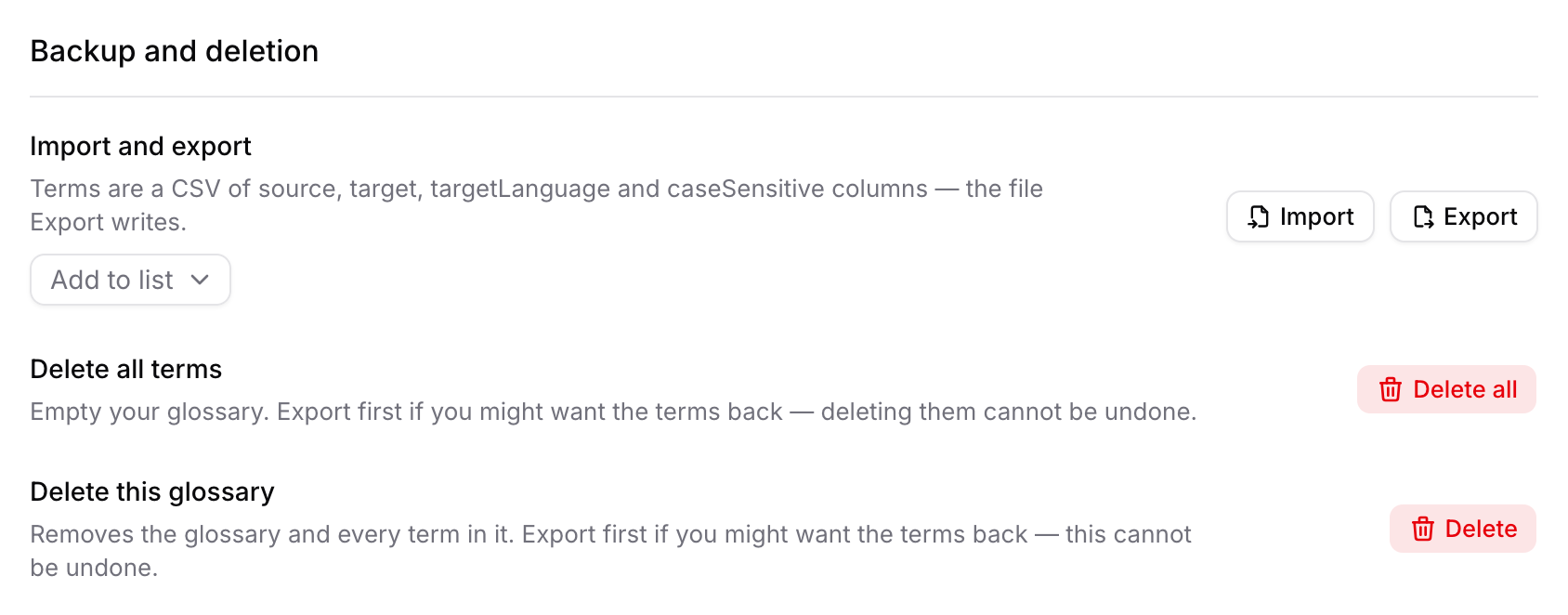
- Import and export as CSV, and your glossaries now travel inside a settings export too.
Glossaries travel inside the prompt, so they only reach features running on an LLM provider — page translation, video subtitles, selection toolbar translation and input translation. Google Translate, Microsoft Translate and other pure translation APIs cannot take a glossary, and the Glossary page tells you which of your four features is currently on one.
Start with five words
You do not need to sit down and build a terminology database. Open a glossary, and the next time a translation renders a word in a way that makes you pause, put that word in. Five terms is enough to make a long article feel like it was translated by one person rather than forty.
Full details — website patterns, target languages, the CSV format, and how conflicts between two glossaries resolve — are in the Glossary guide.