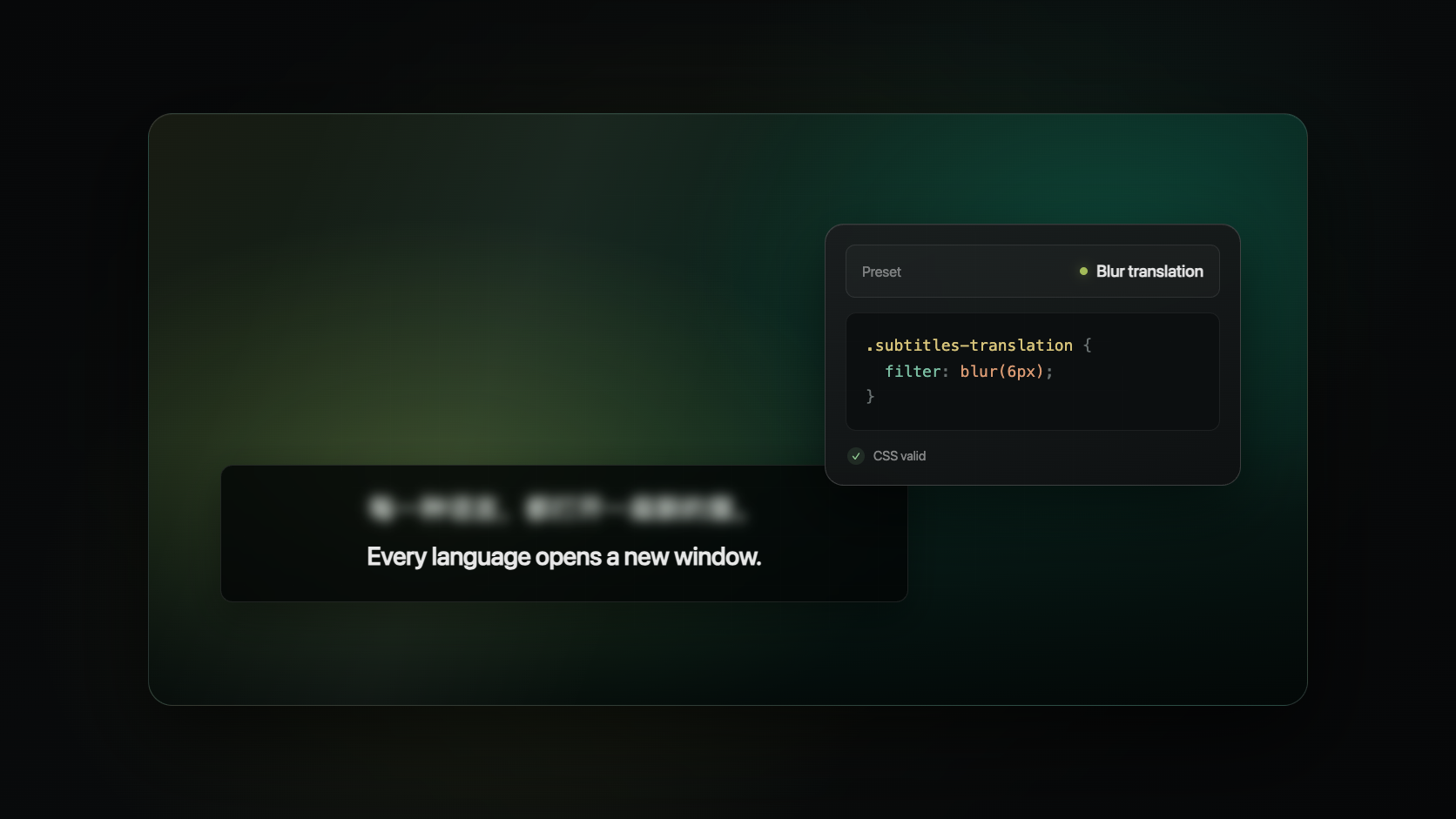
Subtitles should adapt to how you watch
Subtitle styling used to stop at the usual controls: font, size, weight, color, and background opacity. Those choices cover everyday viewing, but not every way people use bilingual subtitles.
If you are practicing listening, you might want the translation hidden until you need it. If your eyes keep jumping to the original line, you might want to dim it. If a video is visually busy, you may want a stronger background, extra spacing, or a small animation that makes the active line easier to find.
Read Frog 1.46.5 adds custom CSS to video subtitle styles. It lives alongside the existing controls, with a real-time preview and three ready-made presets, so you can begin with one click and only edit code when you want to.
Start with a preset
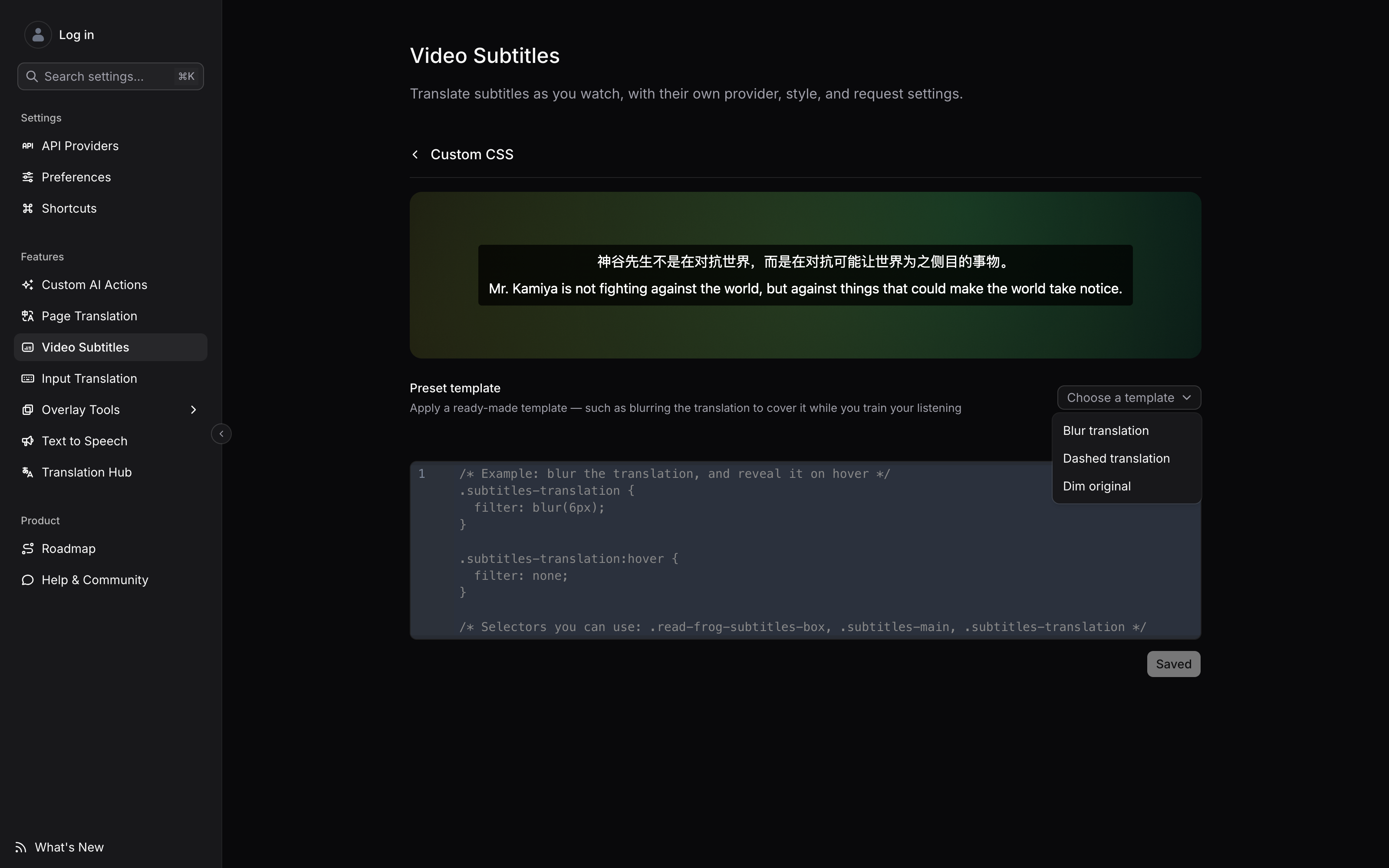
Open the preset menu and choose the behavior closest to what you need:
| Preset | What it does | Useful for |
|---|---|---|
| Blur translation | Blurs the translated line and reveals it on hover | Listening before checking meaning |
| Dashed translation | Adds a dashed underline to the translated line | Keeping the two lines easy to distinguish |
| Dim original | Reduces the opacity of the source line | Giving the translation more visual priority |
Presets add ordinary CSS to the editor rather than locking you into a mode. You can change every value after applying one, and you can apply more than one preset: blur the translation while dimming the original, for example.
Try Blur translation for active listening. Listen to the line first, then move your pointer over the blurred translation only when you want to check it.
Edit with the result in view
The preview updates while you type. You can see the exact subtitle structure your CSS will style, without saving after every change or opening a video in another tab.
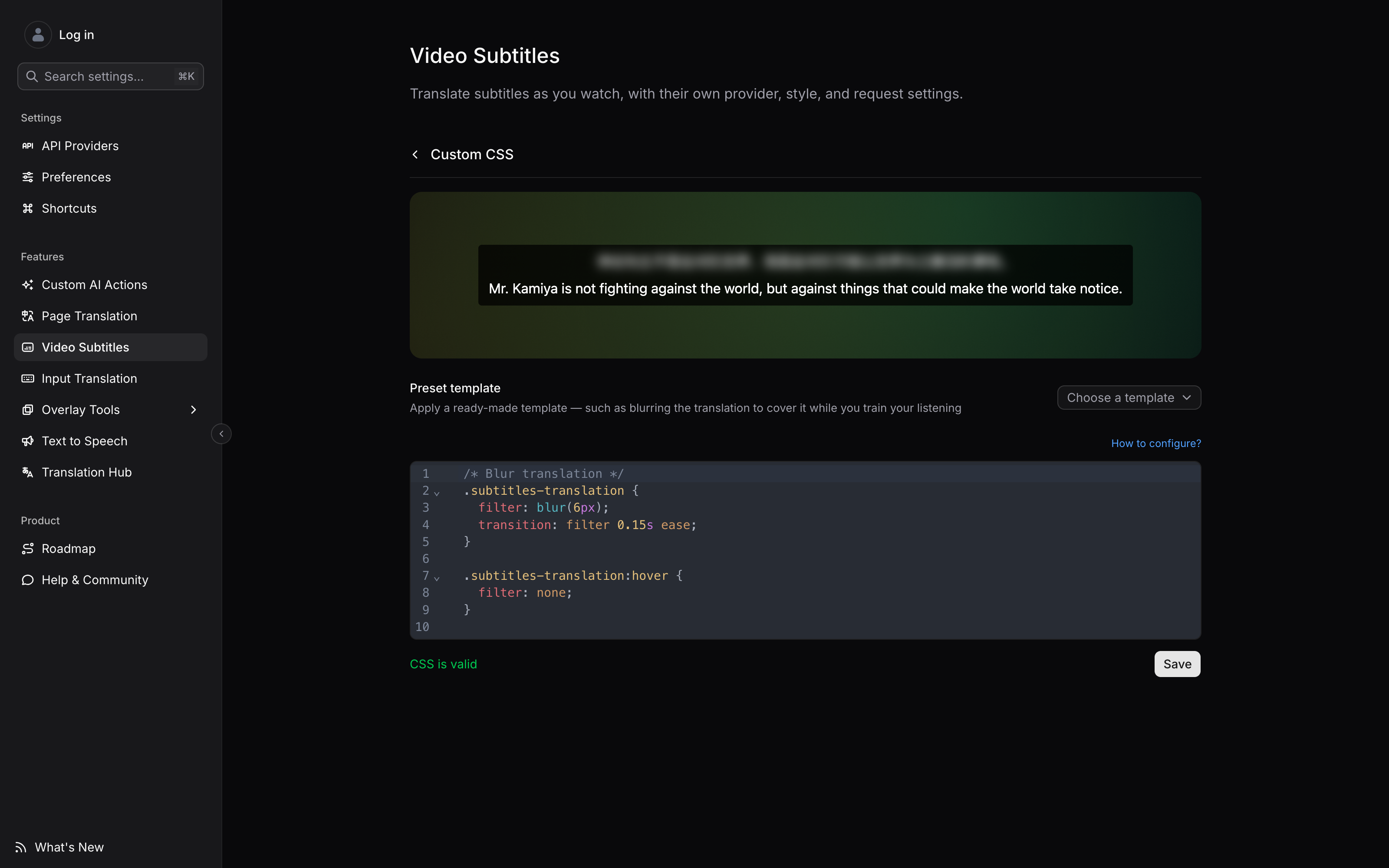
The editor includes syntax highlighting and validation. A valid stylesheet gets a clear confirmation; a syntax error or an oversized stylesheet is caught before it can be saved. Saving remains explicit, so an unfinished experiment does not become your subtitle style by accident.
The regular style controls still work. Custom CSS is added on top of your selected fonts, sizes, weights, colors, and background opacity—and can override those choices without requiring !important.
Three hooks cover the whole subtitle overlay
You only need three class names:
| Selector | Targets |
|---|---|
.read-frog-subtitles-box | The background box around both lines |
.subtitles-main | The original subtitle line |
.subtitles-translation | The translated subtitle line |
The Blur translation preset, for example, is just this:
.subtitles-translation {
  filter: blur(6px);
  transition: filter 0.15s ease;
}

.subtitles-translation:hover {
  filter: none;
}
Because the stylesheet is contained inside Read Frog's subtitle overlay, it cannot restyle the YouTube page around the player. The preview uses the same boundary and class structure as the real overlay, so a selector that works in the preview behaves the same way on a video.
How to use it
- Open Read Frog Settings → Video Subtitles → Subtitle Style.
- Select Custom CSS at the bottom of the style page.
- Choose a preset or write your own CSS while watching the preview.
- When validation passes, select Save.
Custom subtitle CSS is available in Read Frog 1.46.5. Once your browser updates the extension, there is nothing else to enable.
Written by
Read Frog Team
At
Tue Aug 25 2026
Extension Version
1.46.5