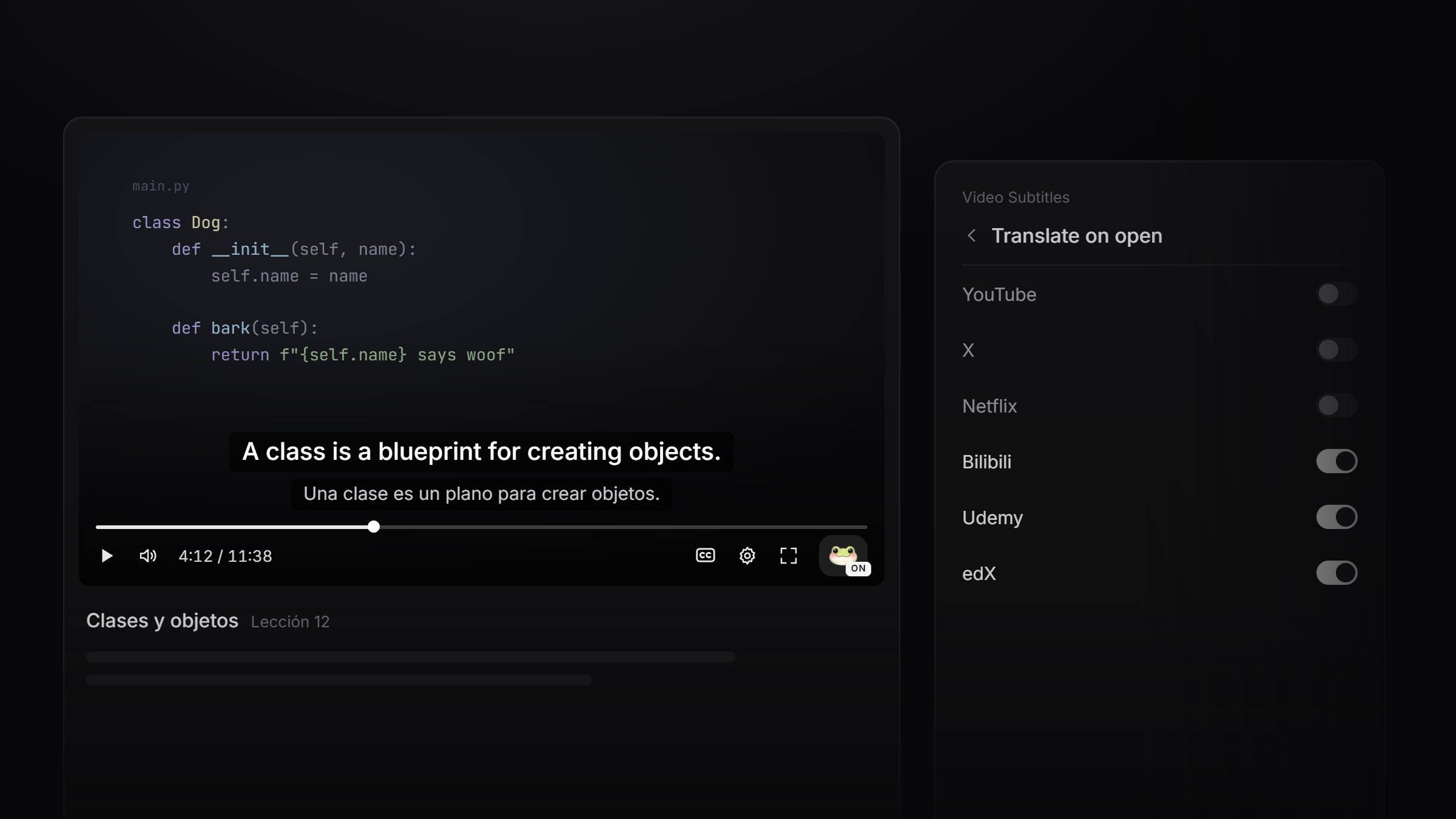
Three more places to watch in your own language
A talk reposted on Bilibili. A programming course on Udemy. A Harvard lecture on edX. They all come with subtitles, and they're all in a language you may not read comfortably.
Read Frog already translates subtitles on YouTube, Netflix and X. Now Bilibili, Udemy and edX join the list. Open a video, click the Read Frog button in the player, and the video's own subtitles turn into bilingual subtitles in your language.
When X support shipped, we said online course platforms were next on our list. Udemy and edX are the first two, and Bilibili arrives right alongside them 🐸
What's new
| Site | Where it works | What Read Frog translates |
|---|---|---|
| Bilibili | Video pages on bilibili.com, playlists included | The uploader's subtitles first, Bilibili's AI subtitles only as a backup |
| Udemy | Course lectures on udemy.com, Udemy Business included | The captions in the course's own language, not a machine translation |
| edX | Course videos on edx.org | The transcript in whichever language you pick in edX's player |
It's the same subtitle overlay you know from YouTube: bilingual, original-only, or translation-only display, drag it anywhere on the player, and your own font, size, color, and background settings come along. While Read Frog's subtitles are on, the site's own subtitle line steps aside, so you never read the same sentence twice.
Bilibili 📺
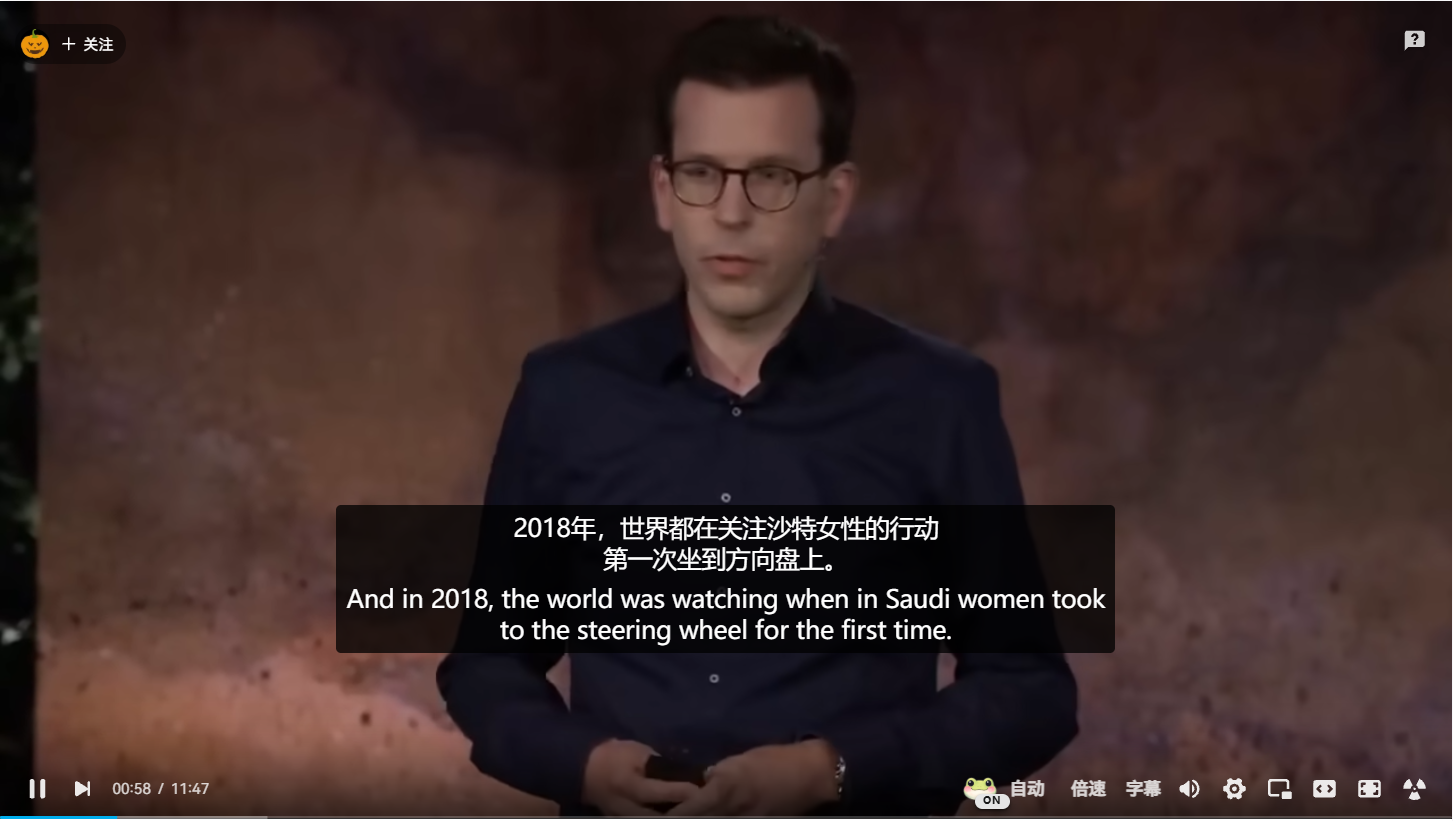
- The uploader's subtitles come first. When a video has both subtitles the uploader posted and Bilibili's AI ones, Read Frog translates the uploader's.
- Multi-part videos just work. Move to the next part and the subtitles switch to that part's.
- The button fits in. It sits in Bilibili's control row, the same height as Bilibili's own buttons, and the subtitle menu opens above the controls instead of covering them.
Bilibili only hands out subtitles to signed-in viewers. If the button says there are no subtitles on a video that clearly has some, check that you're signed in.
Udemy 🎓
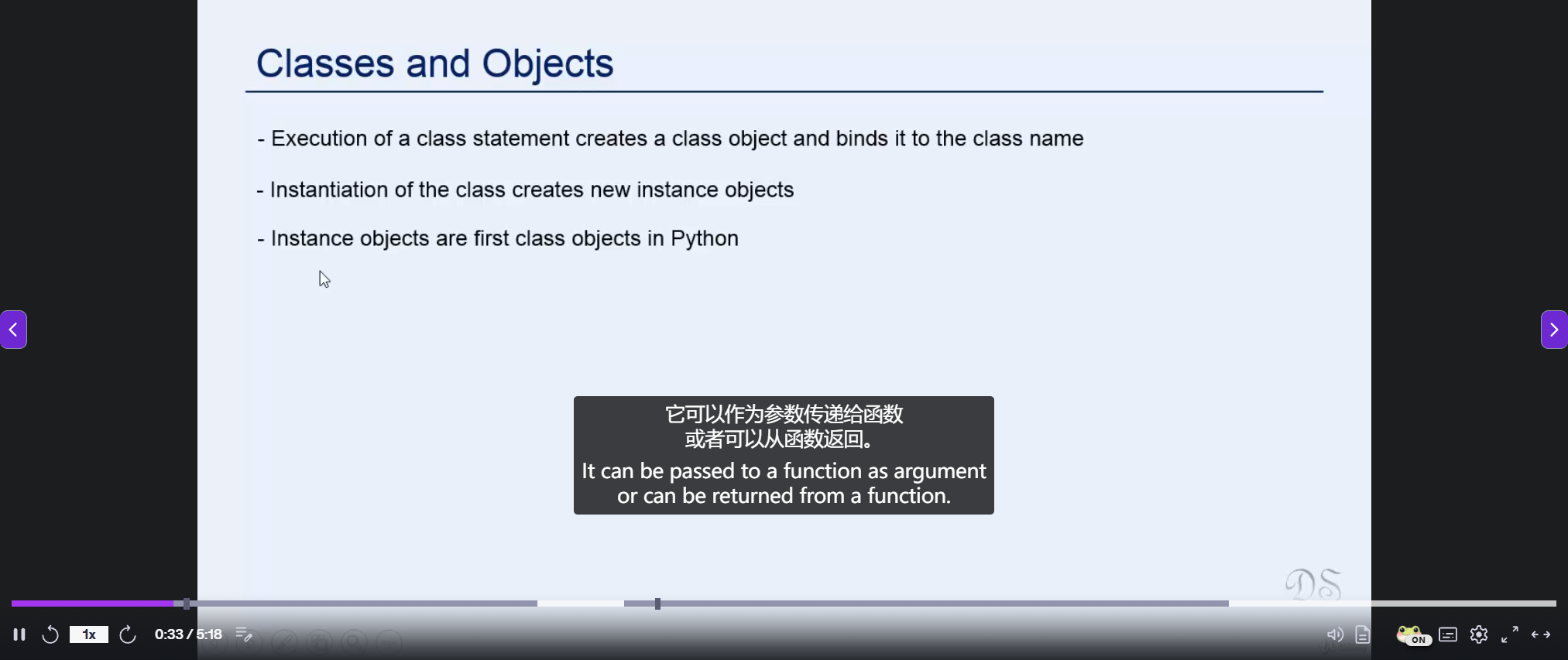
- It starts from the original. Udemy often offers a lecture's captions in many languages, but most are machine translations of the one in the course's own language. Read Frog starts from that original, and prefers the instructor's upload over Udemy's automatic captions.
- Right next to the captions button. The Read Frog button shows up just before Udemy's own captions button, so you'll find it on every lecture that has captions.
- Lecture after lecture. Udemy rebuilds its player when you move on. The button and your subtitles come back by themselves.
- Works on Udemy Business, so you can use it on courses your company gives you access to.
edX 🏛️
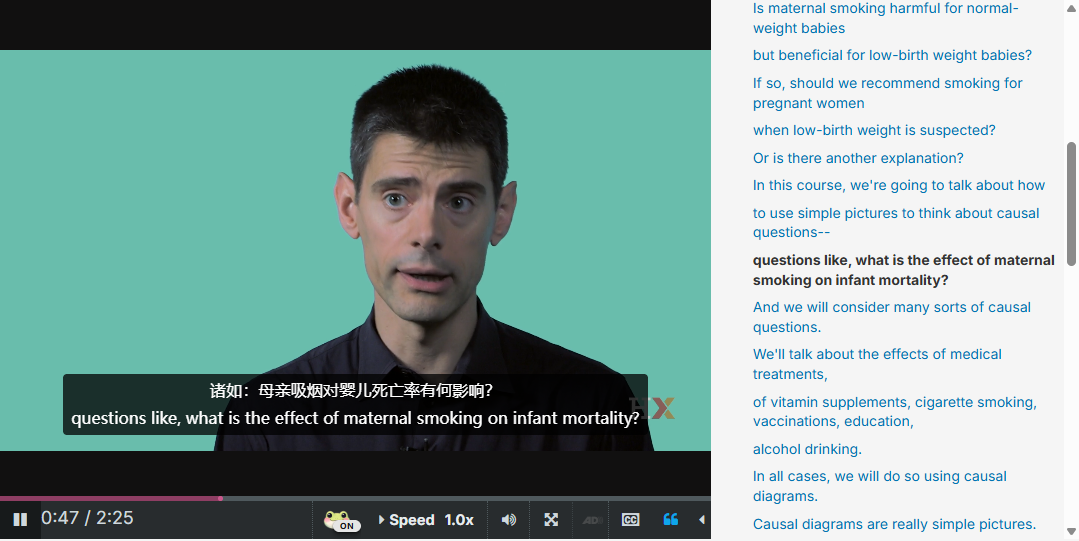
- Follows the language you pick. Switch the caption language in edX's player menu, and Read Frog follows: it translates the transcript you chose.
- Several videos in one unit? Read Frog follows the one you started last, and stays with it when you pause.
- One tidy row. The Read Frog button lines up with edX's own controls, without pushing them onto a second line.
How to use it
Find the Read Frog button in the player's controls. On Udemy it sits next to the captions button.
Click it and switch on "Read Frog Video Subtitles". Bilingual subtitles appear on the player within a moment, and the button flips from OFF to ON.
Start translating the moment a video opens ⚡
Watching a whole course? Clicking the button on every lecture gets old fast. Each site now has its own Translate on open switch:
- Open Read Frog's Options → Video Subtitles.
- Go to Translate on open.
- Turn on the sites you want: YouTube, X, Netflix, Bilibili, Udemy, and edX each have their own switch.
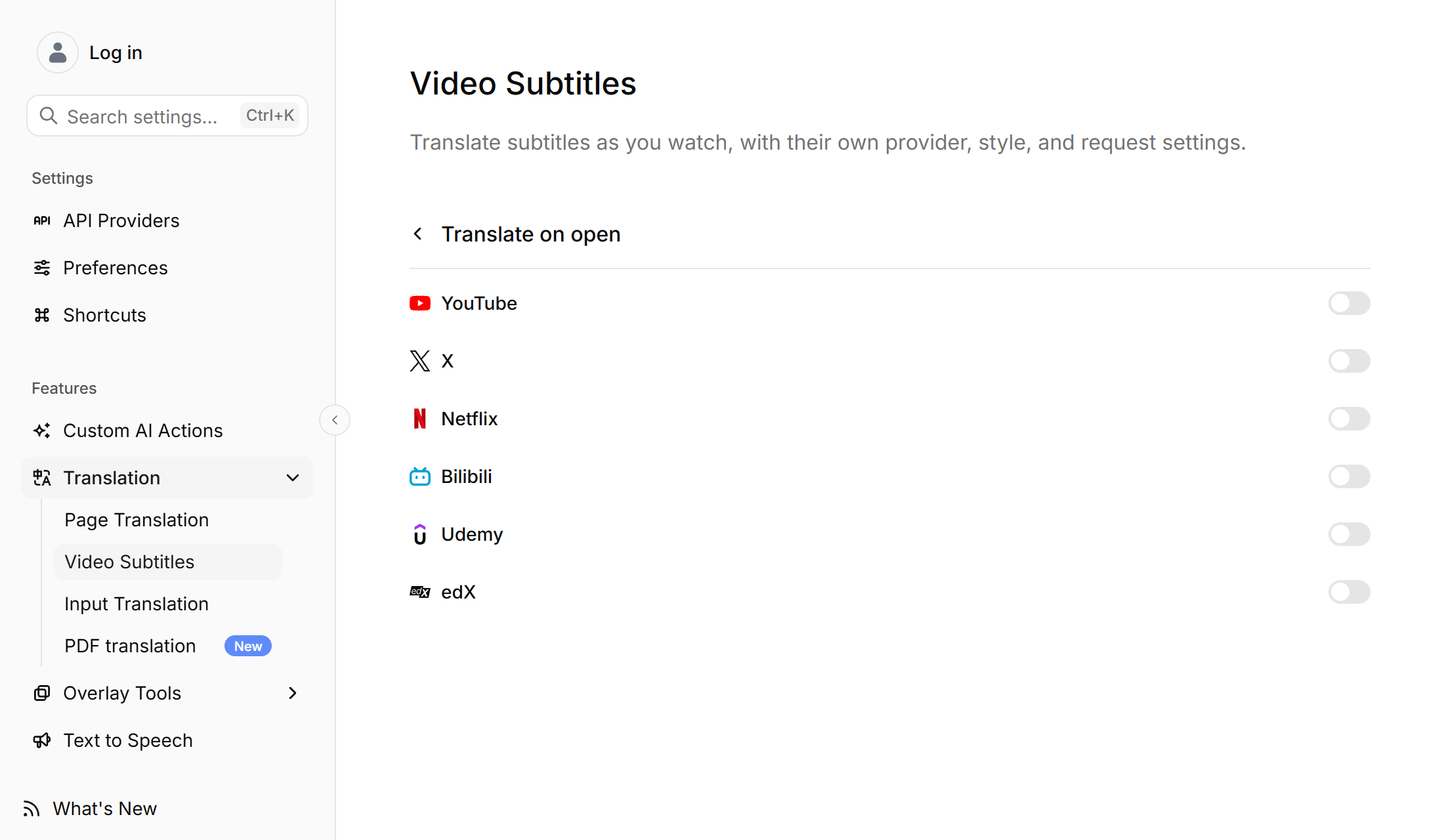
The new Bilibili, Udemy and edX switches start off, even if you already turned translate on open on for other sites. Turning it on for YouTube didn't mean you wanted it everywhere.
Plenty of Bilibili videos have no subtitles at all. With translate on open, Read Frog checks quietly first: on a video without subtitles you won't see an error or a button that flashes ON. It simply stays off.
Where it shines
| Scenario | Why it helps |
|---|---|
| 🎓 A full course on Udemy or edX | Turn on translate on open once, then just press play on each lecture |
| 🧑💻 Technical lectures | Keep the instructor's exact English terms and read the meaning beside them |
| 🎤 Talks and lectures reposted on Bilibili | Follow along with the uploader's subtitles in your own language |
| 🗣️ Language learning | Hear the original, read both lines, and pick up the vocabulary of the field |
Being upfront about the limits
- The video needs subtitles. Read Frog translates the subtitles each site already provides. AI subtitles for videos without any aren't available on these three sites.
- Bilibili: you need to be signed in, and anime and other series (bangumi) aren't supported yet.
- edX: videos that edX plays from YouTube aren't supported yet.
Also in this update: a smoother X
Translate on open on X got a polish too. Most X videos have no captions, so Read Frog now checks before it shows anything: the button no longer flashes ON and then falls back to OFF. And when a video can't be found at all, Read Frog now says so, instead of reporting that it has no subtitles.
What's next
Every new site makes the next one easier. Is there a platform where you watch a lot of video? Tell us in the feedback centre. Votes decide what we build next.
Try it now
- Keep Read Frog up to date. Your browser usually updates it on its own within a few days of a release.
- Make sure video subtitles are on in Options → Video Subtitles.
- Open a video on Bilibili, Udemy or edX and click the Read Frog button.
Something not working as described? Find us on Discord. We read everything.