
LM Studio
Use local OpenAI-compatible LLMs in Read Frog through LM Studio Local Server
What is LM Studio?
LM Studio is a desktop app for downloading, managing, and running large language models locally. Its Local Server exposes local models through an OpenAI-compatible API, so Read Frog can connect to LM Studio through an OpenAI-compatible custom provider for local translation and reading.
LM Studio's official OpenAI-compatible examples use http://localhost:1234/v1. The 1234 part is the Local Server port. In your own setup, always match the port configured in LM Studio's Local Server settings.
Configure LM Studio Local Server
1. Download and install LM Studio
Download LM Studio from the official website, install it, and download a model that fits your hardware.
For translation, a smaller and faster model is usually better. For Read Frog's reading, summary, or structured-output features, choose a model that supports structured output.
2. Start Local Server
In LM Studio, open Developer -> Local Server, make sure a model is loaded, then start the server.
You can also start the server with the LM Studio CLI:
lms server start --port 1234 --corsIf you use another port in the UI, such as 3000, the Base URL in Read Frog must also be changed to http://localhost:3000/v1.
3. Configure Server Settings
In Developer -> Local Server -> Server Settings, the recommended setup is:
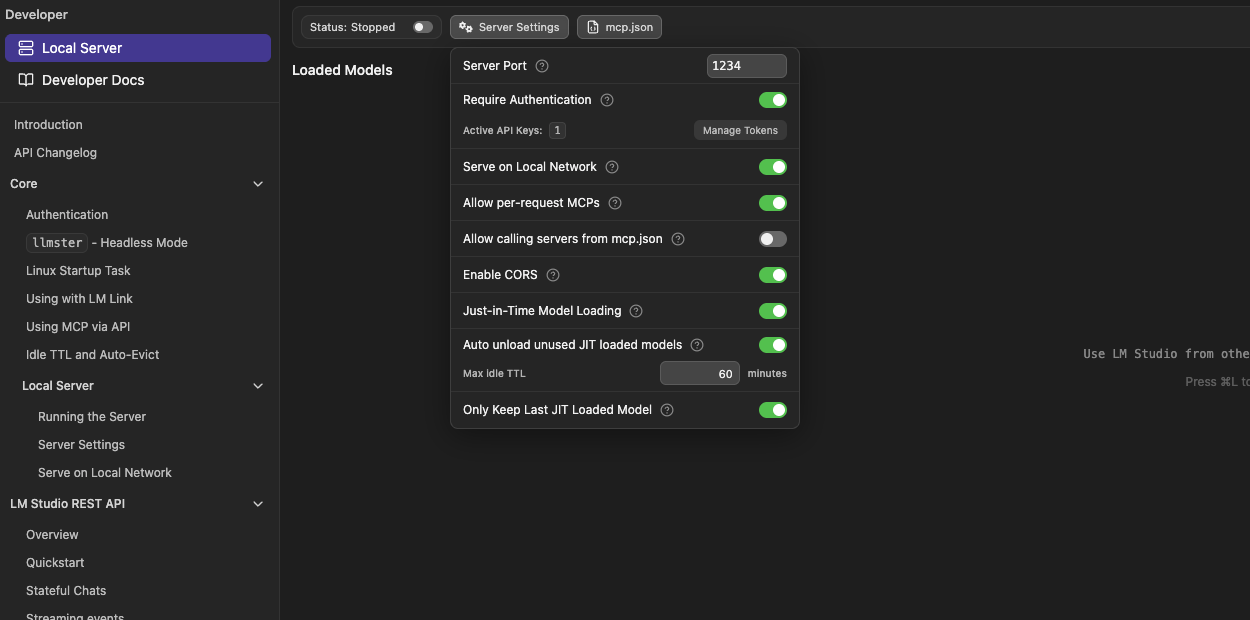
| Setting | Recommended value | Notes |
|---|---|---|
| Server Port | 1234 or your custom port | The Base URL port must match this value |
| Require Authentication | On | Recommended, especially when CORS or LAN access is enabled; after enabling it, Read Frog must use an LM Studio API Token as the API Key to connect successfully |
| Enable CORS | On | Browser extensions need cross-origin access to the local server |
| Serve on Local Network | Off by default | Only enable it when other devices need access; require authentication if enabled |
| Allow per-request MCPs | Off by default | Read Frog translation and reading do not need MCP unless you explicitly use it |
| Allow calling servers from mcp.json | Off by default | This may let API clients call local MCP servers and is usually unnecessary |
After CORS is enabled, websites or extensions from other origins can access the LM Studio API. It is strongly recommended to enable Require Authentication and only configure the API token in tools you trust.
4. Create an API Token
Open Server Settings, enable Require Authentication, then click Manage Tokens to create a new API Token.
Copy the token immediately after creation. LM Studio only shows it once. Then paste this token into Read Frog's API Key field.
It is recommended to always enable authentication and paste a real LM Studio API Token into Read Frog. This prevents unauthorized clients from calling your local server when CORS or LAN access is enabled.
Configure LM Studio in Read Frog
1. Open the API Providers page
- Click the Read Frog extension icon in the browser toolbar
- Click Options
- Open the API Providers / model provider settings page
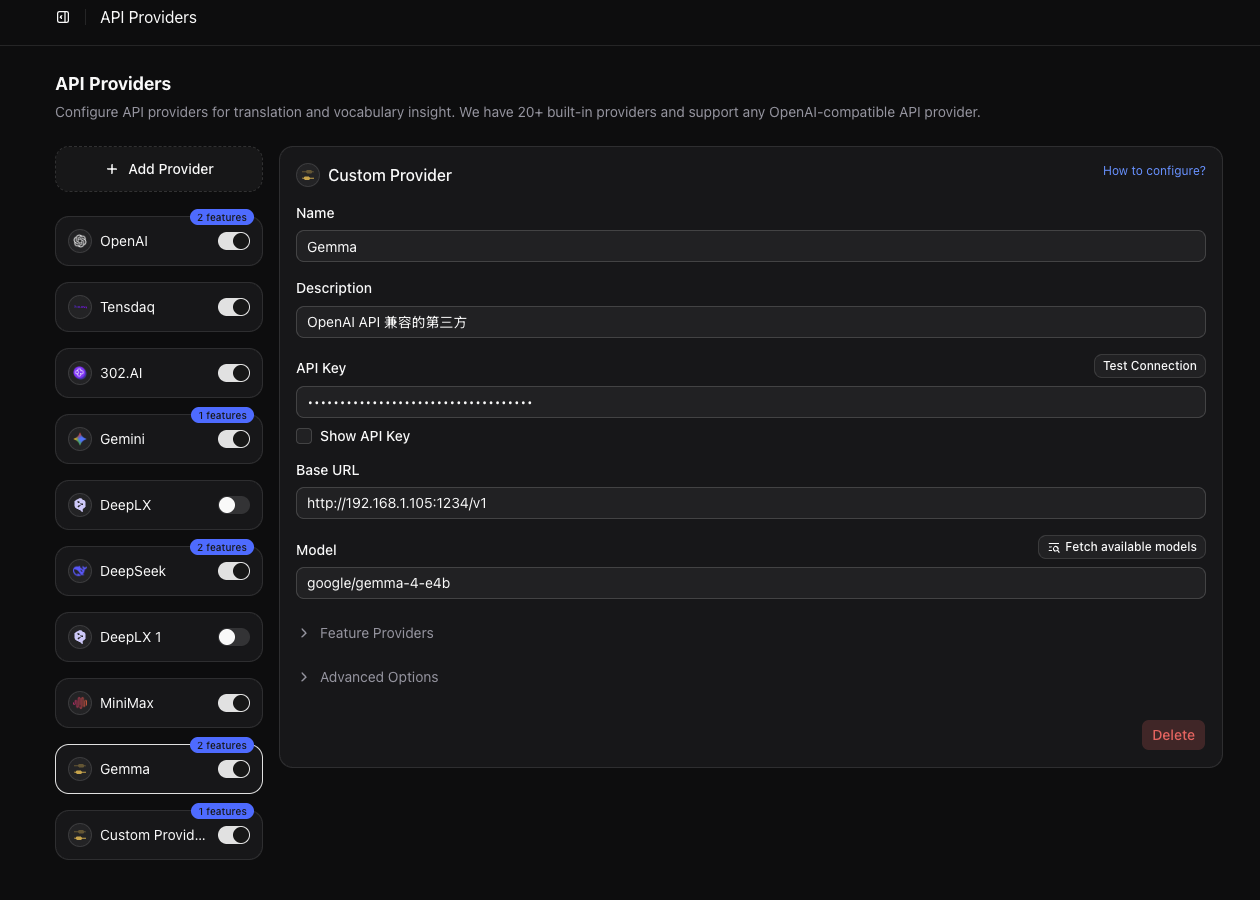
- Add an OpenAI-compatible custom provider
2. Fill in connection settings
If your LM Studio Local Server uses the default 1234 port:
{
  "baseURL": "http://localhost:1234/v1",
  "apiKey": "Paste the API Token created in LM Studio",
  "model": "Select a model with Read Frog's Fetch Models action"
}
If your Local Server port is not 1234, update the Base URL:
{
  "baseURL": "http://localhost:XXXXX/v1"
}
After configuring the Base URL and API Key, click Fetch Models in Read Frog to read the model list exposed by LM Studio Local Server, then select the model you want to use.
If you need to verify the model list manually, you can also use:
curl http://localhost:1234/v1/models \
  -H "Authorization: Bearer YOUR_LM_STUDIO_TOKEN"
If authentication is disabled, remove the Authorization header.
3. Test the connection
After saving the provider, click Test Connection. If it fails, check:
- LM Studio Local Server is running
- Base URL ends with
/v1 - The port matches the Server Port in LM Studio
- Enable CORS is turned on
- If Require Authentication is enabled, the API Key is your LM Studio token
- The loaded model identifier is correct
Disable Thinking Mode
Some models support thinking / reasoning mode, such as Qwen models. When enabled, the model may output reasoning content before the final answer. This can be useful for chat, but it can interfere with Read Frog's structured output and prevent translation information from being returned correctly.
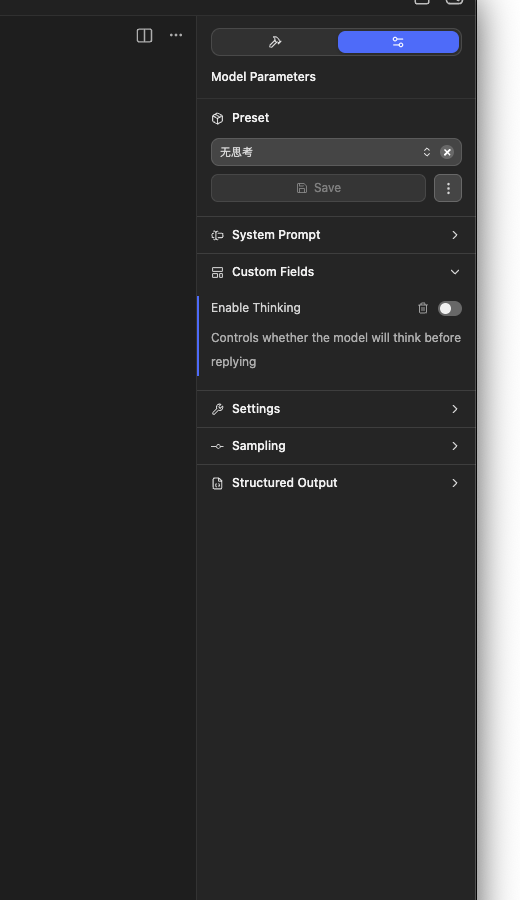
If translation contains reasoning text, output format becomes unstable, or JSON parsing fails, disable it in LM Studio:
- Open the configuration panel for the loaded model
- Go to Model Parameters -> Custom Fields
- Turn off Enable Thinking
- Save it as a no-thinking preset
- Reload the model or apply the configuration when prompted
The exact field name may vary by model. If you do not see Enable Thinking, the current model or runtime may not expose this option.
Troubleshooting
Browser extension cannot connect
Make sure Local Server is running and Enable CORS is turned on. Browser extensions usually need CORS support when calling a local localhost service.
401 or authentication errors
If Require Authentication is enabled, requests must include Authorization: Bearer <token>. In Read Frog, paste the LM Studio token into the API Key field.
Port cannot be reached
http://localhost:1234/v1 only works when the server port is 1234. If you configured another Server Port in LM Studio, update the Base URL accordingly.
LAN devices cannot access the server
If another device needs to access LM Studio, enable Serve on Local Network and use the LAN IP of the machine running LM Studio, such as http://192.168.1.10:1234/v1. This increases exposure, so Require Authentication should also be enabled.
Reading output has invalid format
Try disabling Thinking mode first, then switch to a model with better structured-output support. Some open-source models have weaker JSON-format reliability and may require a different model or simpler output requirements.