
Custom Prompts
The two pieces of text Read Frog sends to the model, where to edit them, and what breaks if you remove a placeholder.
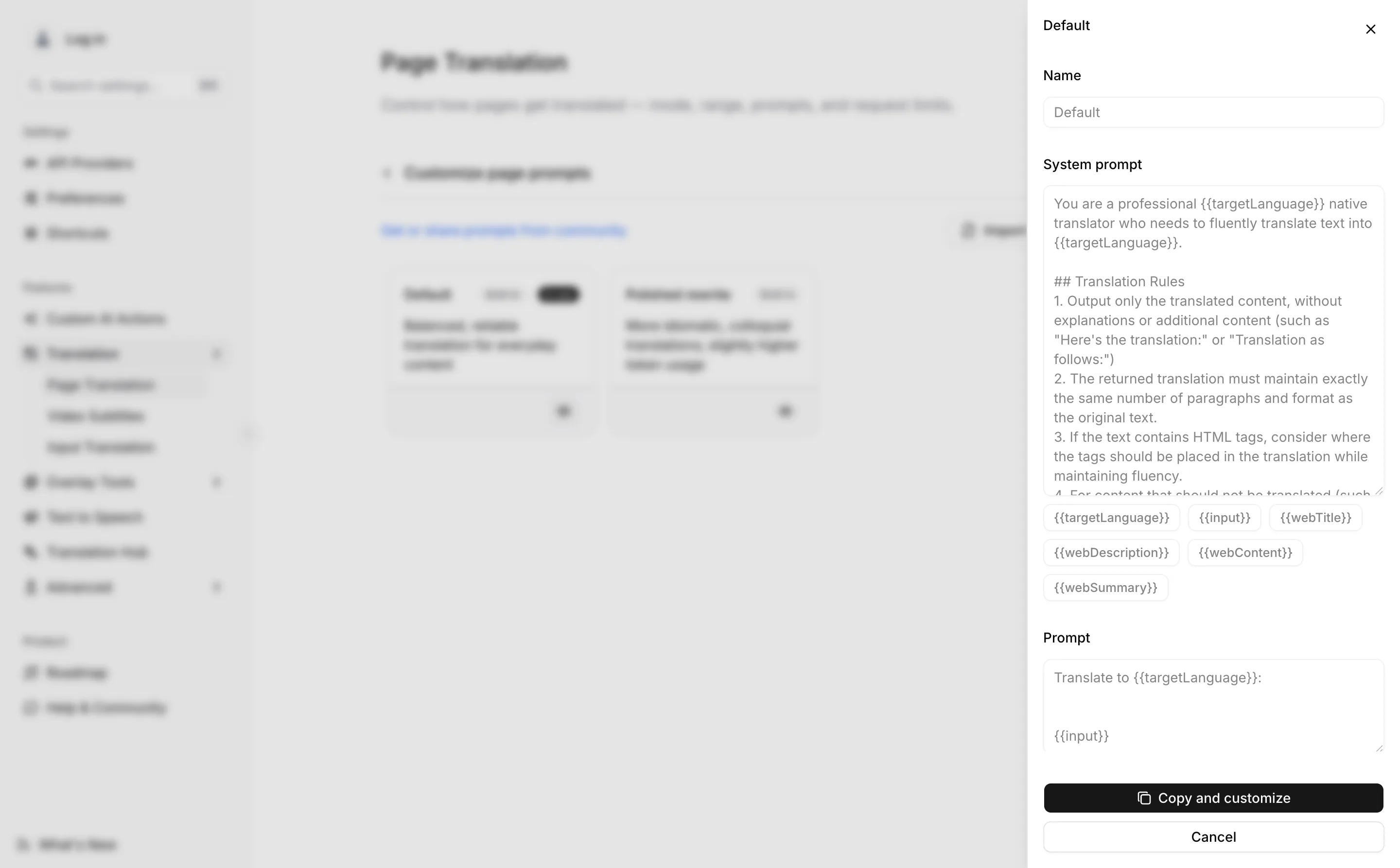
When page translation runs on an LLM provider, every paragraph is sent as a pair of texts: a system prompt that says what kind of translator the model should be, and a prompt that carries the paragraph itself. Read Frog ships both, and you can replace both.
This only applies to LLM providers. Google Translate, Microsoft Translator and DeepL take no prompt at all, so nothing on this page reaches them.
The two fields
| Field | What it is for |
|---|---|
| System prompt | The standing instructions: the role, the output rules, the page metadata offered as context. |
| Prompt | The per-request message. In every built-in prompt it is three lines long and its job is to carry the text. |
The default prompt field is exactly this, and nothing more:
Translate to {{targetLanguage}}:


{{input}}
The {{...}} pieces are variables. Read Frog substitutes them just before sending, so {{targetLanguage}} becomes Simplified Mandarin Chinese and {{input}} becomes the paragraph. Every variable, with a real sample value for each, is on the Prompt Variables page.
The built-in prompts
Page translation ships two. Video subtitles ships one.
| Prompt | Where | What it does |
|---|---|---|
| Default | Page, subtitles | Balanced and predictable. Four short rules, the page title and summary as context. |
| Polished rewrite | Page only | Translation as rewriting: reconstructs sentences into idiomatic target-language prose. Longer, so it costs more tokens per paragraph. |
Both are read-only. You cannot edit a built-in prompt in place — you copy it, and the copy is yours.
Where the editor is
For pages: Translation → Customize page prompts → Manage prompts. For video: Video Subtitles → Custom subtitle prompts → Manage prompts.
Each row is one prompt. A built-in row opens with an eye; your own rows open with a pencil.
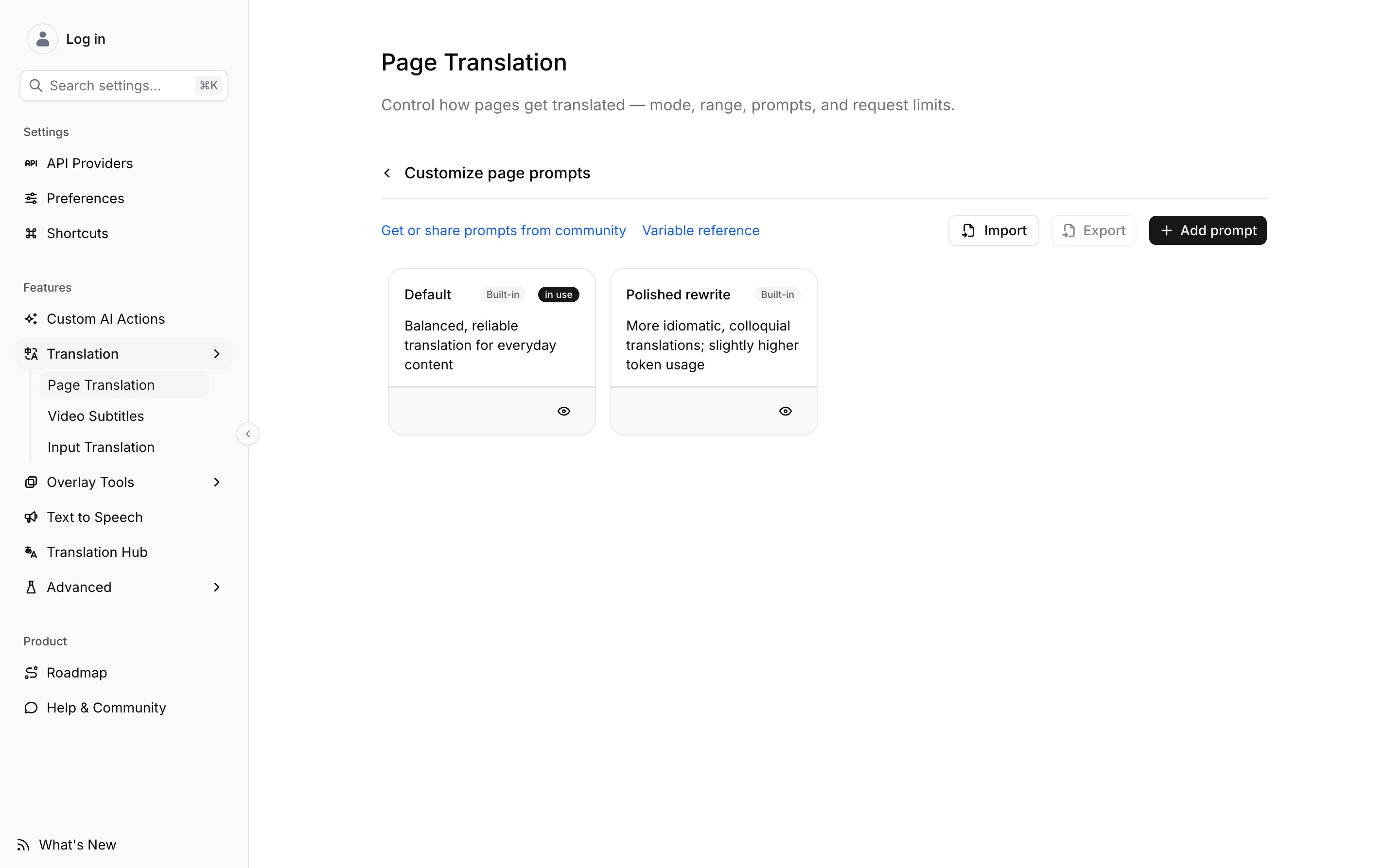
Opening one shows both fields, the variables it accepts as chips beneath the system prompt, and — for a built-in — Copy and customize instead of a save button.
The two lists are separate, and they take different variables — a page prompt has {{webContent}} and {{webSummary}}, a subtitle prompt has {{videoSummary}} instead. Copying text from one list into the other leaves variables that will never be filled in.
Copy and customize
Click Copy and customize. You get an editable copy named Default copy, and it becomes the
prompt page translation uses right away.
Edit either field. Under each one is a row of variable buttons — clicking one inserts that variable at the cursor, so you never have to type the braces yourself.
To go back, select a built-in prompt again from the list. Your copy is not deleted by switching away from it.
If you delete a placeholder
Nothing warns you, and nothing refuses to save. The fields are sent exactly as you left them, so a missing variable is a missing value.
The important one is {{input}}. Delete it from the prompt field and the model is asked to translate nothing:
Translate to Simplified Mandarin Chinese:What comes back is whatever an LLM says to that — an apology, a question, a stray sentence — and Read Frog renders it as the translation of your paragraph. Every paragraph on the page, since the same prompt is used for all of them.
Keep the input variable in the prompt field, and keep targetLanguage somewhere in one of the
two fields. The metadata variables are optional; those two are not.
Two related mistakes, both silent:
- Putting
{{input}}in the system prompt instead of the prompt. It will be substituted — Read Frog fills variables in both fields — but in batch mode the system prompt is identical for every request, so the model sees the paragraph in a place the instructions treat as standing context. - Writing a variable that does not exist, such as
{{sourceLanguage}}or{{url}}. Unknown names are left alone, so the model receives the literal characters{{sourceLanguage}}.
Editing a prompt clears cached translations
The finished prompt — after substitution, after the extra rule blocks, after your glossary terms — is part of the key Read Frog stores translations under. Change one character in either field and every cached paragraph translated with the old wording becomes unreachable, and the next visit to those pages pays for them again.
That is usually what you want: a prompt change that did not re-translate anything would look like it had no effect. Just expect the first page after an edit to be slower, and prefer to get a prompt roughly right in one sitting rather than in ten small edits. How a request is assembled sets out exactly what goes into that key.
Choosing a prompt per page
The extension popup has a prompt selector next to the provider, listing the built-ins and every prompt you have written. Switching there changes which prompt page translation uses from then on; it is the same setting as the one in Options, in a place you can reach mid-article.
Sharing prompts
Export writes the prompts you tick to a .json file — a plain list of name, systemPrompt and prompt, with internal ids stripped so an imported prompt never collides with one you already have. Import reads such a file back. Built-in prompts are not exportable; copy one first.
The Get or share prompts from community link above the list goes to the GitHub discussion where people post theirs.