
Simple mode
Turn off the Read Frog features you don't use. Each one disappears from web pages and menus, and comes back as it was when you turn it on again.
Read Frog does a lot, and you may only want part of it. Simple mode has a switch for each feature. A feature you turn off is as if it were not installed. Its settings are kept, so turning it back on brings it back the way you left it.
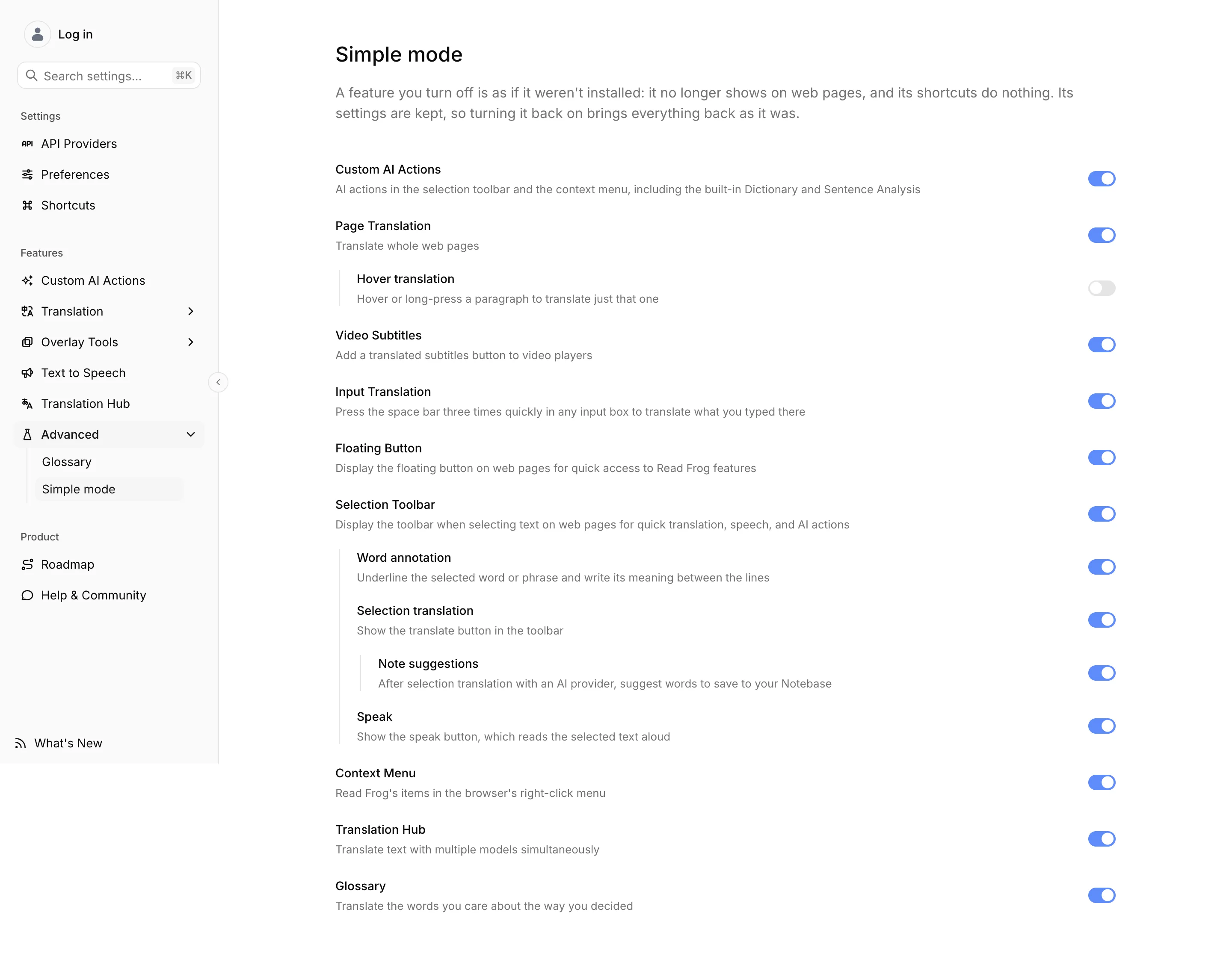
Open Options → Advanced → Simple mode.
What turning a feature off does
- It no longer shows on web pages.
- Its shortcuts do nothing. On the Shortcuts page, their rows get a Turn on button that leads back to the switch.
- It leaves the popup and the browser's right-click menu. The exceptions are two items in the menu for selected text: Translate "…" and Read aloud "…" answer only to the Context Menu switch, so they stay when Selection Toolbar, Selection translation or Speak is off. The popup's Providers list also keeps its Selection toolbar translation row, which Translate "…" runs on. Hover translation also stays in the popup while Page Translation is on: its Hover + … to translate paragraph row keeps the switch, so you can turn it back on there.
- Its pages leave the options sidebar, and a link to one of them opens its switch here instead. Two exceptions stay: the Custom AI Actions page, and the Page Translation pages, because selection translation, input translation and the Translation Hub also use Page Translation's prompts, translation queue and cache.
The switches
- Custom AI Actions: your AI actions in the selection toolbar and the context menu, including the built-in Dictionary and Sentence Analysis.
- Page Translation: translating whole web pages.
- Hover translation: translating just the paragraph you hover over or long-press.
- Video Subtitles: the translated subtitles button in video players. Once it is off, subtitles no longer start by themselves from the next video on, and the button and the subtitles shortcut go when you reload the page. They come back the same way: turn it on again, then reload the page.
- Input Translation: translating what you typed by pressing the space bar three times.
- Floating Button: the button docked to the edge of web pages.
- Selection Toolbar: the toolbar that appears when you select text.
- Word annotation: underlining the selected word or phrase and writing its meaning between the lines.
- Selection translation: the toolbar's translate button.
- Note suggestions: words worth saving to your Notebase, offered after an AI translation of the selection.
- Speak: the toolbar's button that reads the selection aloud.
- Context Menu: Read Frog's items in the browser's right-click menu.
- Translation Hub: translating text with several models at once.
- Glossary: your glossaries, in every translation that uses them.
Everything starts on except Hover translation.
Switches inside a feature
A switch indented under another belongs to that feature. Turning the feature off takes away everything under it too. Those switches grey out but keep their positions, so turning the feature back on brings each one back as it was.
The same switches are also on their feature's own page: Hover translation on the Page Translation page, and Word annotation, Selection translation, Note suggestions and Speak on the Selection Toolbar page. Hover translation is in a third place too: its Hover + … to translate paragraph row on the popup's main screen, shown while Page Translation is on. Wherever you flip it, it is the same switch.
From the popup
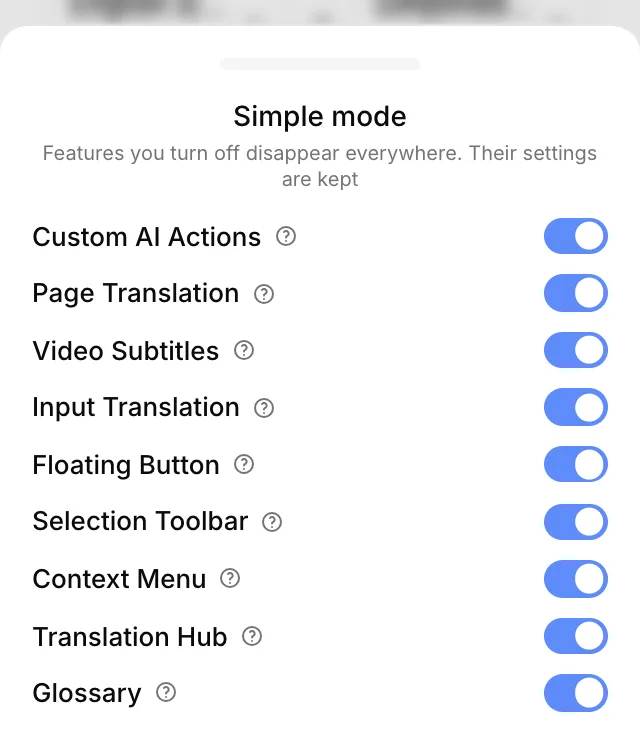
The Simple mode button at the top of the popup opens the top-level switches, so you can turn a feature off or back on without leaving the page you are reading. On that page, the subtitles button and a few shortcuts may need a reload before they follow the switch. The drawer has only those top-level switches. The ones inside a feature are in the options, except Hover translation, which is also on the popup's main screen.
Hiding the button or the toolbar everywhere
Choosing On all sites in the × menu of the floating button or the selection toolbar turns its switch here off. See Entry Points.
Simple mode or Site Control
Site Control decides which websites Read Frog runs on at all. Simple mode decides which features Read Frog has, on every website. For a site where Read Frog is in the way, use Site Control. For a feature you never use, use Simple mode.